Concepts
The words used on this site, and the ideas behind them. If you know Dynamo from Revit, most of this will look familiar.
Graph, script, node, wire
- A graph is what you build on the canvas: nodes joined by wires. Saved to disk it is a
.dycfile. A graph kept in a folder the Script Player knows is called a script. - A node is one step. It has inputs on the left, outputs on the right and does one job: add two numbers, search the model, colour some items, write a file.
- A wire carries a value from one node's output into another node's input. Reading a graph is following the wires.
- Data flows from left to right. A node runs only after every node that feeds it has run.
The same word has two meanings in Navisworks and in CamelGraph, so here is the difference: a Navisworks item (a ModelItem) is a thing in the model tree, such as a wall or a pipe. A CamelGraph node is a step in your graph. Many nodes take items in and give items out.
Where nodes come from
| Library | What it holds |
|---|---|
| General nodes | Maths, logic, text, dates, lists, dictionaries, tables, colours, geometry, files and folders, reports. They know nothing about Navisworks and also run on the command line. |
| Navisworks nodes | Everything that touches the open model: search, properties, selection, selection sets, appearance, viewpoints, camera, clash, TimeLiner, export. Grouped under Navisworks in the library. |
| Input and display nodes | Sliders, number, text, Boolean, date, choice, file and folder paths, a colour picker; and Watch nodes that show a value on the canvas. |
| Node groups | Reusable pieces of graph that you make yourself (Node groups). |
| Node packs | Extra libraries of your own or from others, loaded from %APPDATA%\CamelGraph\Packages when Navisworks starts (Writing your own nodes; Help ▸ Node Packs… opens the folder). |
The node library lists every built-in node with its inputs and outputs.
Inputs, outputs and their kinds
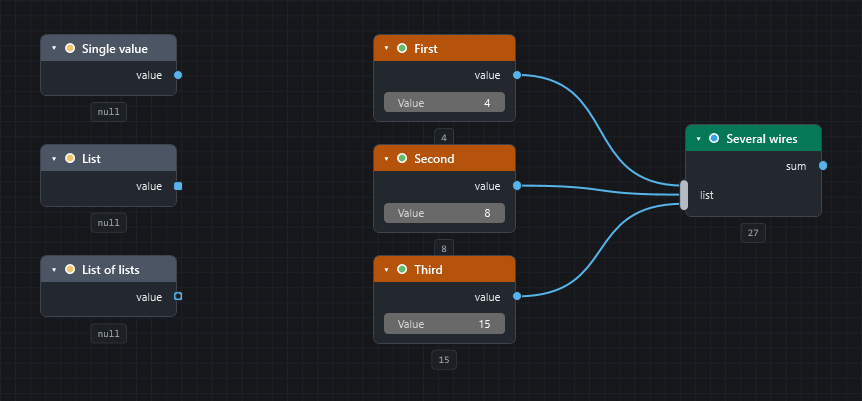
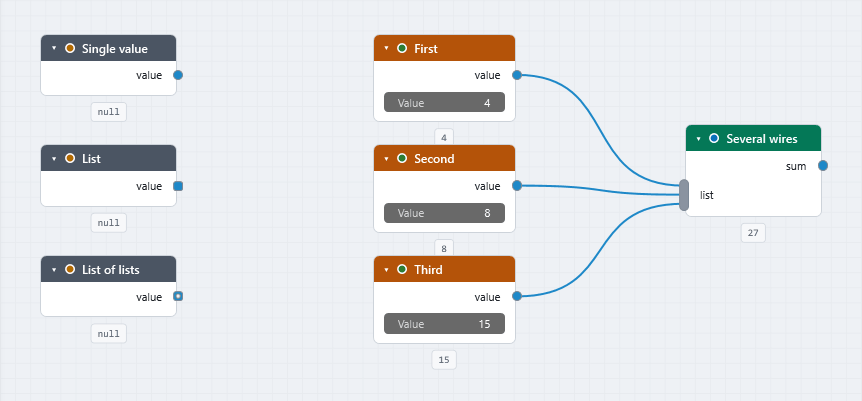
Every input and output has a kind (number, text, item, colour…). A socket is coloured by its kind, and its shape tells you whether it carries one value or a list. Where an input has nothing wired to it, it shows an editor of its own (a number field, a drop-down, a colour swatch…), or uses its default. All of this has its own page: Inputs, outputs and kinds.
Running
CamelGraph is a dataflow engine. When you press Run:
- Nodes are put in dependency order.
- A node that has not changed since the last run is skipped, and its stored outputs are used.
- A node that changed (or whose input changed) runs, and stores its outputs.
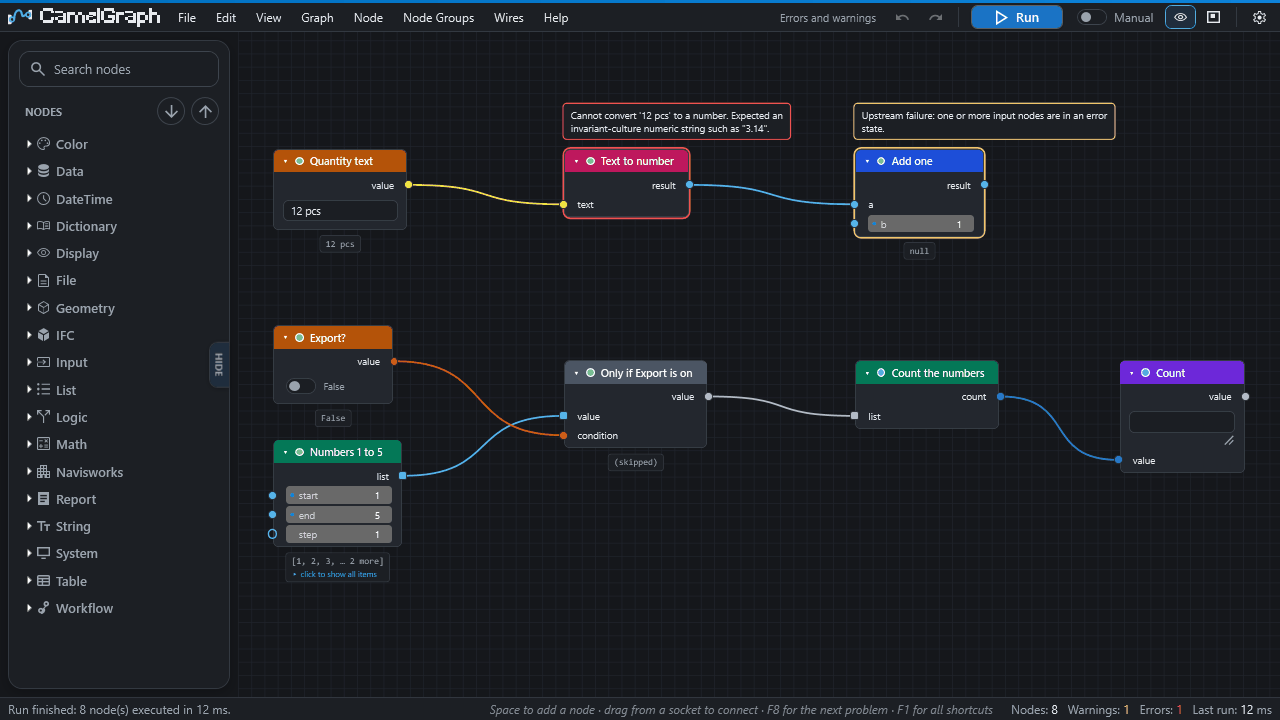
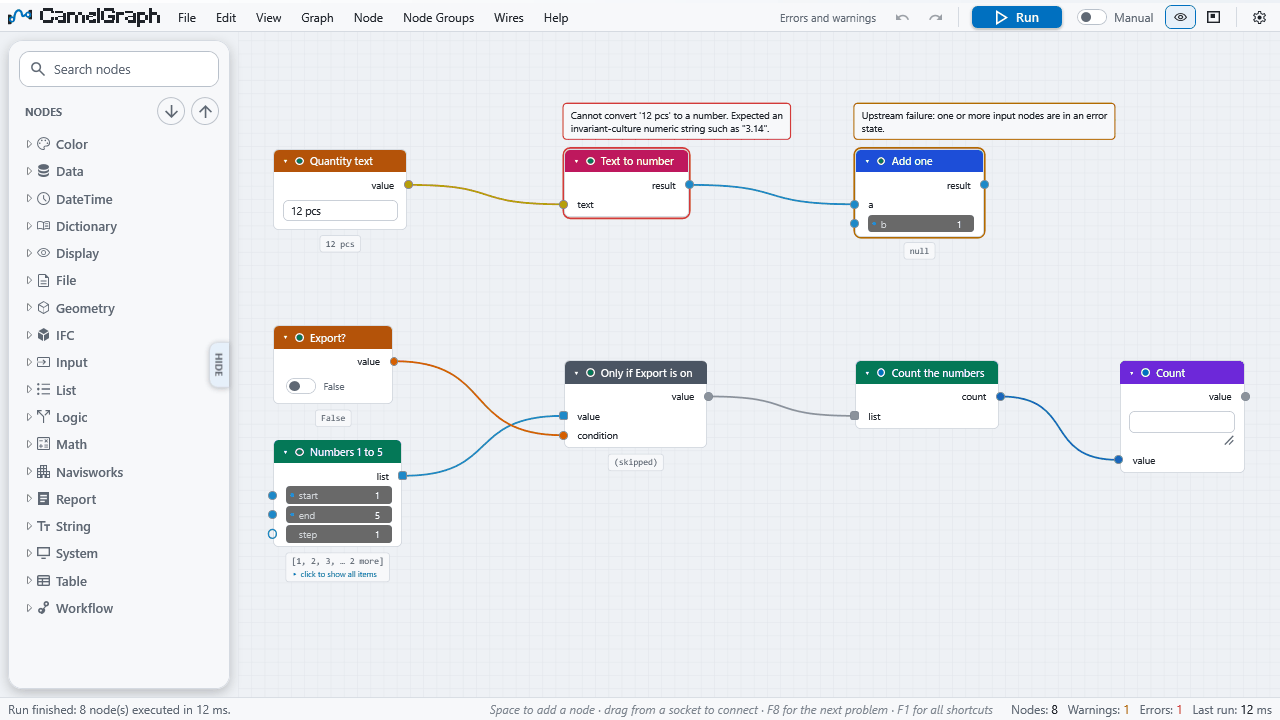
- A node that fails shows its own error and gives empty outputs. The rest of the graph carries on and Navisworks is never stopped.
Changing one value therefore runs that node and the nodes after it, nothing else. In Manual mode you press Run (F5); in Auto mode a run starts after every edit. Details, including how to stop a run, are in Running a graph.
Because runs happen on the Navisworks main thread, Navisworks is busy while a graph runs and the editor shows a progress overlay. Esc stops it between nodes.
Lists, replication and lacing
A list is an ordinary value in CamelGraph, and most power comes from lists.
Replication. Wire a list into an input that expects one value, and the node runs once per item and gives a list of results. The wire is drawn dashed to show it. No loop node is needed:
[1, 2, 3] ──▶ Math.Round(number) ──▶ [1, 2, 3]        (the node ran three times)
[1, 2, 3] ──▶ List.Count(list)   ──▶ 3                (this input already wants a list, so it takes the whole list)
Whether an input wants one value or a list is shown by its socket shape and by its tooltip. A list of lists wired into a one-value input runs the node once per item at the deepest level, and the result has the same nesting.
Inputs of kind Any do not run once per item by themselves
An input that accepts any value, such as the value of Search.ByProperty (a diamond socket), takes a whole list as one single value. To make it run once per item, right-click the socket, choose List Levels and then @L1 — items. See step 8 of Your first script.
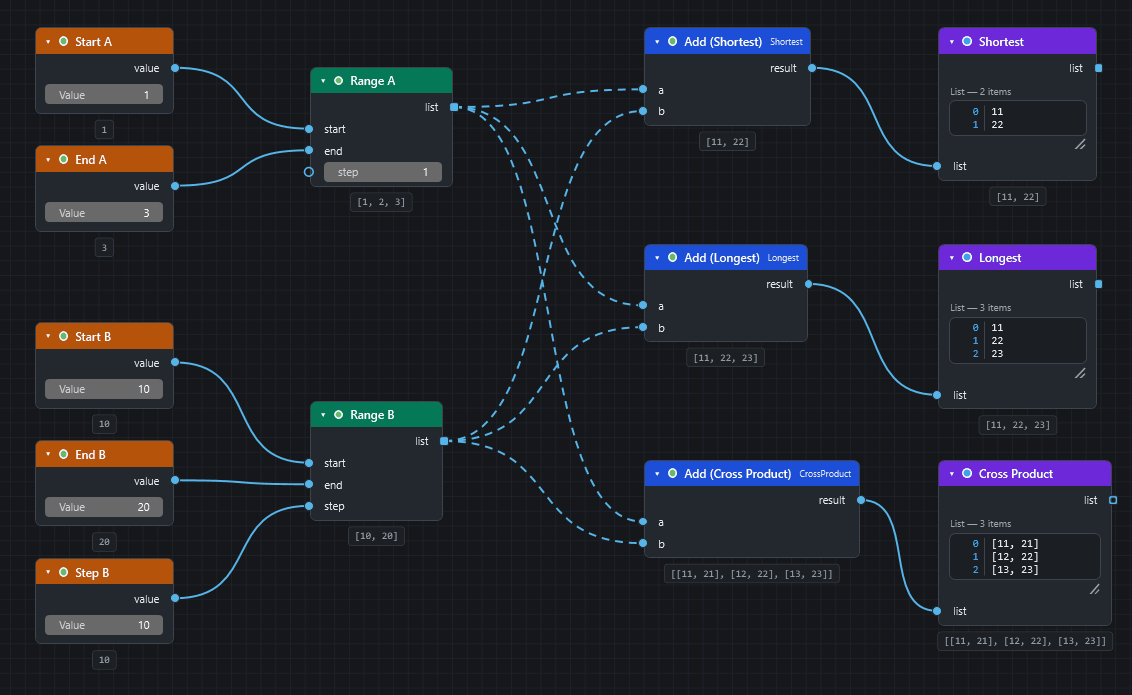
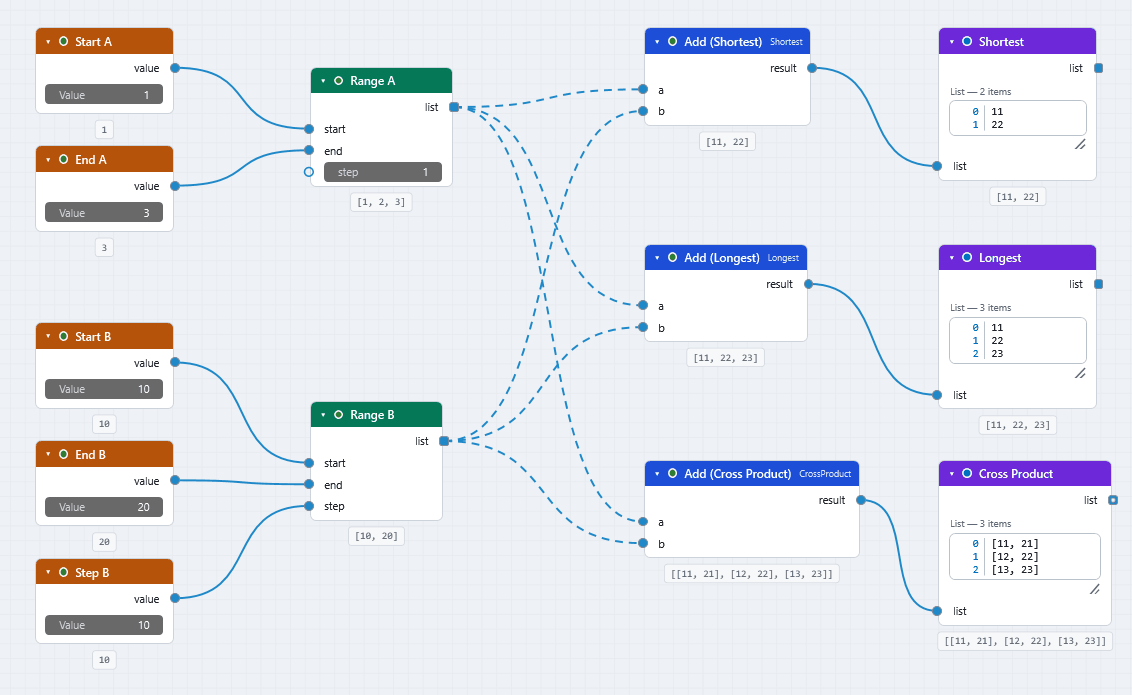
Lacing. When two inputs both receive lists, lacing says how they pair up. Right-click the node to change it. A small badge on the node shows a setting other than the default.
| Lacing | Pairing | [1,2,3] + [10,20] |
|---|---|---|
| Shortest (default) | Item by item, stopping at the shorter list | [11, 22] |
| Longest | Item by item; the shorter list repeats its last item | [11, 22, 23] |
| Cross-Product | Every combination, as a list of lists | [[11,21,31],[12,22,32]] |
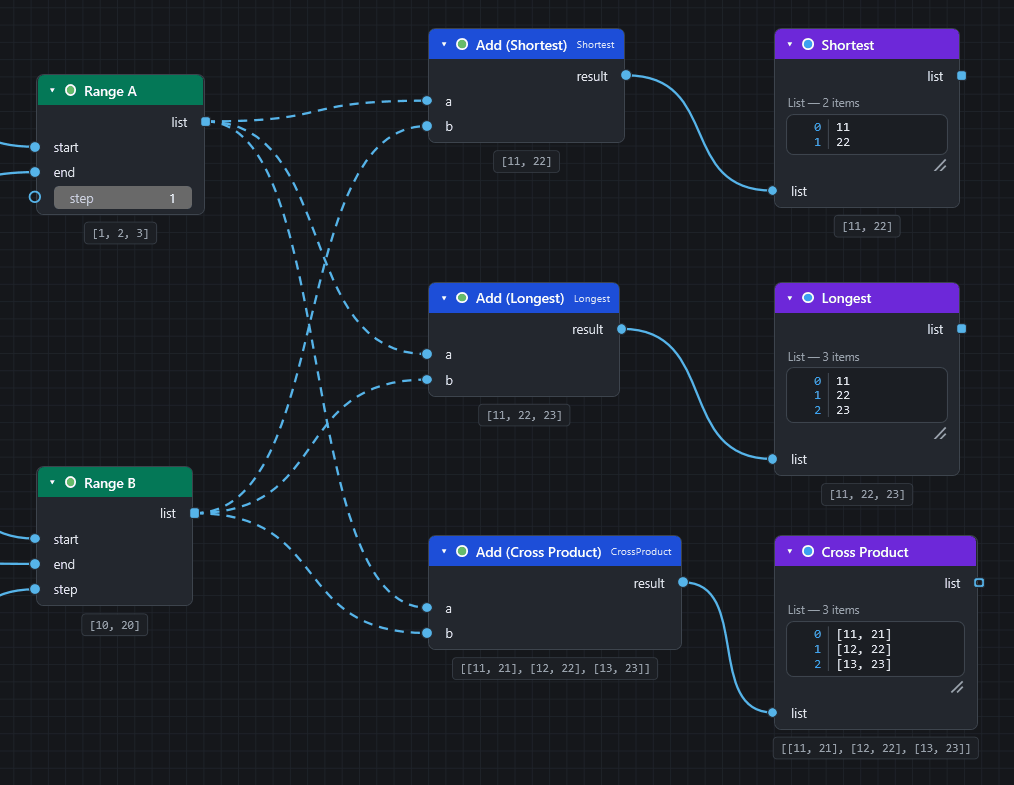
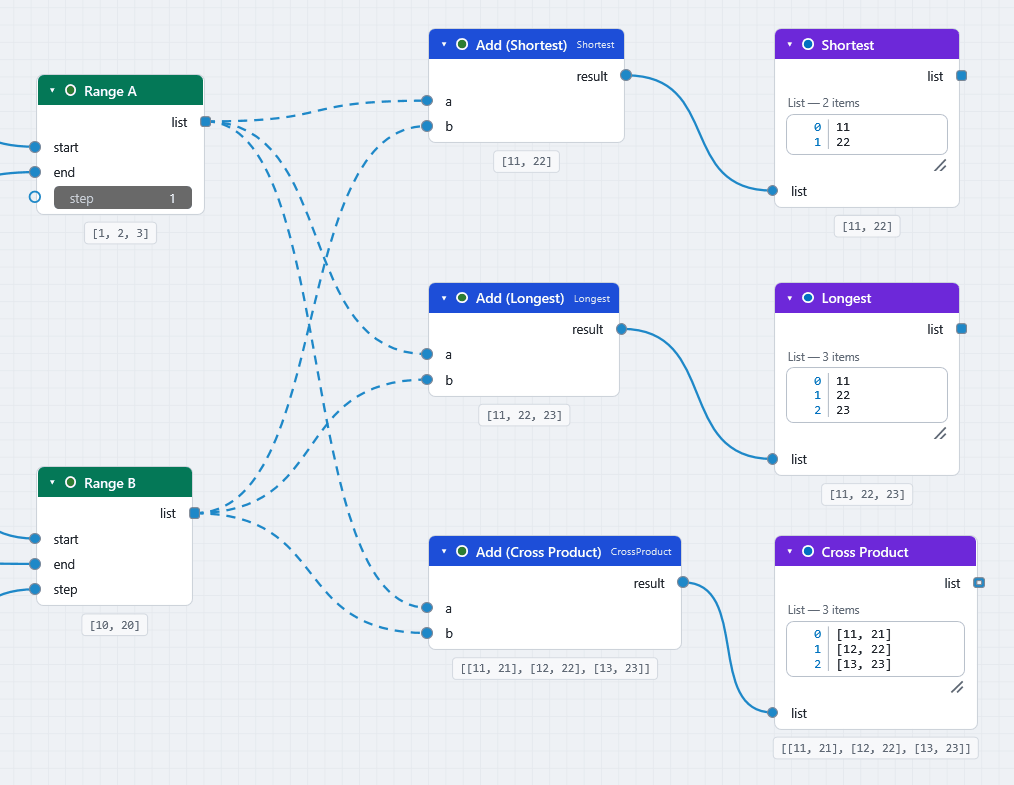
With the default Shortest, two lists of different lengths are paired only as far as the shorter one reaches: the extra items of the longer list are left out without a message, so check the counts (List.Count) when two lists should match. List.Zip is the exception and warns.
Rules of thumb: parallel lists that belong together, such as names and item lists, use Shortest. One list against one fixed value uses Longest (or just wire the single value; it is repeated by itself). "Try everything against everything", such as all colours against all searches, uses Cross-Product.
List levels (@L). With nested lists you can tell an input which depth to work at. Right-click an input socket and choose List Levels. Levels count from the innermost: @L1 is the individual items, @L2 the lists of items, and so on. An active port shows an @L2 badge. Keep list structure decides whether the result keeps the incoming nesting or flattens the outer levels. Many Navisworks item inputs swallow a whole list by default; @L2 on such an input gives one result per group without a loop.
Things that go wrong in a list. If some items fail while others work, each failed item gives an empty (null) result, the others still compute, and the node shows one amber warning that counts the failures. List.Clean removes the empties afterwards.
Many wires into one input
A pill-shaped socket accepts any number of wires. The node receives everything combined into one list, in the order the wires were made. It is used for item lists: drop several searches and the current selection onto one input of Appearance.OverrideColor and the node works on all of them together.
Doing things in order
A graph is a picture of data dependencies. When two nodes change the model and one must happen before the other, the order is not otherwise defined, so make it a data dependency:
- Wire the output of the first node into the second. Nodes that change the model pass their items through for exactly this reason.
- Or use
Flow.Then, which hands a value on only after other nodes have run: "set the section box, then save the viewpoint". Itsafterinput takes as many wires as you like. - Or wire the output of the first node into the
afterinput that the nodes which read or move the live view have (Camera.*,SavedViewpoint.Apply,SavedViewpoint.Update,Viewpoint.Save,Viewpoint.VisibleItems).aftercarries no data; it only makes the node wait.Export.ViewpointImagealso takes the viewpoint itself, so it applies the view and takes the picture in one step. - Lacing does not interleave steps. Over a list,
SavedViewpoint.Applyruns once for every viewpoint, and only after that does a followingExport.ViewpointImagerun once for every picture: you get the same picture of the last view again and again. For one picture per viewpoint wire the list of viewpoints into theviewpointinput ofExport.ViewpointImage(and put{name}in the file path), or use a loop. - Conditions.
Flow.Whenruns the nodes after it only when a condition is true; when false they are skipped and shown idle, not red.Flow.Trycarries on after a failure and gives your fallback plus the error text.Flow.Requireis the opposite guard: when its condition is false it stops with an error message of your own, and the steps wired after it do not run. Put it in front of a step that must not run on bad input. - Loops. Put nodes between
Loop.ItemandLoop.Collectand they run once per item, in order. This suits stateful jobs such as "isolate, zoom, save a viewpoint, next item".Workflow.ForEachdoes the same with ready-madeAction.*steps (wire them straight into itsactionsinput): choose it for a fixed list of steps with{name}naming, and the loop nodes when the work is built from ordinary nodes. A pass that fails does not stop the loop: its place in the results is empty, andLoop.Collectshows an amber warning with the number of failed passes and the first failure ("2 of 200 iterations failed. First: item 3: ..."). An item that aFlow.Wheninside the loop switches off adds nothing to the results. If the list itself comes from a node that failed, the loop does not run at all.Workflow.ForEachtreats a failing item the same way by default: its result is empty and the node shows one amber line naming the item and the action (setonErrortostopfor an error instead).
What a node changes
Nodes are of two kinds. Reading nodes only look at the model and compute (Search.*, Properties.*, Selection.Current). Writing nodes change something: the model (Appearance.*, SelectionSet.Create, Properties.SetCustom), a file on disk (CSV.WriteToFile), a program or the web (System.Run, Web.Post). CamelGraph marks the second kind, and asks before it runs a graph that came from a file and contains the riskiest ones (Privacy and safety). The node library says in each description what a node changes.
Node states
After a run every node carries a state, shown by its border and a badge: idle (not run, or missing an input), executed, warning (ran, with a recoverable problem) and error (failed). Muted, frozen and muted wire are things you set yourself. Running a graph explains each.
The .dyc file
A graph is saved as a small, versioned JSON document. It stores the nodes, their positions, the wires, the values typed into inputs, notes, bookmarks, lacing and node groups. It does not store results, so a graph you open computes afresh on its first run. See Saving and opening.
A .dyc file contains no program code. But the nodes in it do real work when it runs, so a graph is a program: run only graphs you trust.
Document
Most Navisworks nodes have a document input. Leave it empty and the node uses the active document, so the same graph works on whatever model you have open. Wire a document only when you work with several.
Next steps
- Inputs, outputs and kinds explains sockets, shapes and how values are converted.
- Running a graph covers Run, Auto, stopping, mute and freeze.
- Your first script puts these ideas to work in ten minutes.
- Glossary lists every term with a link.