Running a graph
Run, Auto and Manual
The run bar at the bottom of the editor has the Run button, a Manual / Auto switch and the status line.
| Mode | What happens |
|---|---|
| Manual | Edits only mark nodes as changed. Press Run (F5) when you are ready. Best on large models. |
| Auto | A run starts after every edit. A burst of edits, such as dragging a slider, gives one trailing run. The same switch is Graph ▸ Auto-Run. |
A run executes only what changed. CamelGraph marks the node you edited and everything after it as changed, and a run executes those nodes and serves the stored results of all the others. If nothing changed, nothing runs, and the status bar says "Run finished: 0 node(s) executed". A change of the active document, or models added or removed, marks every node as changed. The one exception is a node that reads the live state of Navisworks, such as the current selection: it runs on every Run, and the nodes after it run again only when what it read is different from last time.
A graph saved with run mode Auto is not run when you open it from a file. The status bar says so, and you press Run. That gives you the chance to look at what a graph from someone else will do first (Privacy and safety).
What happens during a run
- The nodes are put in dependency order (a node never runs before the nodes that feed it).
- For each changed node: its inputs are gathered (from wires, then the values you typed, then defaults), converted to the kind the node wants, replicated if a list meets a one-value input, and the node is called.
- The outputs are stored and the node gets its state.
- A node that throws is caught: it turns red with its own message, its outputs are empty, and the run goes on. A failing node never stops the run or Navisworks.
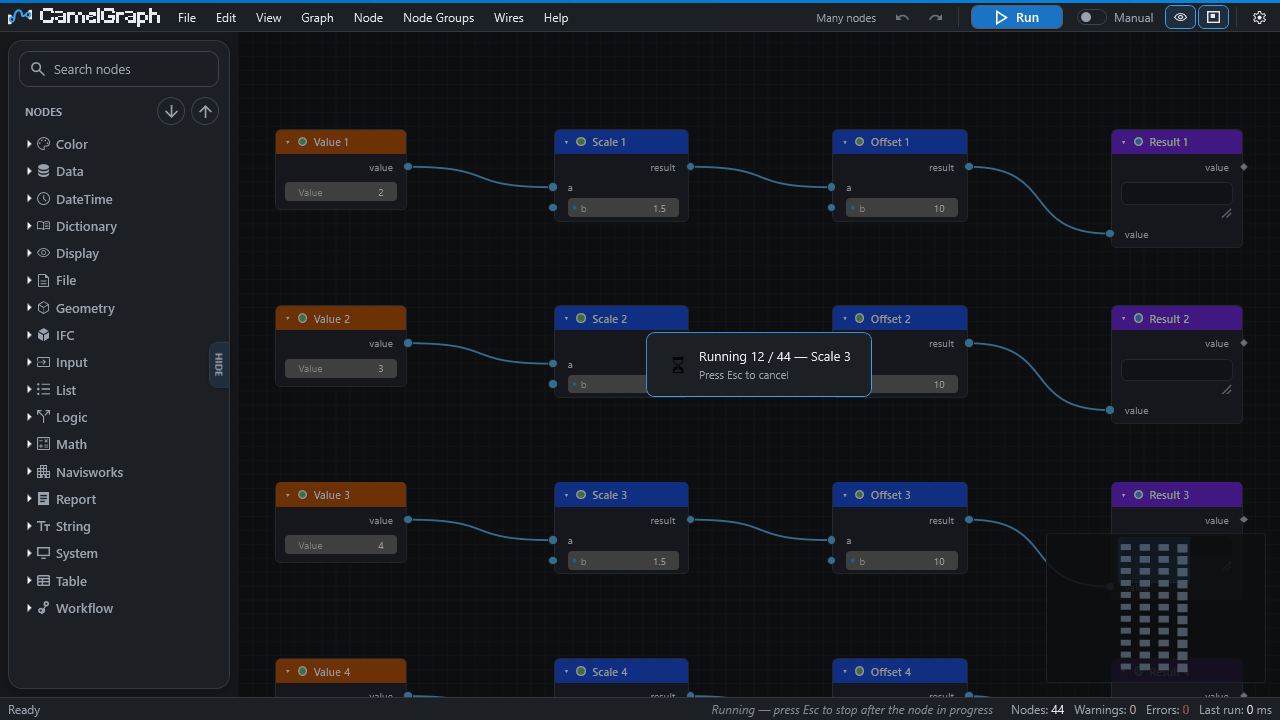
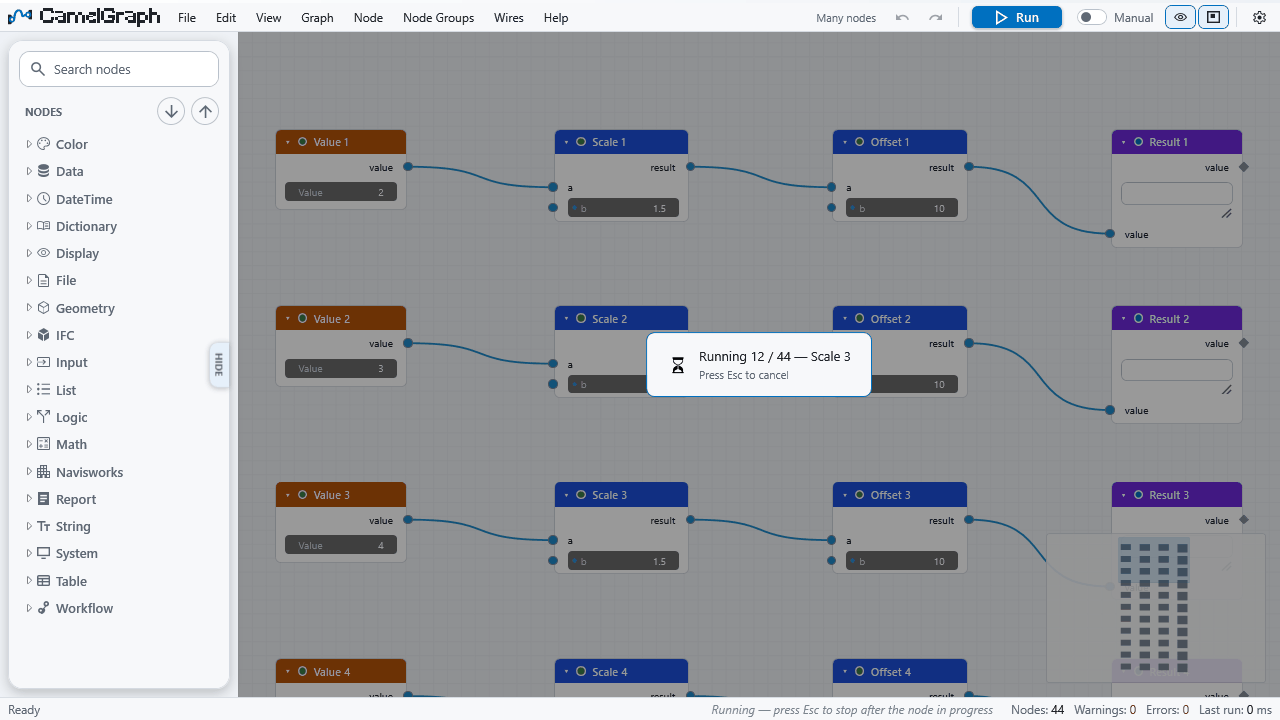
While a graph runs, the window says which node is working (12 / 40 - name; inside a node group the path is shown). Runs happen on the Navisworks main thread, so Navisworks is busy until the run ends.
Stopping a run
Press Esc (switchable in Settings ▸ Editing ▸ Esc cancels a running graph). The run halts:
- before the next node;
- between the items of a node that is working through a list;
- between the passes of a loop.
A single Navisworks call already under way cannot be interrupted. What nodes already finished changed in Navisworks is kept. A node or loop that was cut short keeps its previous results and waits, with everything after it, so the next Run carries on where this one stopped.
Running part of a graph
- Run up to a node (Shift+F5): runs only the selected nodes and what they depend on, then stops. Everything after them keeps its previous results and stays pending; the next ordinary Run finishes the job. Useful while you build a graph whose later steps are slow.
- Freeze (Shift+M, badge FROZEN): a frozen node and everything after it is skipped by runs and keeps its results from the last run, shown ghosted. Use it to stop a slow branch from recomputing while you work elsewhere. Shift+M again unfreezes.
- Mute (M, badge MUTED): the node is bypassed. Each output passes the first input of a matching kind straight through, the node counts as done, and everything after it still runs on the passed-through data. Use it to switch a step off inside a live chain, such as a filter or a recolour.
- Mute a wire (hold Ctrl while cutting): only that connection is ignored and the input uses its own value instead. A quick way to switch a branch off without deleting it.
- Flow.When: nodes after a
Flow.Whenwhose condition is false are skipped and shown idle.
Mute, freeze and muted wires are undoable and saved with the graph.
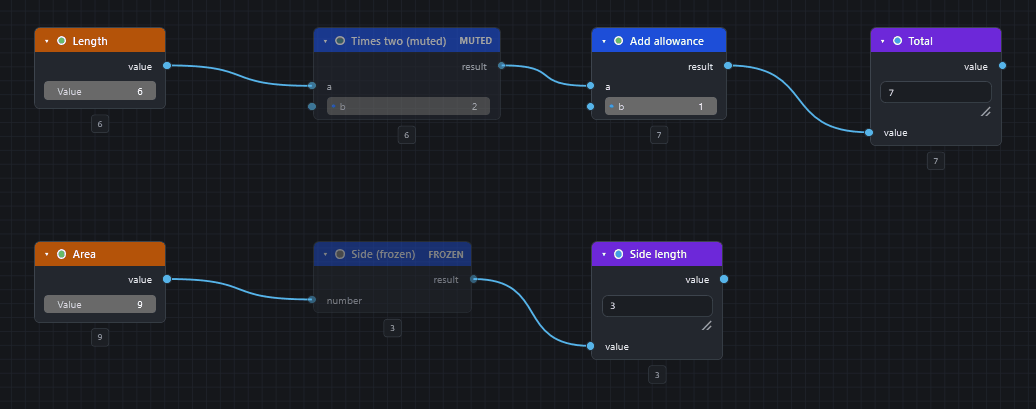
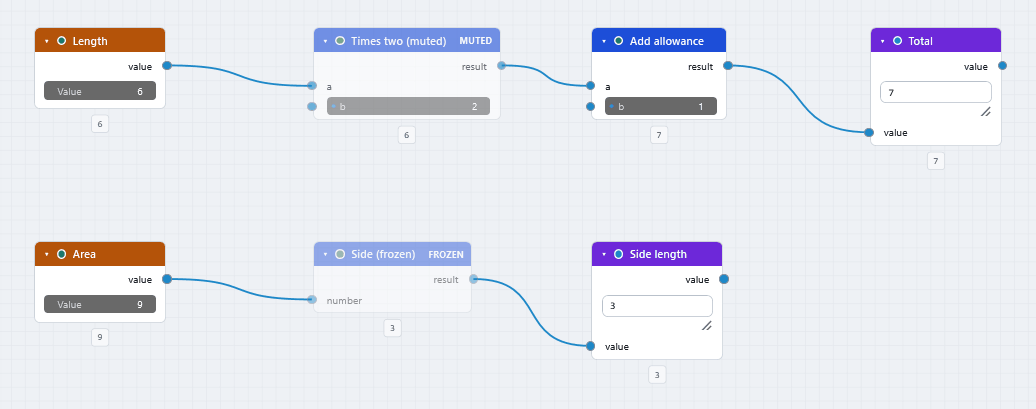
Mute or freeze?
Mute a step you want switched off while the rest still runs, such as a recolour. Freeze a slow branch you do not want recalculated while you work elsewhere.
Node states
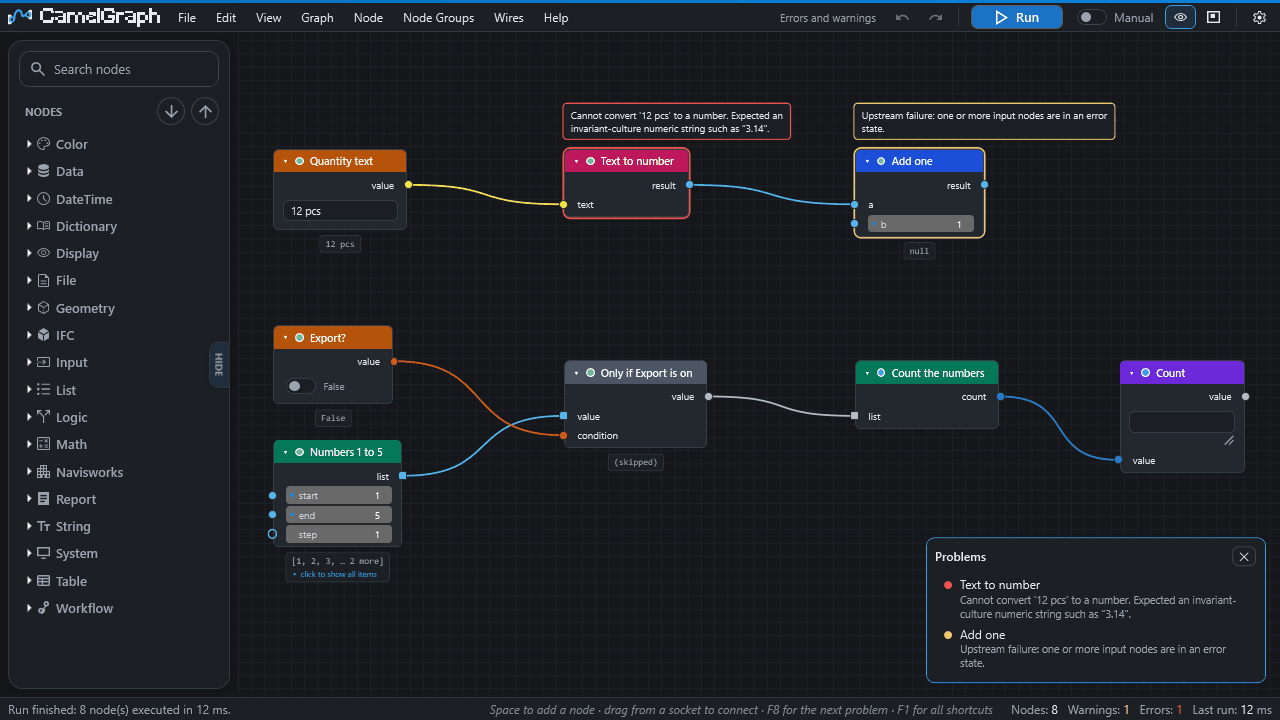
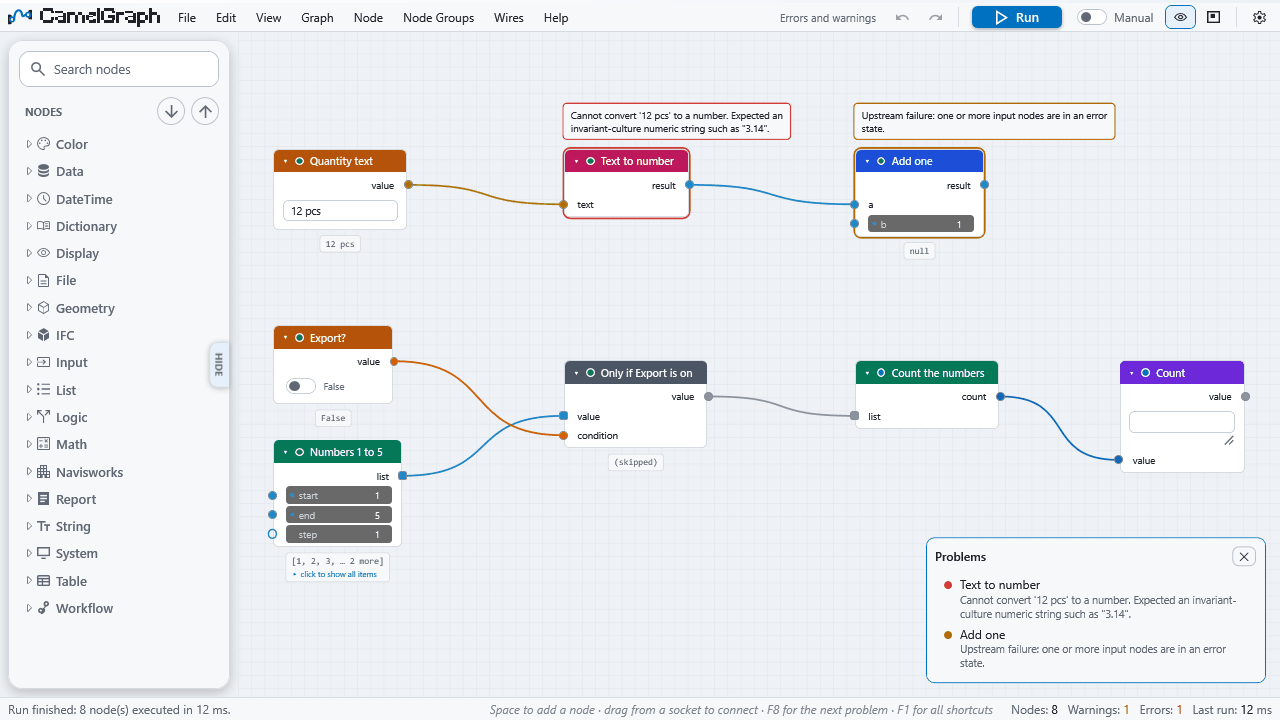
After a run, the border and badge of each node show its state. Hover the node, or read the balloon above it, for the message.
| Look | State | Meaning |
|---|---|---|
| none / grey | Idle | Not run yet. Or a required input is empty ("Input 'x' is not connected."). Or an input comes from a branch that was switched off ("Skipped: an input comes from a branch that was switched off (Flow.When was false)."). Not an error. |
| green | Executed | Ran fine. |
| amber | Warning | Ran with a recoverable problem: a property missing on 12 of 500 items (those results are empty), some items of a list failed, or an input node before it failed ("Upstream failure…"). |
| red | Error | The node failed (or cannot be found). Its message is the node's own error text. Nodes after it wait until it is fixed. |
| ghosted, FROZEN | Frozen | Held, with stale values. |
| bypassed, MUTED | Muted | Passing data through. |
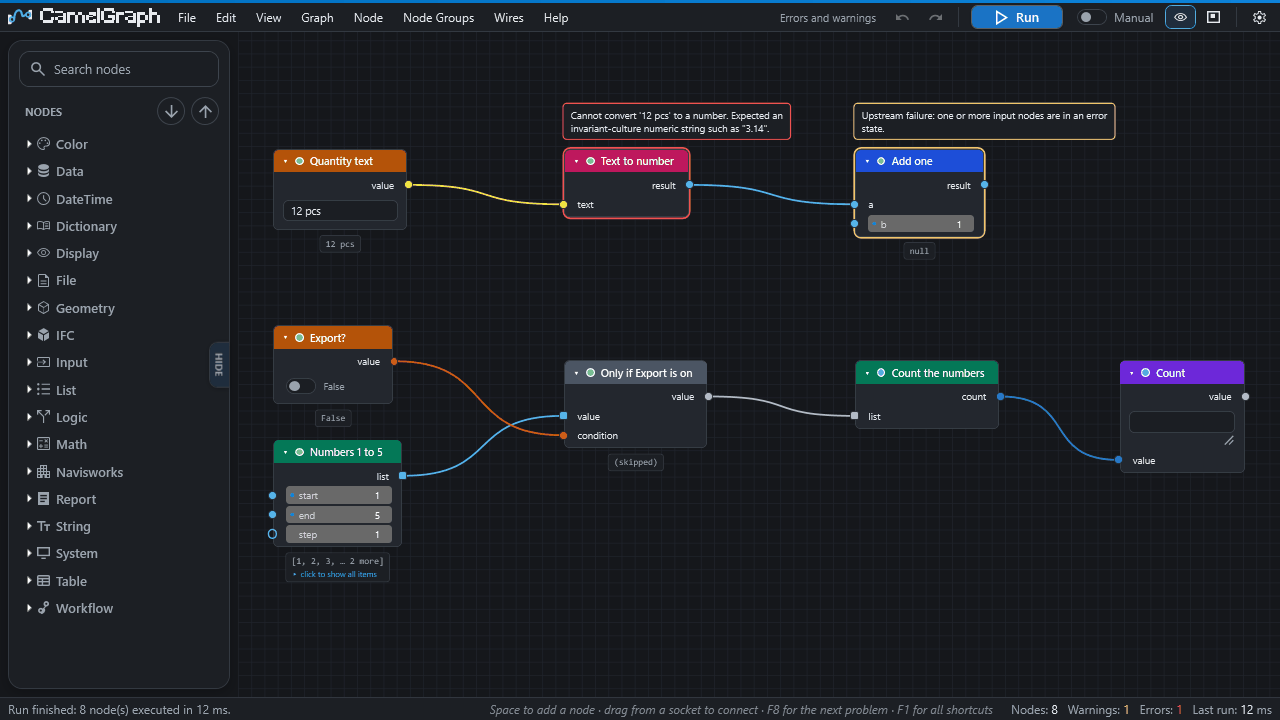
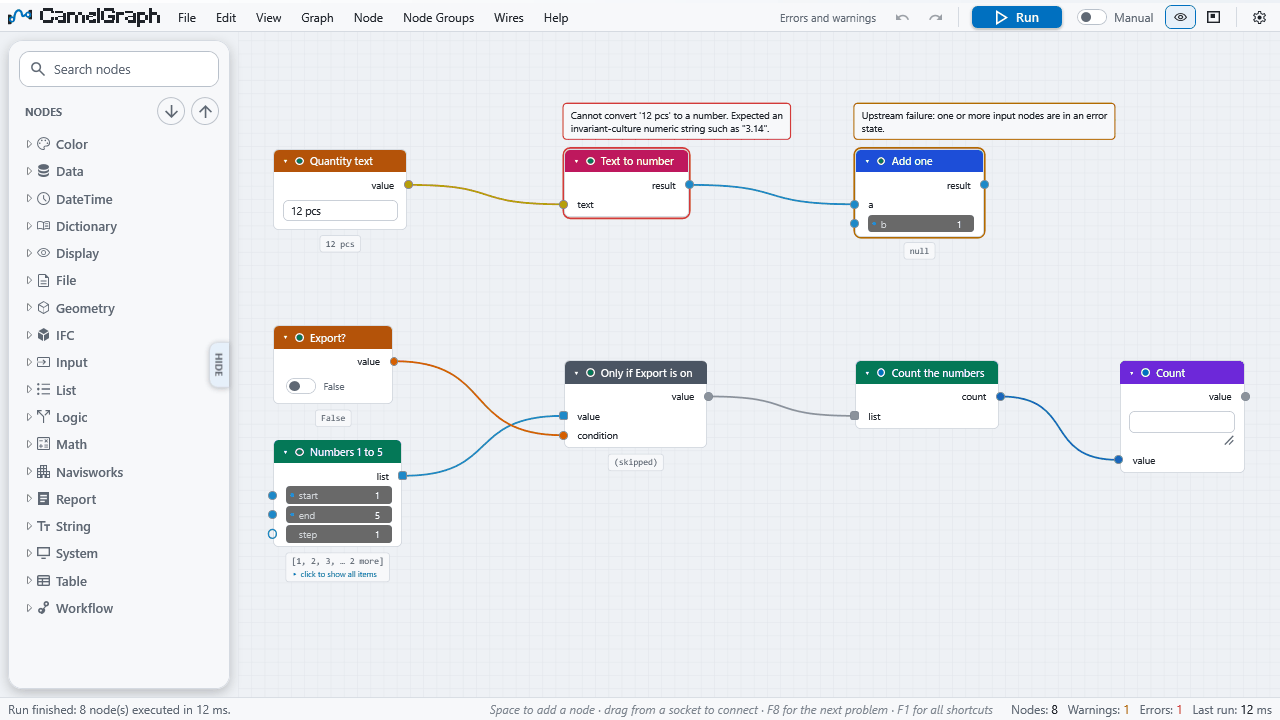
Finding out why
- The Errors and Warnings counts in the status bar are buttons (or press Ctrl+Shift+E). They list every node that failed or warned in the last run, errors first. Click a row to select the node and bring it into view. F8 and Shift+F8 step through them.
- Select a node and press I (Why Didn't This Run?). The status bar explains in words whether the node is frozen, sits after a frozen node, is muted, failed (and with what), is waiting for an input, or is just waiting for the next Run, and names the node responsible when it is another one.
- Put
Flow.Tryafter a node that may fail: it gives your fallback plus the error text, and nothing after it turns red.
See also Troubleshooting: Nothing happens when I press Run.
Speed on large models
The status bar shows the time of each run and, when a run takes a second or more, the slowest node. To keep a run fast:
- Switch Auto off on big models and run with F5 when you are ready.
- Freeze a slow branch, or run up to the node you are working on.
- Pass nodes a smaller list of items where you can. Some nodes touch every item of the model and say so in their description, for example
Model.StatisticsandSearch.ByGuid("walks every item of the document once"),Appearance.Focus, andDistance.BetweenItemsandProximity.NearestDistancewithmethodset tomesh. Preferbboxwhere it is accurate enough. - A loop runs its body once per item, so a slow node inside it is slow once per item.
- On very large graphs (many nodes, not many items), turn on Settings ▸ Canvas ▸ Straight wires.
- The Performance HUD (View ▸ Performance HUD) measures the canvas, not the model: frames per second, frame time, visuals and node counts.
Changing the model, and undoing it
Nodes that change the model do so in the open Navisworks document. Many are real overrides (a colour, a hide, a transparency) saved with the file, and Appearance.Reset or Appearance.ResetAll undo them from a graph. Others are temporary overrides that live until you reset or close the view.
Save the model before you try something new
Whether a single Navisworks Undo reverses a whole run has not been checked.
- The editor's own Undo (Ctrl+Z while the pane has the focus) changes the graph only, and says so.
- A run is not atomic. If it is cancelled or a node fails, nodes that already ran have already changed the model.
Running without the editor
- The Script Player runs a saved graph from a form built out of its input nodes.
- The add-in plugin
CamelGraph.Run.DYNCruns a script by path, for other add-ins, the Navisworks Automation API (ExecuteAddInPlugin) and the Batch Utility:Execute("C:\\Scripts\\audit.dyc"). It returns0when no node failed and1otherwise, and applies the same confirmation as the Player. In an unattended run nobody can answer that question, so run the script once by hand in the Player first. - The command line tool
CamelGraph.Cli(built from source) runs graphs that use only the general nodes, with no Navisworks:dotnet run --project src/CamelGraph.Cli -- run samples/hello-math.dyc. It exits with0when no node ended in the error state,1when at least one did, and2for unreadable input. It never asks before running a graph.
Next steps
- Read errors and warnings is a short walk through the Problems list and the messages.
- Speed up a slow graph turns the tips above into steps.
- Keep a graph going when a node fails shows
Flow.Tryin a graph. - The Script Player runs a saved graph from a form.