Saving and opening scripts
A CamelGraph script is saved as a small .dyc file that you can keep, copy and send to a colleague.
This page covers the File menu, how CamelGraph protects unsaved work, where to keep scripts so the Script Player finds them, and what to know before you share one.
What a .dyc file is
A .dyc file is plain text (JSON) with a version number. It stores the script itself: the nodes and their positions, the wires, the values you typed into inputs, notes, frames, lacing settings, mute and freeze marks, bookmarks, the script's name and description, whether it is set to run automatically, and which nodes and inputs the Script Player shows. If the script uses node groups, the groups are stored in the file too.
It does not store results, and it does not contain your model. A script works on whichever Navisworks model is open when you run it, so one script serves every project. The exception is elements you pinned on a node input with Use selection and the Captured Selection node: they are stored with their position in the model tree and their GUID, and when the model is another project they are looked up by GUID; the ones that are not found are reported as a warning on the node ("3 of 10 picked elements were not found") and left out, so pick or capture again for each project. When you open a script, every node starts "not run yet" and calculates when you press Run. If you switch to a different document in Navisworks, CamelGraph marks every node out of date, so the next run recalculates the whole script against the new document.
The File menu
| Command | Shortcut | What it does |
|---|---|---|
| New | Ctrl+N | Starts an empty script called "Untitled". |
| Open… | Ctrl+O | Opens a .dyc file you choose. |
| Recent Files | The ten files you opened or saved most recently, newest first. A file that no longer exists is removed from the list when you try it. | |
| Sample Graphs | The example scripts that ship with CamelGraph (see Sample scripts). | |
| Save | Ctrl+S | Saves to the current file. A script that has never been saved asks for a name, like Save As. |
| Save As… | Ctrl+Shift+S | Asks for a file name. The suggested name is the script's name. |
Other ways in and out:
- Drag a
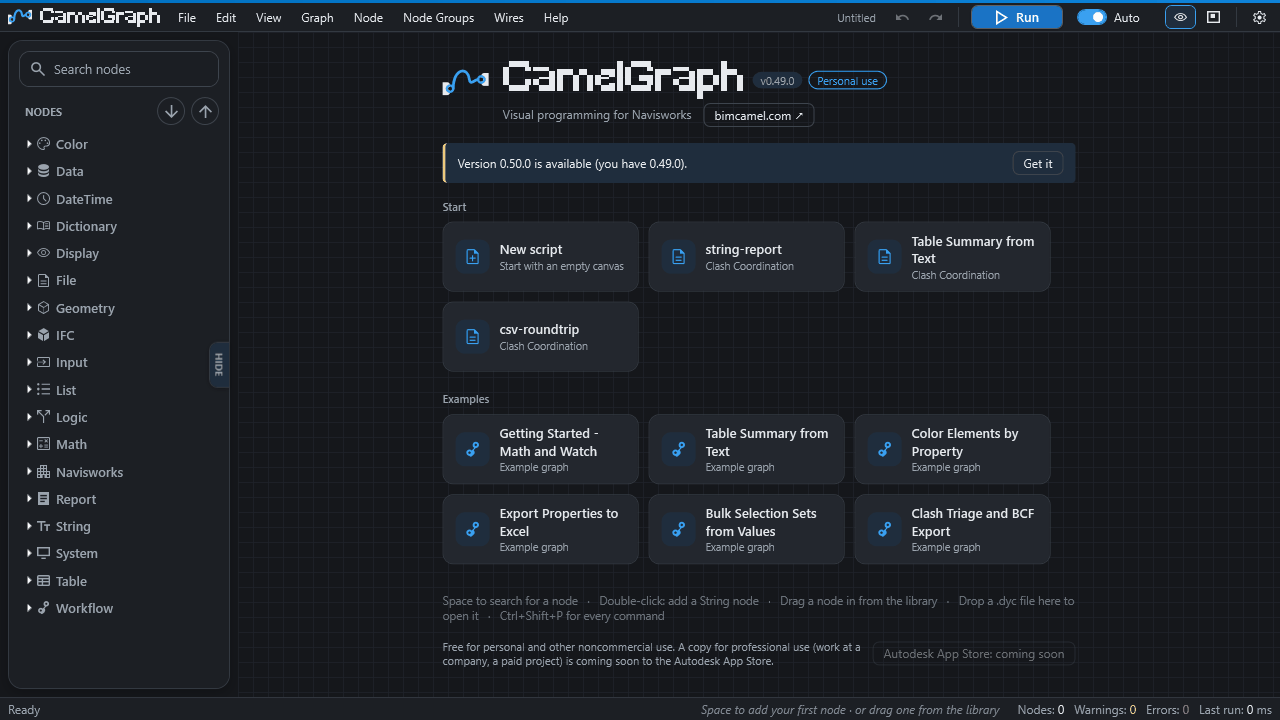
.dycfile from Windows Explorer onto the canvas to open it. Only.dycfiles are accepted; if you drop several files, the first.dycis opened. - On the start screen, the cards for recent scripts and examples open them with one click.
- Rename Graph (F2, Graph menu) renames the
.dycfile on disk. For a script that has not been saved yet, it works like Save As. - The sample scripts open as read-only templates: Save asks you for a new name, so the shipped sample is never overwritten.
After a successful open or save, the status bar confirms it. If a node has been changed since the script was saved so that some wires or typed-in values no longer fit, the status bar says how many connections or values could not be restored.
The modified marker and the save prompt
A * after the script's name in the header (next to the buttons; the name is hidden when the pane is very narrow) means there are unsaved changes. Saving removes it. If you undo back to the state you saved, the * stays on purpose, to be on the safe side.
New, Open…, opening a recent file, opening a sample, and dropping a .dyc file on the canvas all check first. When something is unsaved, CamelGraph asks "Save changes to '…' before continuing?" with Yes (save first), No (go on without saving) and Cancel. A cancelled or failed save cancels the whole action, so nothing is thrown away by accident.
Autosave and recovery
Closing the editor pane cannot show a question, so CamelGraph keeps a safety copy instead.
- Autosave (on by default; Settings ▸ Editing ▸ Autosave unsaved work) writes a copy of a script that has unsaved changes about once a minute, and once more when the pane closes. It does not write during a run. The copies live in the folder
%APPDATA%\CamelGraph\recovery. - The next time the editor opens on an empty canvas, CamelGraph offers the work back: "CamelGraph found work that was not saved when the last session ended … Restore it?" Answer Yes to restore it, or No to throw it away. Either answer deletes that safety copy, and so does saving normally.
- A restored script counts as unsaved until you save it. If its original file still exists, Save writes back to that file; otherwise it asks for a name.
- Safety copies older than 14 days are deleted without asking. A copy that belongs to another Navisworks window that is still open is left alone.
Autosave protects you from a crash or a forgotten Save. It is not a version history: keep your own copies of important scripts.
Autosave is not a backup
A safety copy is deleted when you save, and also when you answer No to the restore question. Keep a saved copy of any script you cannot afford to lose.
Script description and the scripts folder
Graph ▸ Script Description… lets you type what the script does. The text is saved in the file and shown above the form in the Player.
The Script Player looks for scripts in the folder Documents\CamelGraph\Scripts (your own Documents folder) and its sub-folders, down to four levels. Save scripts you want to run from the Player there, or add other folders, such as a shared network folder, in the Player itself. The editor's Save As dialog does not default to that folder, so browse to it the first time.
Sharing a script
Before you send a script
Add a Script Description and a few notes, and replace paths such as C:\Projects\… with ones the other person has. Open the file in a text editor first: it can hold file paths, names and values.
A .dyc file is small and can be emailed, put on a shared drive or kept in version control. Before you send one, think about what the other person needs:
- CamelGraph itself, in the same or a newer version. A file asks for a minimum file-format version; an older CamelGraph that cannot read it says so instead of opening it wrongly. In particular, older versions refuse a file that contains node groups rather than silently dropping them.
- The same nodes. Everything that ships with CamelGraph is available to anyone who has it installed. Nodes from a node pack that someone wrote (Writing your own nodes) must be installed on the other computer too.
- Paths that exist there. A
File PathorDirectory Pathnode saves the path exactly as it was chosen, so a path such asC:\Projects\…will not exist on another computer. Change the paths, or let the person set them in the Player. - A short description and notes, so the next person knows what the script does and which inputs to set. Add a Script Description and a few notes on the canvas.
What happens when someone opens your script
A script is a small program, and CamelGraph treats a file that came from somewhere else with care. When you run a script opened from a file, and it contains nodes that start other programs, use the network, write, delete, move or overwrite files, or change the Navisworks model, CamelGraph lists those nodes, says what each one does and asks whether to go ahead. You are asked once per file, and again only if the file changes. Scripts you build in the editor and the built-in samples never ask. A script saved with Auto on starts running as soon as it opens, but if it came from a file and contains such nodes, CamelGraph waits for you to press Run and say so in the status bar.
You can turn the question off in Settings ▸ Editing ▸ Ask before running graphs from files, but the safer choice is to leave it on. The Script Player asks a similar question for scripts that change the model or write files. See Privacy and safety.
Missing nodes
If a script uses a node that is not installed (a pack you do not have, or a node from a newer CamelGraph), the script still opens. The missing node appears as a placeholder in the error state whose message says which node could not be found. Its wires still attach, and everything about it is kept: when you save, the placeholder is written back with all its original data, so nothing is lost. Install the missing pack, or the newer CamelGraph, and open the file again. In the Script Player, a script with missing nodes is listed with a note such as "1 node is not installed, so this script cannot run".
Nodes that CamelGraph has retired in newer versions keep loading and running in old scripts, so scripts you made earlier continue to open.
Where CamelGraph keeps its own files
Everything CamelGraph stores about you is under %APPDATA%\CamelGraph: your settings and recent files (ui-settings.json), the autosave folder (recovery), and a log of caught errors (errors.log). Your .dyc scripts are never stored there; they are wherever you saved them. See Privacy and safety.
Next steps
- The Script Player runs a saved script from a form.
- Give colleagues a form with the Script Player builds one.
- The editor: canvas and nodes, Settings and Troubleshooting.