Save selection sets
Goal: store search results in the Navisworks Sets window, either as one set or as one set per value of a property.
Before you start
- Open a model in Navisworks and the CamelGraph editor.
- Know the tab and property to search by (find the names).
Part A: one set from a search
- Add a
Stringnode (Input), rename itMaterial textand typeConcreteinto it. - Add
Search.ByProperty(Navisworks ▸ Search). TypeElementintocategoryNameandMaterialintopropertyName, and choosecontainsformode. Wire theStringintovalue. That input accepts any kind of value, so it has no box of its own. - Add
SelectionSet.Create(Navisworks ▸ SelectionSets). Wireitemsfrom the search into itsitems. - Type
Concrete elementsinto itsnameinput. - Press F5.
The downloadable graph also paints the items red on the way, with Appearance.OverrideColor between the search and SelectionSet.Create (Colour elements by a property), and shows the search result in a Watch List.
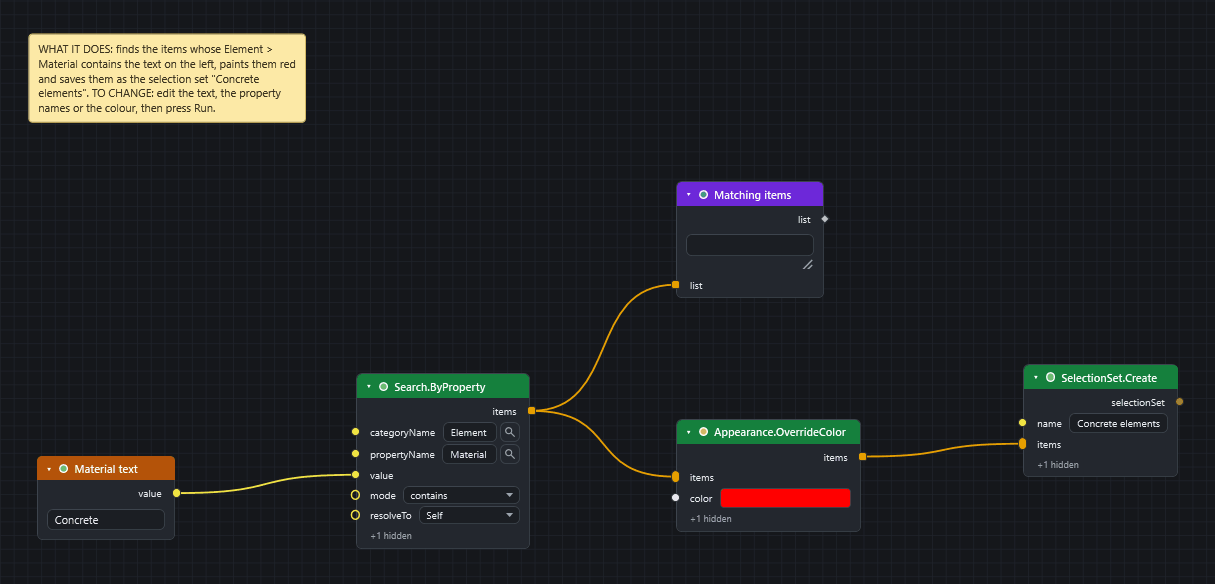
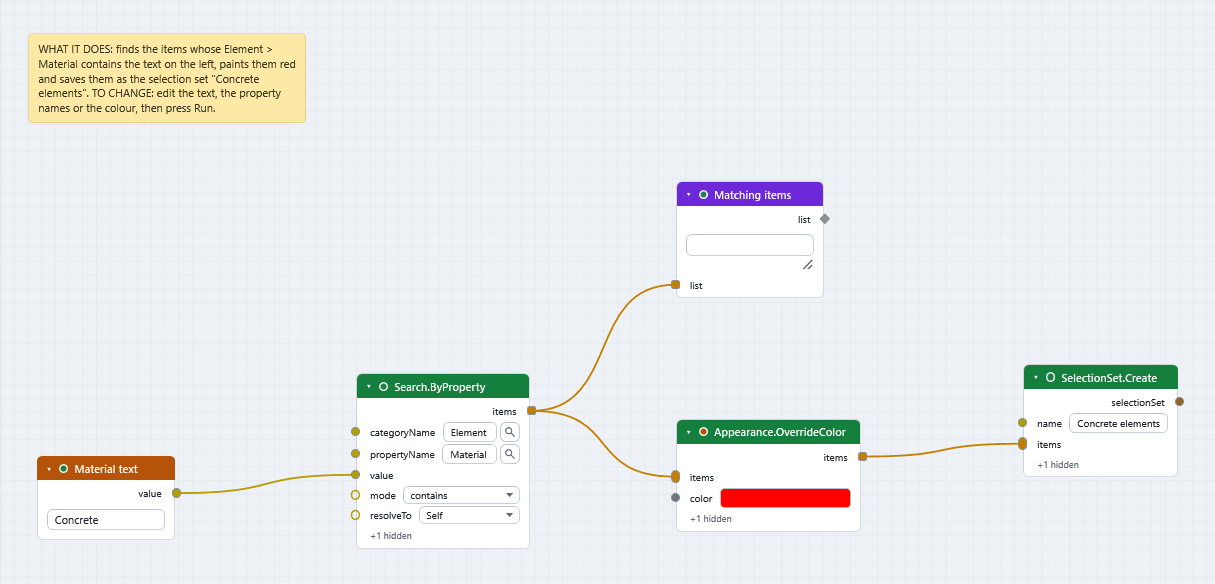
The set appears in the Navisworks Sets window. SelectionSet.Create replaces a top-level set with the same name, so a second run updates the set instead of adding another. It stores the items that were found when you ran it.
Part B: one set per value
- Add
SelectionSets.BulkByPropertyValues(Navisworks ▸ SelectionSets). - Type
ElementintocategoryNameandLevelintopropertyName. - Type
LevelsintofolderName. Leave it empty to put the sets at the top level. - Add a
Watch List(Display) and wire thevaluesoutput into it. This shows the distinct values the node found. - Press F5.
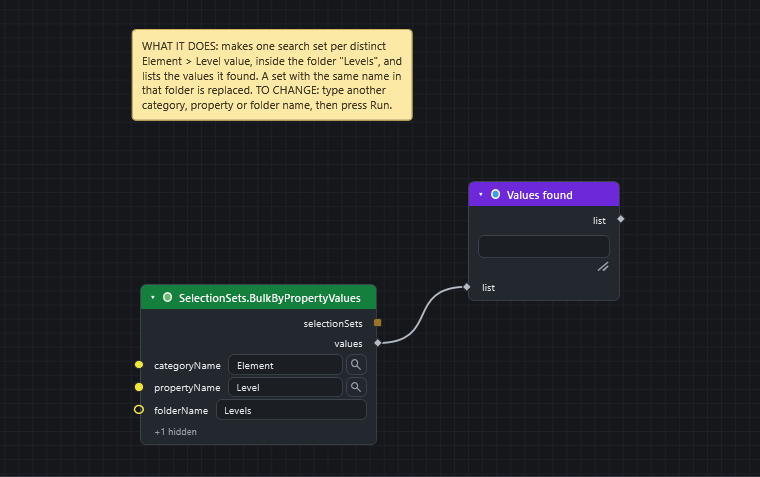
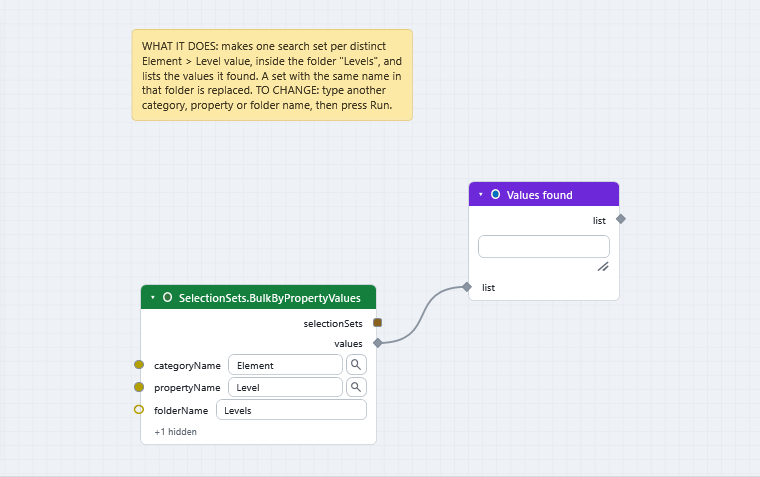
What you get
- Part A: a saved selection set with the name you typed.
- Part B: one search set for every distinct value, filed in the folder you named. A search set is live: it re-evaluates as the model changes. The
selectionSetsandvaluesoutputs are in the same order, so the first set belongs to the first value. - Running again replaces sets with the same name in that folder.
Selection set or search set?
SelectionSet.Create keeps the items it was given. SelectionSet.CreateFromSearch and SelectionSets.BulkByPropertyValues keep a rule, so they follow the model when it changes.
If it does not work
- The Watch List is empty: the names do not match what Navisworks shows. See A search returns nothing.
- A node is red: see Read errors and warnings.
Next
- Colour elements by a property.
- SelectionSets nodes lists the rest, such as
SelectionSet.MoveToFolderandSelectionSet.Rename. - Sample scripts includes Bulk Selection Sets from Values.