Speed up a slow graph
Goal: make a graph that takes too long on a large model quicker to work with.
Before you start
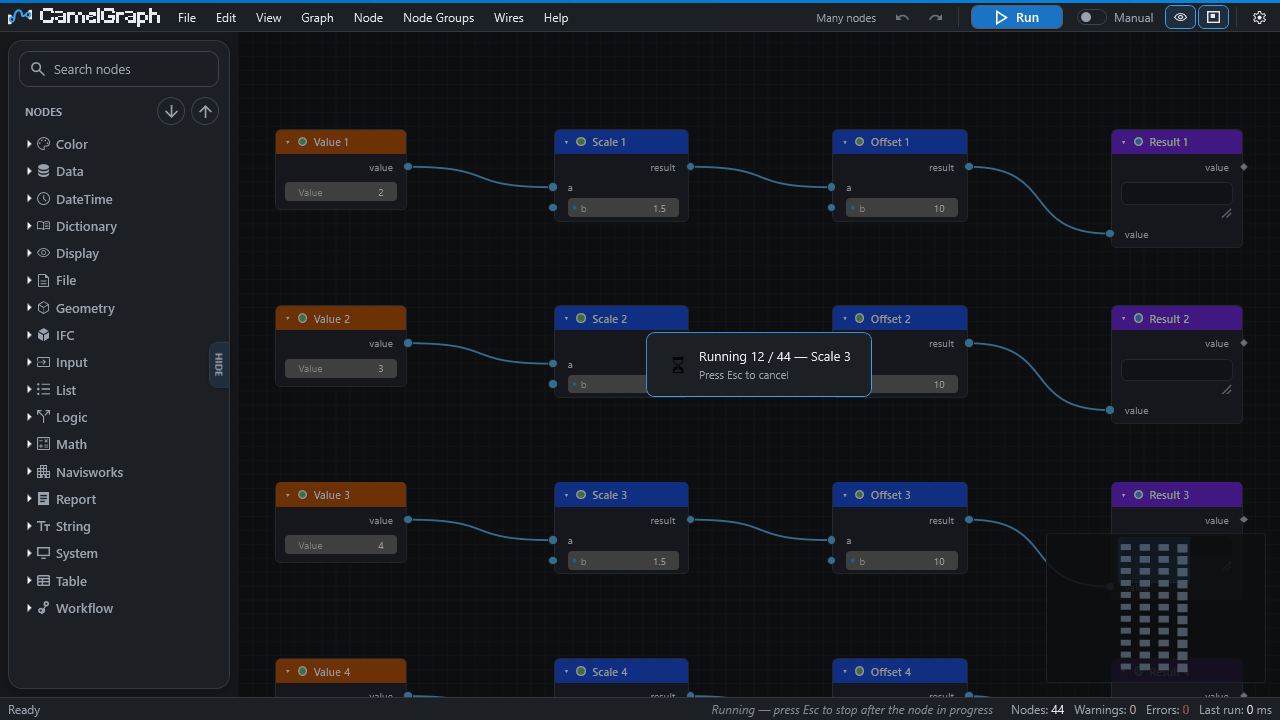
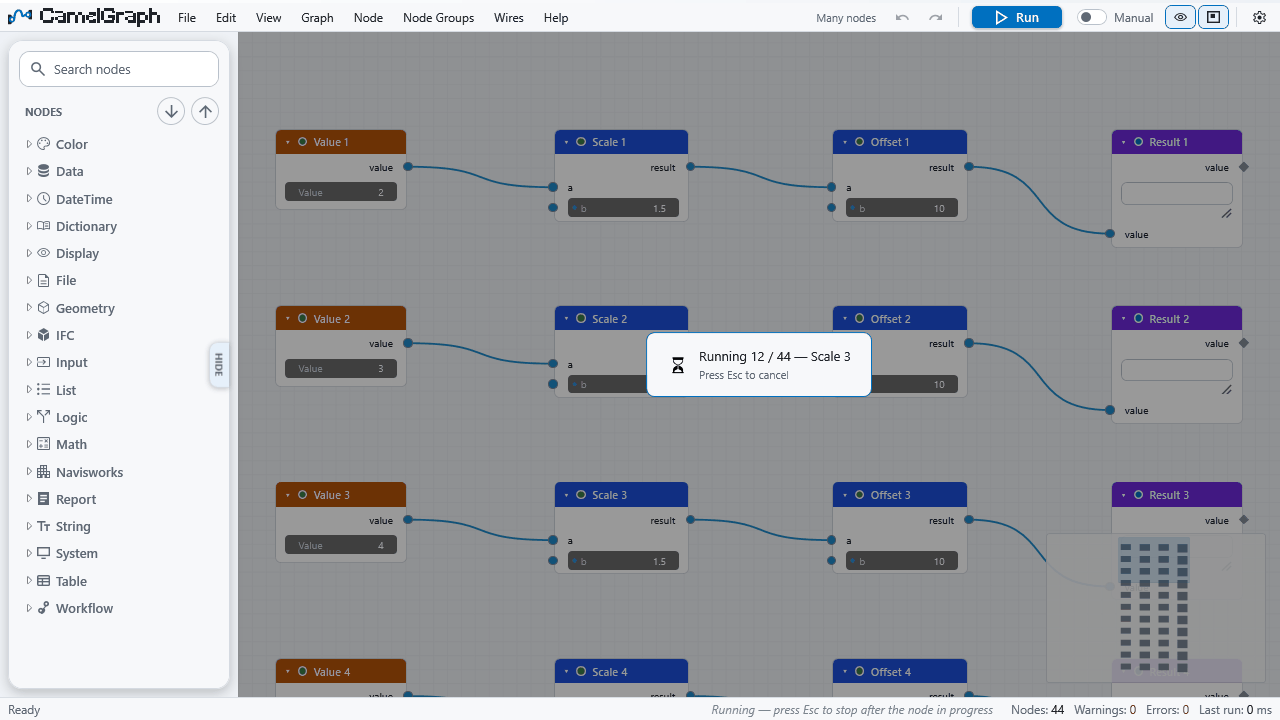
- Runs happen on the Navisworks main thread. Navisworks is busy until a run ends, and a progress overlay shows which node is working (for example
12 / 40 - name). - A run executes only what changed. If a graph is slow every time, either many nodes changed or a node does a lot of work.
- Save the model before long runs.
Steps
- Read the status bar. It shows the time of each run. When a run takes a second or more, it also names the slowest node, for example "slowest: Viewpoint.Save 71,200 ms (17×)". Start with that node.
- Stop a run you do not need. Press Esc. The run halts before the next node, between the items of a node that is working through a list, or between the passes of a loop. A single Navisworks call already under way cannot be interrupted. The next Run carries on where it stopped, and what finished nodes already changed is kept.
- Switch Auto off. In the run bar, set Manual and press F5 when you are ready. In Auto mode a run starts after every edit.
- Run only part of the graph. Select a node and press Shift+F5 (Run Up to Selected Node). It runs that node and what it depends on, then stops. Everything after it waits for the next ordinary Run.
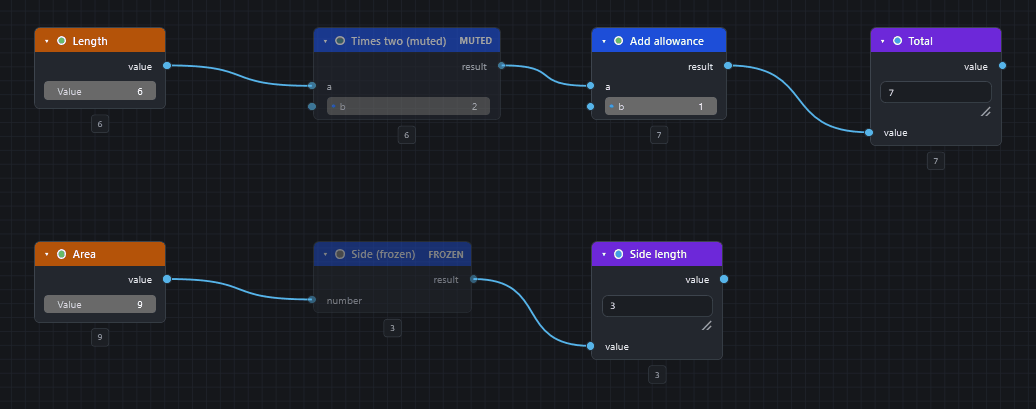
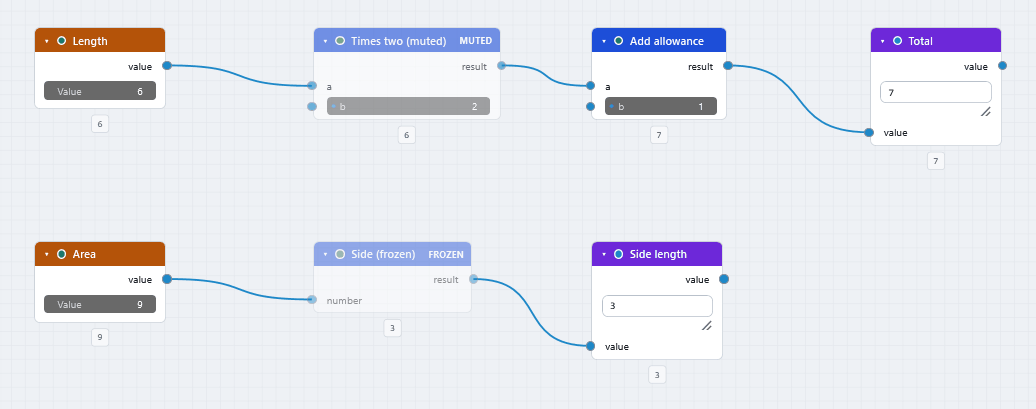
- Freeze a slow branch. Select its first node and press Shift+M. A frozen node and everything after it keep their last results and are skipped. Press Shift+M again to unfreeze.
- Pass smaller lists. Some nodes touch every item of the model, and their descriptions say so:
Model.StatisticsandSearch.ByGuid(they walk every item once),Appearance.Focus(allow a moment on large models), andDistance.BetweenItemsandProximity.NearestDistancewithmethodset tomesh. Search first, then pass the nodes only the items they need. Preferbboxwhere it is accurate enough. - Count the loop. A loop runs its body once for each item, so a slow node inside
Loop.Item...Loop.Collectis slow once for each item. - Simplify the canvas for very large graphs. With many nodes (not many model items), turn on Settings ▸ Canvas ▸ Straight wires.
What you get
A graph that runs only what you need, when you ask for it. For the canvas itself, View ▸ Performance HUD (Ctrl+Shift+F12) shows frames per second, frame time, visuals and node counts. It measures the canvas, not the model, and has a Copy report button. It has not yet been verified inside Navisworks, so if nothing happens, use the View menu or the command palette (Ctrl+Shift+P).
Slow IFC export or many viewpoints
Export.ToIfc reads the geometry of every item, and a loop that saves a viewpoint for each item does real work in Navisworks on every pass. Both are expected to take time. Run them by hand with Auto off, and stop with Esc if you started by mistake.
If it does not work
- Nothing seems to run: see Nothing happens when I press Run.
- The full list of tips is in A run is slow on a large model. If you measure a slow case, add the model size, the node and the time to an issue.