Inputs, outputs and kinds
Every node has inputs (sockets on its left edge) and outputs (on its right edge). This page explains what the sockets tell you, how to give an input a value, and how values are converted between kinds.
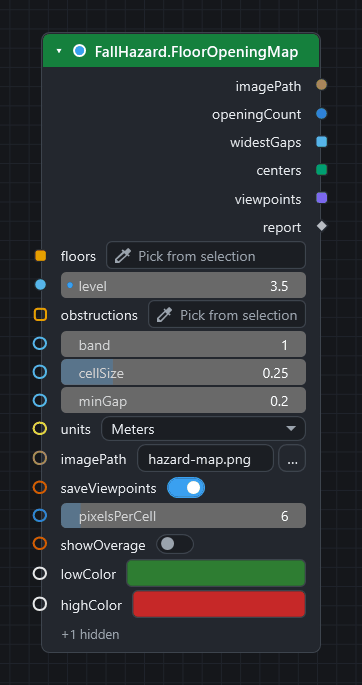
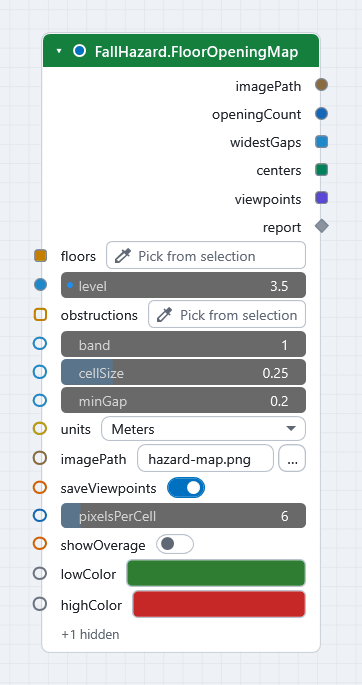
Hover to find out
Hover any socket for a tooltip. It shows:
- the socket's name and kind;
- for an input, whether it is required or optional, and its default;
- a description of what to connect (written from the node's documentation);
- after a run, the value it holds: for a list the number of items and the first few; for a wired input, what arrives on the wire.
The same information for every node is on the node library: each node lists its inputs with their type, default and meaning, and its outputs with their type.
Kind: the colour (and letter) of a socket
The colour of a socket names the kind of data. With Settings ▸ Appearance ▸ Type letters in sockets on, a letter is drawn inside each socket too, so the kind never depends on colour alone.
| Kind | What it is | Letter |
|---|---|---|
| Any | Accepts anything. | |
| Number | A decimal number. | N |
| Integer | A whole number. | I |
| Boolean | True or false. | B |
| Text | A string. | T |
| DateTime | A date, a time span, or a TimeLiner task. | D |
| Colour | A colour. | C |
| Geometry | A point, vector, bounding box, line, plane or transform. | G |
| Item | A Navisworks model item (or a model, or units). | E |
| Selection | A selection set, a search, or a collection of items. | S |
| Viewpoint | A saved viewpoint, a folder of them, or a camera. | V |
| Clash | A clash test, a result, or a group of results. | X |
| Document | A Navisworks document. | F |
| Data | A table, dictionary or other structured data. | { |
| File | A path to a file or folder (a text input whose name says it is a path). | P |
| Action | A recipe step for Workflow.ForEach. |
A |
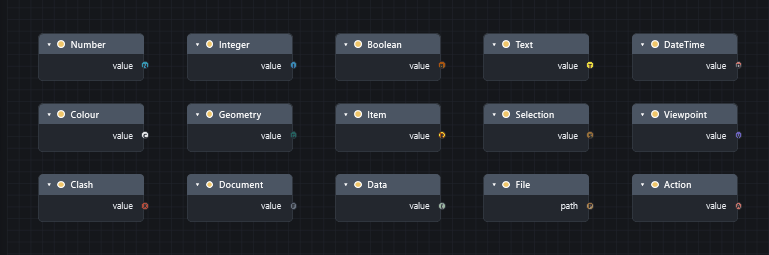
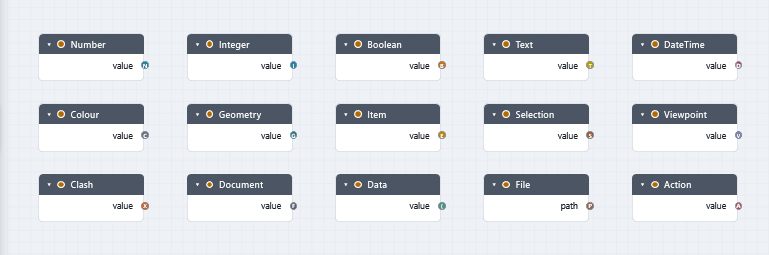
On the node library pages the type is written as a programming type: string, number, integer, boolean, ModelItem, Document, CamelGraphTable and so on. A type ending in [] is a list.
Shape: one value or a list
| Shape | Meaning |
|---|---|
| Circle | One value. |
| Rounded square | A list. |
| Square with a hole | A list of lists. |
| Diamond | A value whose structure is not known until the graph runs. |
| Pill (an elongated socket) | A multi-input: it takes any number of wires and combines them into one list. |
A dashed wire means a list is going into a one-value input, so the node will run once per item (see replication).
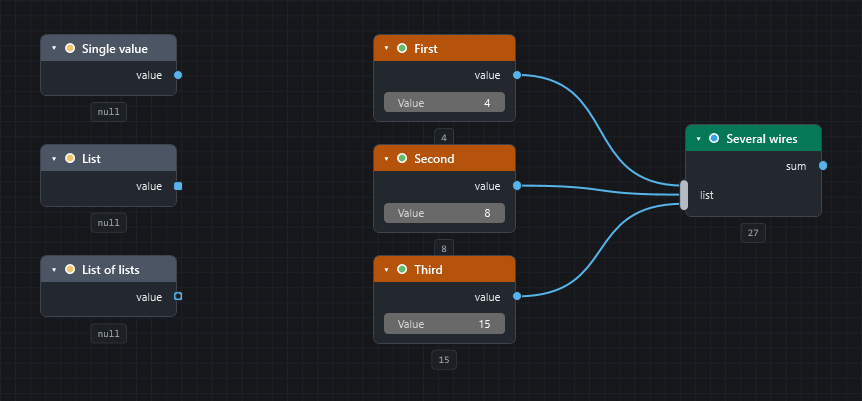
Diamond sockets take a list as one value
An input of kind Any (a diamond) gets the value as it is. A list wired into it is not run once per item, and no dashed wire is drawn. To run the node once per item, right-click the input, choose List Levels and then @L1 — items (see Concepts).
Giving an input a value
An input can get its value from four places. The first that applies wins:
- A wire. Connecting a wire always overrides the rest. A muted wire is ignored and the next place is used.
- The editor on the node. An unwired input shows an inline editor you can type into. Inputs of kind Any (a diamond, such as the
valueofSearch.ByProperty) and inputs that take a list or a table (such aspropertiesofProperties.ToTableoraggregationsofTable.GroupBy) have no editor. Wire aString,NumberorString.Splitnode into them. - The default. Optional inputs have one. It is shown in the tooltip and on the node's reference entry.
- Nothing. A required input with no wire and no value stops that node: it stays idle and says "Input 'x' is not connected."
The inline editors
| Editor | For | Notes |
|---|---|---|
| Number field | Number, integer | Drag it, or click and type. A dot at its left edge shows it differs from the default; hover and press Backspace to restore the default. Ctrl+C and Ctrl+V while hovering copy and paste the value. |
| Check box | Boolean | |
| Text box | Text | Grows with long or multi-line text. |
| Drop-down or switch | Named choices | For example mode on Search.ByProperty. |
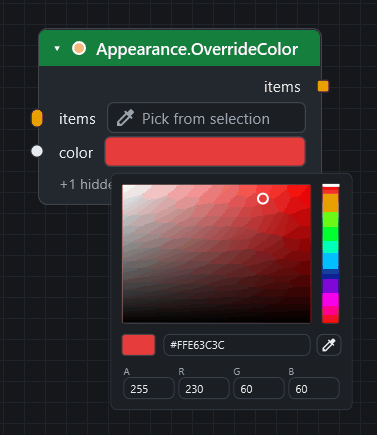
| Colour swatch | Colour | Click it for a picker with an eyedropper; the dropper can pick any colour on screen, the Navisworks view included. The picture below shows the popup. |
File field with … |
File and folder paths | |
| Element picker | A Navisworks item or items | Press it to take the current selection. |
| Vector fields | Points and vectors | Paste 1, 2, 3 (or cells from a spreadsheet) into the first field and the values spread over the next fields. |
Optional inputs that are unconnected can be hidden: Hide / Show Unused Sockets (Ctrl+H). Rarely-used inputs of some nodes sit in an Advanced panel.
Choosing a tab or a property name
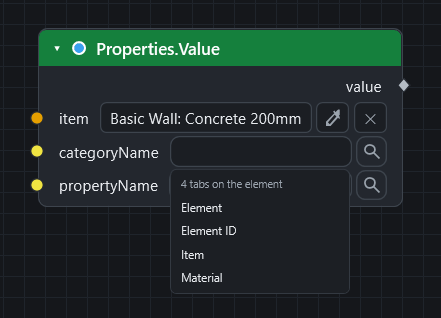
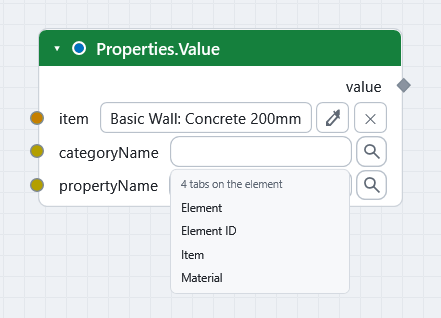
On nodes that read a property of an element, the tab (category) and property inputs are ordinary text boxes. Type the name and it works. Next to each is a small magnifier. Press it and CamelGraph lists the tabs, or the properties of the chosen tab, of the element on that node's own element input; click one to fill the box. What you have typed narrows the list.
- Nothing is read until you press the magnifier.
- Only that element is read, at most the first 100 if the input carries a longer list. The model is never searched to fill the list.
- Pick an element on the node, or wire one in and run the graph, before you search.
- On
Search.ByProperty,SelectionSet.CreateFromSearchandSelectionSets.BulkByPropertyValuesthere is no element input, so the magnifier lists the tabs and properties of the elements selected in Navisworks right now.
Step by step
Find the name of a tab or property walks through both kinds of magnifier and Properties.Discover.
Defaults for documents
An input of kind Document that has nothing wired to it uses the active Navisworks document. Most graphs never wire a document.
How values are converted
When a wire joins two different kinds, CamelGraph converts the value if it can:
- numbers widen (an integer is accepted where a number is expected);
- values with a standard conversion are converted (a number can become text, text such as
"12"can become a number); - an input of kind Any accepts anything;
- some inputs also accept several forms on purpose. For example, colour inputs accept a colour or a text such as
#FF0000; GUID inputs accept text, a 22-character IFC GlobalId, or a GUID.
When a conversion fails, the node shows a warning or an error that names the input. It never crashes the graph. If a value arrives empty or a node complains about an input, compare the kinds at both ends of the wire.
Outputs
- Most nodes have one output. Some have several, each named:
Search.ByGuidgivesitemsandmissing;Flow.Trygivesresult,failedanderror;BCF.ImportIssuesgivestopicsandmodelItems. - An output can feed any number of inputs.
- A node that changes the model usually passes its items through on an output with the same name, so you can chain writing nodes and so that the second one only runs after the first.
- An output is
nullwhen the node did not run, failed, or has nothing to say. Anullamong the items of a list that is being replicated gives anullresult at that position and one amber warning for the node; anullon an ordinary single input is handed to the node as it is.
The Watch nodes
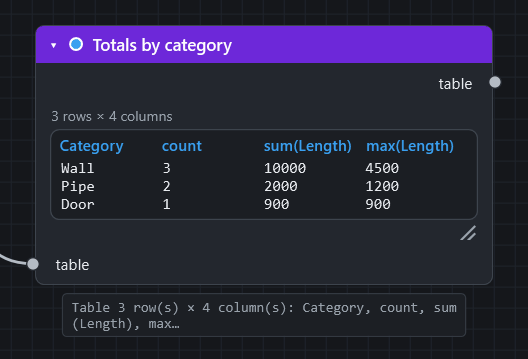
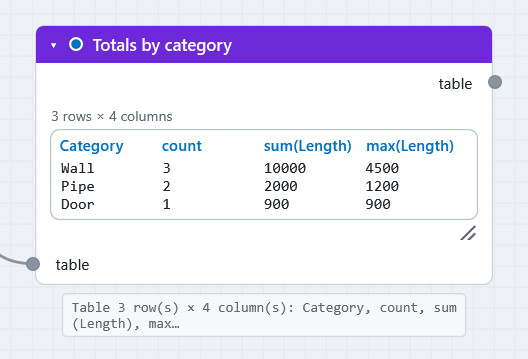
Wire any output into a Watch node to see the value: Watch (text), Watch List (one entry per line, with an index gutter), Watch Table (a table) and Watch Image (a picture, such as a heat-map PNG). Under every node, value previews show the first results after a run (toggle with Preview in the toolbar); click a preview that says "… N more" to expand the full list. The Watch nodes cap what they draw so a big model cannot freeze the canvas: Watch writes the first 1,000 items of a list and counts the rest, Watch List draws the first 2,000 entries, Watch Table the first 2,000 rows; the value passes on whole. Watch Image accepts a list of paths and shows the first picture with "(1 of N)". When a Watch node does not run (the node before it failed, was switched off or is unwired) it clears its display instead of keeping the last value.
Next steps
- The editor: canvas and nodes shows how to wire, move and tidy nodes.
- Running a graph explains what happens when you press Run.
- Glossary for the words used here.