Troubleshooting
Find the symptom, read the cause, try the fix. If nothing here helps, collect diagnostics and open an issue with the bug report form.
CamelGraphSetup.exe is the installer attached to a release that carries one (v0.47.0 and newer do; some earlier releases carry the source code only). A Debug build of the solution also puts the bundle in the right folder for you.
Everything below comes from the CamelGraph source and docs. Where a behaviour has not been seen inside a real Navisworks yet, the text says so. See Known issues.
Symptoms
- Navisworks reports
PLUGIN_LOAD_02or0x80131515at start - The BIMCamel ribbon tab or the CamelGraph button is missing
- The editor says "Something went wrong"
- A node is red or amber
- A graph opens with a warning, or with missing nodes
- My node pack does not show up
- Nothing happens when I press Run
- A search returns nothing, or the magnifier next to a tab or property shows no names
- The start screen is missing
- A run is slow on a large model
- The Script Player asks me to confirm a script
- A file node fails with "access denied" or writes to the wrong place
- Navisworks closed while I was working
- Running next to other add-ins
Then: how to collect diagnostics, which version is installed, how to uninstall and known issues.
Navisworks reports PLUGIN_LOAD_02 or 0x80131515 at start
Cause. Windows kept the browser's "downloaded file" mark (Zone.Identifier) on the CamelGraph DLLs. .NET Framework refuses to load assemblies with that mark. CamelGraphSetup.exe and install-camelgraph.bat remove the mark. A manual copy of the bundle from the zip does not.
Fix. In PowerShell:
Get-ChildItem "$env:APPDATA\Autodesk\ApplicationPlugins\CamelGraph.bundle" -Recurse -File | Unblock-File
Then restart Navisworks. You can also unblock the downloaded zip before you extract it (right-click, Properties, Unblock), or simply run CamelGraphSetup.exe.
The BIMCamel ribbon tab or the CamelGraph button is missing
Check these in order.
- Is the bundle in the right folder? The installer puts it in
%APPDATA%\Autodesk\ApplicationPlugins\CamelGraph.bundle. That folder must holdPackageContents.xmland one folder per Navisworks year:2024,2025and2026. Each year folder holdsCamelGraph.App.dlland the other DLLs. (For all users the bundle can go inC:\ProgramData\Autodesk\ApplicationPlugins\instead.) If a folder is missing, runCamelGraphSetup.exeagain. - Did you restart Navisworks? Navisworks reads the bundle at start. Close it fully and start it again.
- Is your Navisworks supported?
PackageContents.xmllists Navisworks Manage and Simulate, 2024, 2025 and 2026, 64-bit Windows (2024 is series Nw21, 2025 is Nw22, 2026 is Nw23). Other products and years are not listed. The installer's start screen says which supported years it found. - Are the files blocked? See
PLUGIN_LOAD_02above. - Wrong-year DLL. A DLL built for one Navisworks year still loads its ribbon button in another, but its dock pane cannot register. The button then shows "The CamelGraph editor panel is not registered with Navisworks". Reinstall with the installer from the same release, which carries a build for each year.
- Classic Plugins-folder install. If you copied the files to
...\Navisworks Manage 2024\Plugins\CamelGraph.App\instead, there is no ribbon tab. The button is under Tool add-ins (Getting Started).
The tab is named BIMCamel and the panel Visual Programming. It holds three buttons: CamelGraph, Player and About. If you also installed another BIMCamel tool, CamelGraph merges the duplicate "BIMCamel" tabs into one. If you still see two, please report it.
The editor says "Something went wrong"
The full text is "Something went wrong (ExceptionType: message). Details: %APPDATA%\CamelGraph\errors.log".
Cause. CamelGraph's crash guard caught a failure in its own code, for example in a command, or WPF failing to build a visual soon after you clicked. Without the guard, an error like this would close Navisworks. The editor keeps running and the failure is written to the log.
Fix.
- Save your graph if you have changes. (Autosave is on by default; see Settings > Editing > Autosave unsaved work.)
- Open
%APPDATA%\CamelGraph\errors.log(paste that into the Windows Explorer address bar). Each entry starts with the date and time and where it happened (a command,the editorora failure that ended the host), followed by the full exception and, for XAML problems, the file and line. - Send the last entry, together with what you clicked just before. Use the bug report form and the diagnostics.
If the message also says "The node that could not be drawn was taken off the canvas", the node you just added could not be shown. Leave it out and report which node it was.
A node is red or amber
Hover the node, or read the balloon above it. It holds the message.
| Look | Meaning | What to do |
|---|---|---|
| Red border | The node failed: it raised an error, or it cannot be found. Its outputs are empty. | Read the message. It is the node's own error text. |
| Amber border | The node ran with a warning, or an input node upstream failed ("Upstream failure: one or more input nodes are in an error state."). | If it says upstream, find the first red node before it and fix that. |
| Idle, no coloured border | The node did not run. "Input 'x' is not connected." means a required input has no wire and no value. "Skipped: an input comes from a branch that was switched off (Flow.When was false)." means a Flow.When upstream was false. |
Connect the input, or change the condition. This is not an error. |
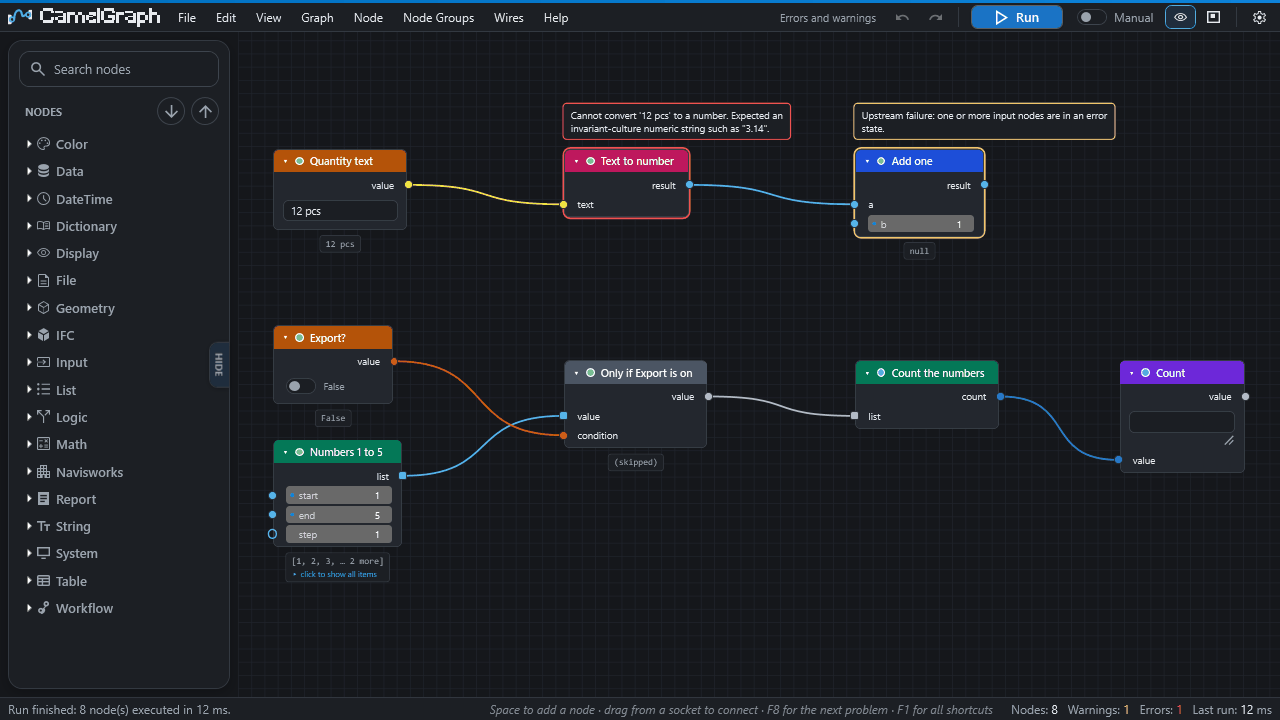
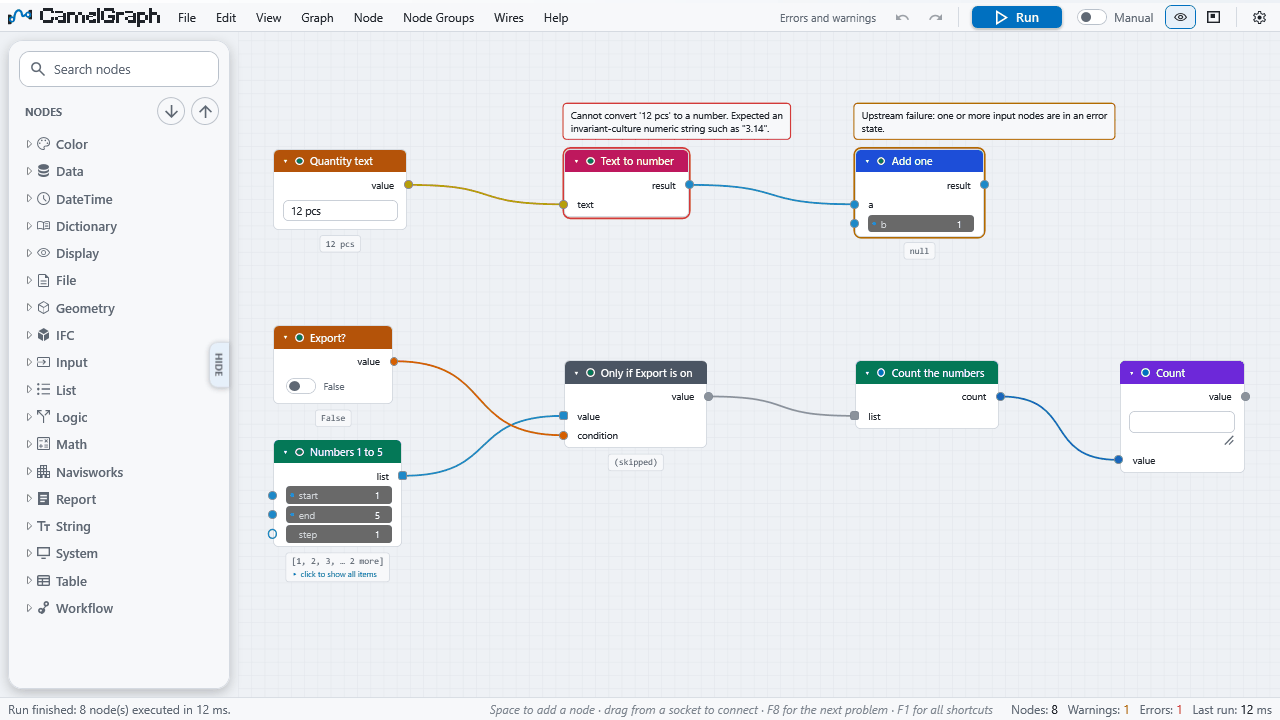
Ways to find the cause faster:
- The Errors and Warnings counts in the status bar are buttons (or press
Ctrl+Shift+E). They list every problem node;F8andShift+F8step through them. - Select a node and press
I(Why Didn't This Run?). The status bar explains in words. - To let a graph carry on after a failure, put
Flow.Tryafter the node that may fail. It returns your fallback and the error text, and nothing after it turns red. - A list wired into a single-value input is drawn with a dashed wire, and the node runs once per item. When some items fail, those items give an empty result, the rest still compute, and the node shows one amber warning that counts the failed calls. See the editor guide.
More in the editor guide.
A graph opens with a warning, or with missing nodes
"Opened file.dyc. 3 connections or values could not be restored — ..." appears in the status bar.
Cause. The file was saved with an older version, and a node has changed since: it no longer has an input or output with that name. CamelGraph drops the wire, or the value typed into that input, and says which one first (A connection into 'X' was dropped: it no longer has an input 'y'., or 'X' no longer has an input 'y'; the value typed into it was dropped.). Everything else is restored.
Fix. Find the node named in the message, look at its current inputs (hover a socket), reconnect the wire or type the value again, and save. Renamed inputs normally keep their wires on their own, and retired nodes keep working in old graphs, so this message appears only when a socket is really gone.
A node is red with "Unresolved zero-touch definition ..." or "Unknown node type ...". The node is not in your install: the graph needs a node pack you have not installed, or it was made with a newer CamelGraph. Install the pack or update CamelGraph. The placeholder keeps the node's original data, so saving the file does not lose it. The Script Player will not run a script that has missing nodes.
The file will not open at all.
- "The file requires .dyc reader version N but this application supports version M": update CamelGraph. (A file that contains node groups is refused by older versions rather than opened without them.)
- "The file is not valid JSON" or "not a CamelGraph .dyc document": the file is damaged or is not a graph.
My node pack does not show up
Cause. Packs are looked for once, when the editor or the Script Player first opens in a Navisworks session, in %APPDATA%\CamelGraph\Packages (and in a Packages folder inside the CamelGraph bundle, which an update deletes). A pack that is not there, was added after Navisworks started, or could not be loaded does not appear.
Fix.
- Choose Help ▸ Node Packs…. It shows the folder, how many packs were loaded when Navisworks started, and every DLL it found with the reason if one was not loaded. Answer Yes to open the folder.
- Put the pack (its
.dlland the files it needs, in a folder of its own) in that folder and restart Navisworks. A loaded DLL cannot be replaced while Navisworks runs. - "NOT LOADED. BadImageFormatException" means the DLL was built for a different platform or .NET; "FileNotFoundException" or "FileLoadException" means a file the pack needs is missing from its folder. "not used" means the file is a copy of a library CamelGraph or Navisworks already has (
CamelGraph.*,Autodesk.*,Newtonsoft.Json,System.*) or has the same name as a pack found earlier; leave such copies out of the pack folder. - Help ▸ Copy Diagnostics has a "Node packs" section with the same list for a bug report.
A pack's nodes are in the library folder its author chose; search for a node name to find it.
Nothing happens when I press Run
Work down this list.
- Run only runs what changed.
F5executes the nodes that changed since the last run and reuses the rest. If nothing changed, nothing runs, and the status bar says "Run finished: 0 node(s) executed". The exception is the nodes that read the live Navisworks state (Selection.Current,Selection.Invert,SelectionSets.All,SelectionSet.Items,SelectionSet.ByName,SelectionSet.Info,SelectionSets.InFolder,Document.Info,Models.RootItems): they are marked as live and read Navisworks again on every Run, and the nodes after them run again only when what they read is different. (This has not yet been confirmed in a running Navisworks; if a second Run still shows the old selection, change one of the node's inputs to make it run again and tell us.) A change of the active document, or models added or removed, marks every node as changed. - A frozen node holds back everything after it. Frozen nodes (
Shift+M, badge FROZEN) and everything downstream are skipped and keep their old results. Unfreeze withShift+M. - A muted node passes data through instead of running (
M, badge MUTED). Downstream nodes still run, on the passed-through data. - A
Flow.Whenis false. The nodes after it are skipped and shown idle, not red, with the message "Skipped: ... (Flow.When was false)". - A required input is empty. The node is idle with "Input 'x' is not connected."
- You ran up to a node (
Shift+F5) or stopped with Esc. Everything after the stop point waits for the next ordinary Run, which carries on from there. - Auto-Run is off. With Graph > Auto-Run off, edits only mark nodes as changed; press Run (
F5). With it on, a run starts after every edit. - A muted wire (
Ctrlwhile cutting) is ignored by the run. The input uses its own value instead.
Select the node and press I to see which of these applies.
A search returns nothing, or the magnifier next to a tab or property shows no names
A search returns nothing. The tab (category) and property names must be the ones Navisworks displays, in the language it displays them in: internal names do not match. Click an element in Navisworks, read the Properties window, and copy the two names. Try mode set to contains on Search.ByProperty before equals, and wire the result into a Watch List to see what came back.
The magnifier shows no names. The magnifier next to a tab or property input lists names of one element only, and says why when it has nothing to show:
- "Nothing is selected in Navisworks. Select an element, then search." The nodes that search the whole model (
Search.ByProperty,SelectionSet.CreateFromSearch,SelectionSets.BulkByPropertyValues) list the names of the elements selected in Navisworks right now. - "Pick an element on 'x' (or wire one in), then search its tabs." Nodes such as
Properties.Valueread the element on their own element input. Pick an element on that input, or wire one in. - "The element wired to 'x' has not been computed yet. Run the graph (or pick the element on the node itself), then search." The wire needs a value first: press Run.
- "Choose the tab first (the 'x' input), then search its properties." Fill the tab input, then use the magnifier on the property input.
- "Element data can be searched in Navisworks only." The magnifier needs a running Navisworks.
Typing the name by hand always works; the magnifier only helps you fill it in. It reads at most the first 100 elements of a longer list.
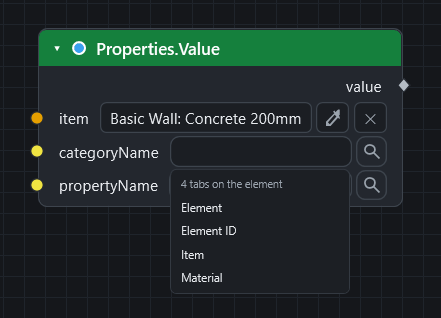
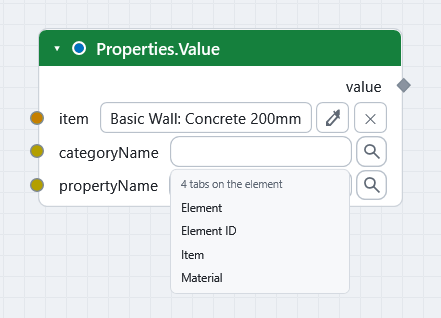
The start screen is missing
The start screen (cards for a new script, recent scripts and examples, the version and a link to bimcamel.com) shows only while the canvas is empty: it goes as soon as you add a node or open a script, and comes back when you delete every node or choose File ▸ New. If you never see it, check Settings ▸ Appearance ▸ Start screen on an empty canvas; with it off, an empty canvas stays empty. The New script card puts the cards away and leaves only a short hint line on the empty canvas.
A run is slow on a large model
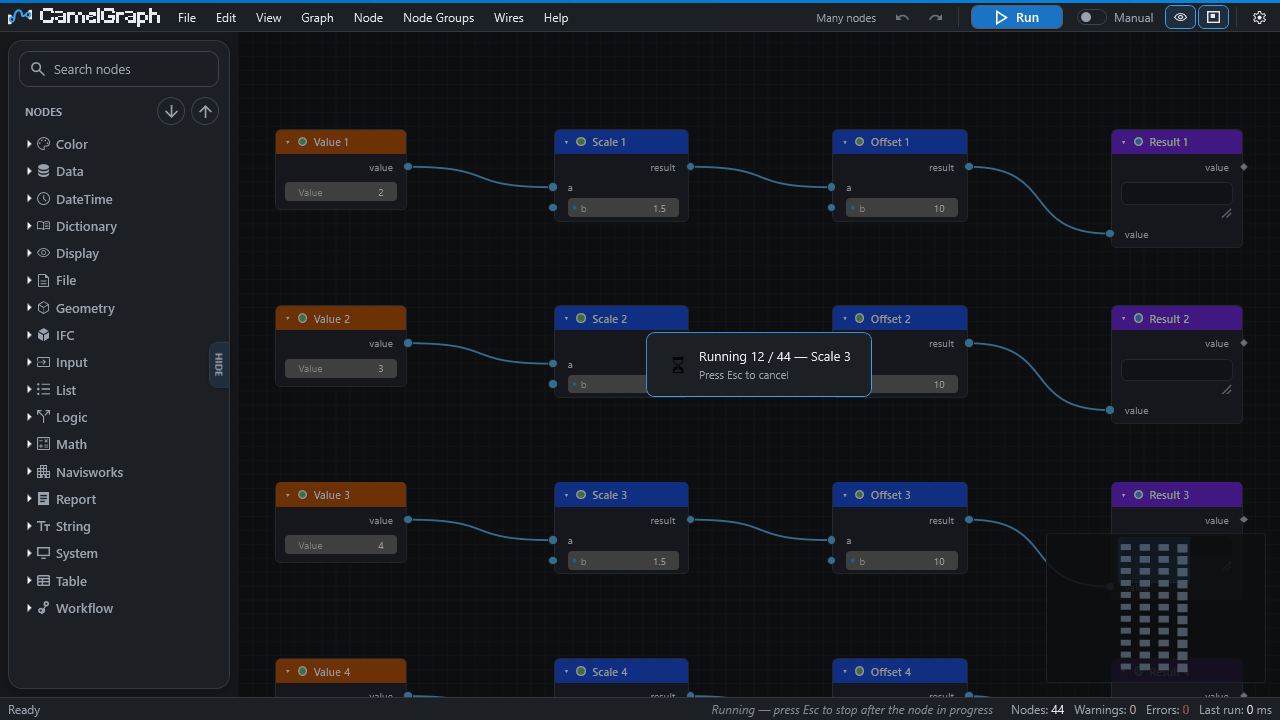
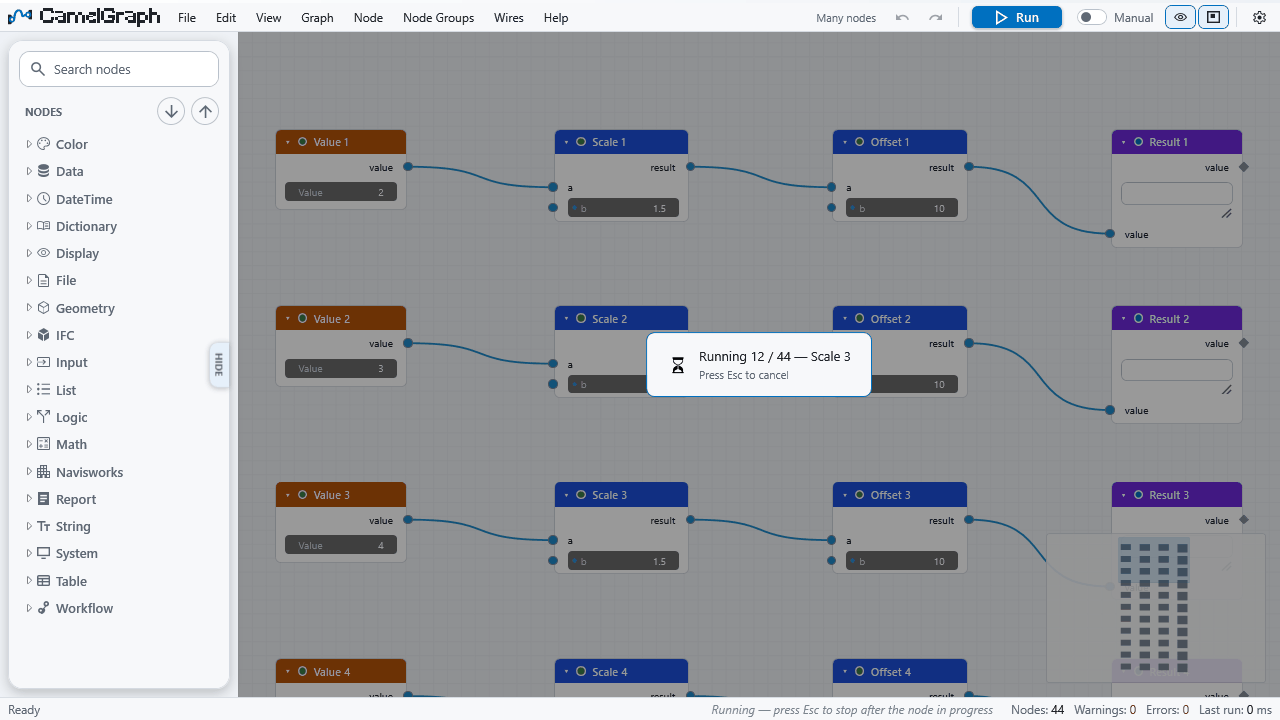
Runs happen on the Navisworks main thread, so Navisworks is busy until the run ends (the editor shows a progress overlay). The status bar shows the time of each run and, when a run takes a second or more, the slowest node ("slowest: Viewpoint.Save 71,200 ms (17×)").
- Stop a run with
Esc. It halts before the next node (or between items of a node working through a list). A single Navisworks call already under way cannot be interrupted. The next Run continues where it stopped; what finished nodes already changed in Navisworks is kept. - Switch Auto-Run off on big models, and run with
F5when you are ready. - Freeze a slow branch (
Shift+M) while you work elsewhere. Run up to a node (Shift+F5) runs only what that node needs. - Know the nodes that touch every item. Some node descriptions say so, for example
Model.StatisticsandSearch.ByGuid("walks every item of the document once (O(items))"),Appearance.Focus("allow a moment on large models"), andDistance.BetweenItemsandProximity.NearestDistancewithmethodset tomesh. Pass them a smaller list of items where you can, and preferbboxwhere it is accurate enough. - A loop re-runs its body once per item, so a slow node inside
Loop.Item...Loop.Collectis slow once per item. - Very large graphs (many nodes, not many model items): turn on Settings > Canvas > Straight wires, which the settings page describes as faster on very large graphs.
- The Performance HUD (
Ctrl+Shift+F12, or View > Performance HUD) measures the canvas, not the model: frames per second, frame time, visuals and node counts, with a Copy report button. It is not yet verified in Navisworks.
If you measure a slow case, please add the model size, the node and the time to an issue.
The Script Player asks me to confirm a script
Cause. The script contains nodes that change things: the model, a file on disk, a program, or data sent to the web. The Player lists them by name above the form ("Changes the model, writes files, runs programs or uses the network: ...") and asks the first time you run the script. This is a safety question, not an error. See SECURITY.md.
- The answer is remembered for that file as it is now. If the script file changes, the question comes back.
- Scripts that only read are never asked about.
- Muted and frozen nodes do not count.
- A script run by path through
CamelGraph.Run.DYNC(the Automation API, the Batch Utility) asks the same question. In an unattended run nobody can answer, so run the script once by hand in the Player first (not tested in an unattended run).
A file node fails with "access denied" or writes to the wrong place
Where a relative path goes. A relative path in a file node (report.xlsx, out\rooms.csv) means next to the graph: CamelGraph puts it in the folder of the graph file you have open, or in Documents\CamelGraph when the graph has not been saved yet. A script run in the Script Player, and a graph run with CamelGraph.Cli, use the folder of the script file. Spaces and the quotes that Explorer's "Copy as path" adds around a pasted path are removed. (Older versions resolved a relative path against the working folder of the Navisworks process, which is its install folder under Program Files, a place ordinary users cannot write to.)
Cause. When a file node still fails with "access denied", the folder is one you cannot write to: a graph saved under Program Files, a path that names a folder where a file is expected (Windows reports that as "access denied" too), or Controlled folder access blocking writes to Documents or Desktop.
Fix. Save the graph in a folder you can write to, or give a full path for the file, for example C:\Users\you\Documents\report.xlsx. If Controlled folder access is on, allow Navisworks or write to another folder.
Navisworks closed while I was working
- Start Navisworks and open the editor. If you had unsaved changes and Autosave was on, CamelGraph offers the autosaved copy when the editor opens on an empty canvas. Saving, or answering No, deletes the copy. The copies are in
%APPDATA%\CamelGraph\recovery. - Open
%APPDATA%\CamelGraph\errors.log. If there is an entry markeda failure that ended the hostfrom the time of the crash, it holds the full exception. Send it. - Tell us what you clicked last. A crash of Navisworks is the most serious kind of bug for this project.
Running next to other add-ins
CamelGraph ships its own copies of Nodify.dll, Newtonsoft.Json.dll and AutomaticGraphLayout.dll in the folder of CamelGraph.App.dll, and CamelGraph's own DLLs there too. Navisworks loads all add-ins into one process, so if two add-ins use the same library in different versions, the .NET Framework rules decide which copy a request gets.
What the code does about it (src/CamelGraph.App/CamelGraphHost.cs):
- It redirects the one strong-named Navisworks reference that does not match across years,
Autodesk.Navisworks.Timeliner, to the copy the running Navisworks has already loaded. Without it the TimeLiner nodes would silently vanish from the library. - For any other assembly that the normal lookup cannot find, it loads
<name>.dllfrom the add-in folder as a last resort. This is how WPF finds the theme'sNodifyresources. - That is all. CamelGraph does not isolate its copies from other add-ins, and it does not force its own version to win. The fallback only runs when the normal lookup has already failed.
Whether any real combination of add-ins conflicts with CamelGraph has not been tested. If you suspect one, errors.log or a Navisworks message will name the assembly (look for FileLoadException, MissingMethodException or a version number). To test, move the other add-in's bundle out of ApplicationPlugins temporarily and restart Navisworks. Then send the log and the name and version of the other add-in. CamelGraph and the BIMCamel IFC exporter are built to share the BIMCamel tab (see the README).
How to collect diagnostics
When you report a problem, include:
- CamelGraph version. On the BIMCamel ribbon tab, click About. The version is at the bottom of the window.
- Navisworks product and year (Manage or Simulate, 2024, 2025 or 2026) and your Windows version.
- Help > Copy Diagnostics in the editor. It copies the CamelGraph and Navisworks versions, the installed Navisworks plug-ins and the end of
errors.log. Paste it into the issue. - The end of
%APPDATA%\CamelGraph\errors.log, if the problem produced an error. - Help > Run Self-Test with a model open, if a Navisworks node behaves oddly. It runs a set of read-only Navisworks nodes and shows pass or fail for each. The report can be copied.
- The graph (
.dyc), if you can share it. Open it in a text editor first: it can hold file paths, names and values. - Does it happen with a sample graph? Samples are under File > Sample Graphs. If one shows the problem, say which.
Which version is installed
- BIMCamel ribbon tab, About: "Version x.y.z".
- Windows Settings > Apps > Installed apps: "CamelGraph for Navisworks" shows the version.
- The
Versionattribute in%APPDATA%\Autodesk\ApplicationPlugins\CamelGraph.bundle\PackageContents.xml(it reads like0.45.1.0). CamelGraphSetup.exeshows "Update install (v... found)" when a version is already installed.
How to uninstall
- Windows Settings > Apps > Installed apps > CamelGraph for Navisworks > Uninstall, or run
CamelGraphSetup.exeand choose Remove existing install. - Silent:
CamelGraphSetup.exe /uninstall /silent. - Scripted:
install-camelgraph.bat uninstall(from the zip). - Close Navisworks first (the setup window warns when Navisworks is running).
Uninstalling removes the bundle folder and the Apps entry. It leaves your .dyc graphs, your scripts folder (Documents\CamelGraph\Scripts) and %APPDATA%\CamelGraph (settings, errors.log, autosaved copies, update-check.txt). Delete %APPDATA%\CamelGraph yourself for a completely clean start.
Known issues
These are open at the time of writing. Items marked not yet verified have not been seen inside a real Navisworks.
- Color Picker. A report of Navisworks closing while using the Color Picker node has not been confirmed fixed in v0.45.1 or v0.46.0 (that release fixed a different crash, in the node library). If it happens to you, please send
errors.log. A workaround that avoids the node: wire a String node holding a hex colour such as#FF0000into the colour input, as the sample Clash Group Viewpoints per Test does. - Performance report shortcut.
Ctrl+Shift+F12(the Performance HUD and its Copy report button) is not yet verified in Navisworks. If nothing happens, use View > Performance HUD or the command palette (Ctrl+Shift+P). - Navisworks nodes have never been run automatically. Nothing can run the Navisworks API outside Navisworks, so these nodes are compiled and their logic is unit-tested, but their behaviour in Navisworks is checked only by hand. The nodes added in 0.45 are the least tried; the list to try first is under "For the Navisworks side" in WHATS_NEW_0.45.md.
- Only Navisworks Manage 2024 has been observed in the field. The 2025 and 2026 builds, and Simulate, are built and installed the same way but have not been seen running.
- Undo in Navisworks. The editor's own Undo (
Ctrl+Zwhile the pane has focus) changes the graph only, and says so. Whether one Navisworks Undo reverses a whole run is unknown: node descriptions call permanent overrides undoable, but the source has no code that groups a run into one undo step. Do not rely on it; save the model first. - Automatic run on open. A graph saved with run mode Automatic is not run when you open it from a file: the status bar says so, and nothing runs until you press Run. Before Run, a graph from a file that contains nodes that run programs, use the network, or delete or move files lists them and asks once (SECURITY.md).
- Unsigned installer. An installer built from this source is not code-signed unless you configure a certificate (see the release workflow). Windows SmartScreen shows a warning for it; choose More info, then Run anyway.
Still stuck?
Open an issue with the bug report form and include the items above. For a security problem, use the private route in SECURITY.md.