Installation
CamelGraph installs as an Autodesk application bundle: a folder that Navisworks finds by itself at start-up and that gives you a BIMCamel ribbon tab. It works per user and needs no administrator rights.
Before you begin, check the requirements, and close Navisworks.
Personal use or professional use?
The copies from GitHub and bimcamel.com are free for personal use: learning, hobby projects, research, and charities, schools, universities, public research bodies and government institutions. For work at a company, a consultancy or a design office, or in a paid project or product, the professional copy is coming soon to the Autodesk App Store. Until it is there, get in touch through bimcamel.com. It is the same program. See Licence.
Where to get it
CamelGraph comes from three places, one of them not open yet. It is the same program in all of them.
| Source | For | What you get | Updates |
|---|---|---|---|
| GitHub releases | Personal use, free | The files of a release (below) and the source code. Licence: PolyForm Noncommercial 1.0.0. | The start screen shows a notice when a newer version exists, and Get it opens the GitHub page. |
| bimcamel.com | Personal use, free | The CamelGraph page, with the same personal-use copy. | The same notice and Get it button. |
| Autodesk App Store | Professional use. Coming soon. | The copy with the commercial licence from BIMCamel. The store listing will show the price and terms. | Updated by the store. This copy will not make the update check. |
The installer, the About window and the start screen of the free copies are marked Personal use. See Licence if you are not sure which copy you need. Download CamelGraph only from these places. Until the App Store copy is there, get in touch through bimcamel.com about professional use.
A release on GitHub that carries the ready-to-install files has these downloads next to its source code:
| File | What it is |
|---|---|
CamelGraphSetup.exe |
The graphical installer. The whole bundle is inside it. |
CamelGraph-<version>-navisworks.zip |
The bundle folder, the installer, install-camelgraph.bat, the licence and a short readme. |
….sha256 files |
A checksum for each of the two downloads above. |
Some releases carry the source code only, with no installer and no zip. In that case, use Build it from source below, which is for personal use only. The assets list of the release page tells you which kind you are looking at.
Choose how to install
Pick one. Tabs A to D are the four ways to put the bundle in place.
- Run
CamelGraphSetup.exe. Its first screen says which supported Navisworks years it found. - Click Install. The installer extracts the bundle to
%APPDATA%\Autodesk\ApplicationPlugins\CamelGraph.bundle, adds an entry to Windows Settings ▸ Apps and shows Installed. when it is done. If something fails, it says "Setup could not finish" and offers Try again. - Start Navisworks.
Details:
- If a version is already installed, the installer says "Update install (v… found)" and replaces it (Updating).
- If you still have Dyncamelo (the name up to version 0.48) installed, the button says "Install (replaces Dyncamelo v…)" and the installer removes the old install first, so you do not end up with two plug-ins (Updating from Dyncamelo).
- For a silent install, for example from a deployment tool:
CamelGraphSetup.exe /silent. - The files the installer writes carry no "downloaded from the internet" mark, so the
PLUGIN_LOAD_02failure described below cannot happen. - The installer is not code-signed unless the publisher set a certificate up, so Windows SmartScreen may show a warning. Choose More info, then Run anyway. To check what you downloaded, compare its checksum with the
.sha256file of the release:
- Extract the zip anywhere.
- Run
install-camelgraph.bat. It copiesCamelGraph.bundleinto%APPDATA%\Autodesk\ApplicationPlugins\and removes the "downloaded file" mark from every file it copied. - Start Navisworks.
The batch file also removes a Dyncamelo (version 0.48 or earlier) install if it finds one. install-camelgraph.bat uninstall removes CamelGraph again (Uninstalling).
- Take the
CamelGraph.bundlefolder (from the zip, or from your own build). - Copy it to one of these:
%APPDATA%\Autodesk\ApplicationPlugins\for you only, orC:\ProgramData\Autodesk\ApplicationPlugins\for all users (needs administrator rights).
-
Unblock the files. Windows marks files from a downloaded zip, and .NET Framework refuses to load such DLLs. In PowerShell:
Get-ChildItem "$env:APPDATA\Autodesk\ApplicationPlugins\CamelGraph.bundle" -Recurse -File | Unblock-FileYou can instead unblock the zip before you extract it: right-click it, Properties, tick Unblock.
-
Start Navisworks.
The bundle must look like this. PackageContents.xml tells Navisworks which folder belongs to which year:
CamelGraph.bundle\
    PackageContents.xml
    2024\   CamelGraph.App.dll, the other CamelGraph DLLs, en-US\CamelGraph.xaml, Resources\, Samples\
    2025\   (the same, built for Navisworks 2025)
    2026\   (the same, built for Navisworks 2026)
Each year has its own folder because a Navisworks plug-in must be built for the release it runs in. A DLL built for one year still loads its ribbon button in another, but its dock pane cannot register.
Use this only if you cannot use an application bundle. There is then no BIMCamel tab; the button is under Tool add-ins.
- Close Navisworks.
- Create a folder named exactly like the plug-in DLL inside the Navisworks
Pluginsfolder, for exampleC:\Program Files\Autodesk\Navisworks Manage 2024\Plugins\CamelGraph.App\(use the Simulate and year folder that matches your product). This needs administrator rights. - Copy the CamelGraph files into it:
CamelGraph.App.dll,CamelGraph.UI.dll,CamelGraph.Navisworks.dll,CamelGraph.Nodes.dll,CamelGraph.Core.dll,Nodify.dll,Newtonsoft.Json.dll,AutomaticGraphLayout.dll,en-US\CamelGraph.xamland theResources\*.pngfiles. - Unblock the files as in tab C.
- Start Navisworks.
Build it from source
A copy you build yourself is covered by the personal-use licence only, like the free downloads (Licence). You need Windows and the tools on the requirements page.
git clone https://github.com/mrshoma99-rgb/dyncamelo.git
cd camelgraph
dotnet build CamelGraph.sln -c Release
A Debug build of the solution also places the whole bundle in %APPDATA%\Autodesk\ApplicationPlugins\CamelGraph.bundle for you. To install a Release build, follow tab C of Choose how to install with the files the build produced (the list is in dist\CamelGraph.bundle\2024\PLACE_CAMELGRAPH_DLLS_HERE.txt).
You can also run graphs that use only the general nodes, with no Navisworks, from the cross-platform command line tool: dotnet run --project src/CamelGraph.Cli -- run samples/hello-math.dyc.
Check that it works
- Start Navisworks and open a model. CamelGraph works against the active document.
- Look for the BIMCamel ribbon tab, panel Visual Programming. It has three buttons:
- CamelGraph opens the node editor as a dockable pane.
- Player opens the Script Player.
- About shows the version and the BIMCamel links.
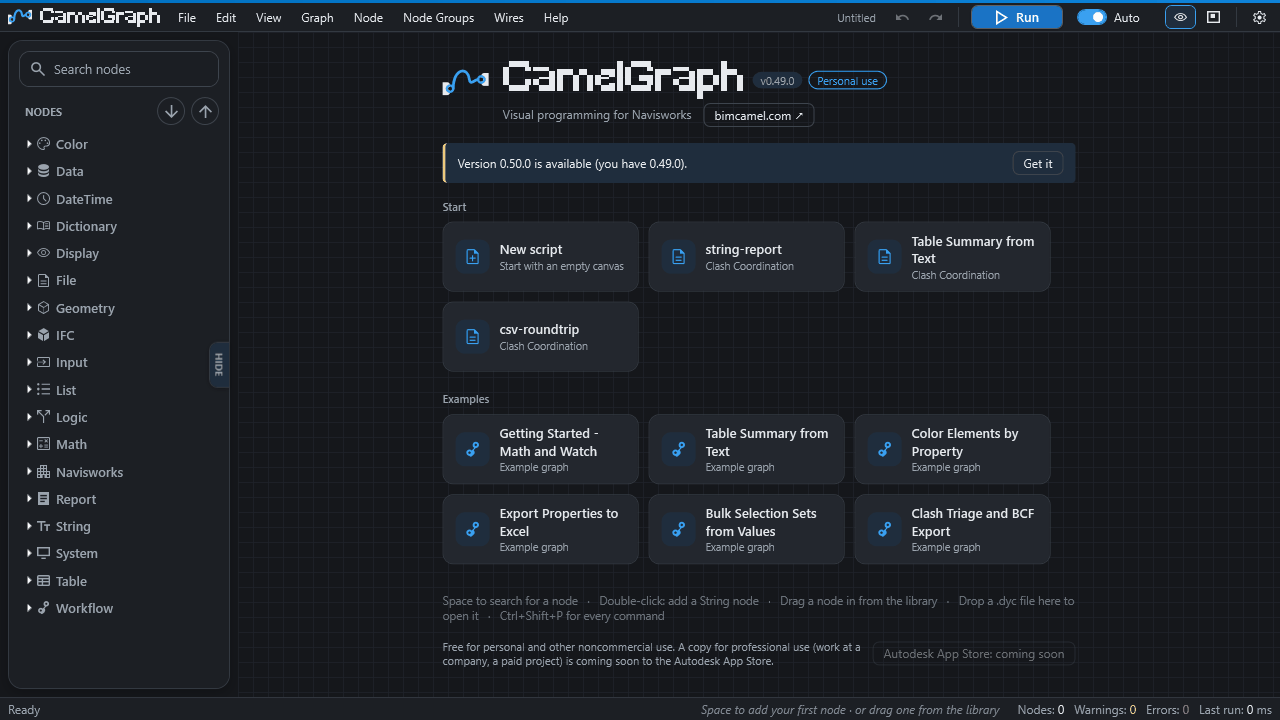
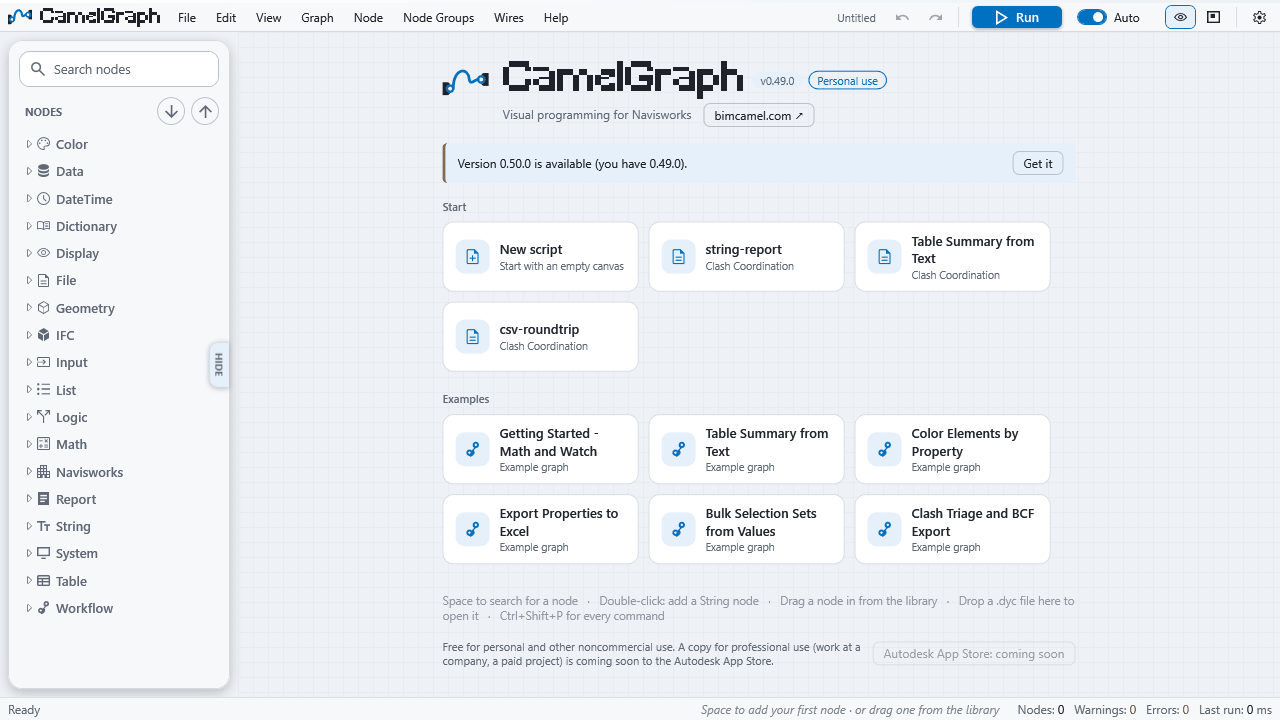
- Click CamelGraph. The editor opens on an empty canvas with a start screen: the version, cards for a new script, your recent scripts and the examples. Dock the pane, float it, or move it to a second monitor; Navisworks remembers where you put it.
- Open the Getting Started - Math and Watch example from the start screen. It needs no model. Press Run (F5): the Watch nodes show 32 and Area = 32.
- For a deeper check with your model open, choose Help ▸ Run Self-Test…. It runs a set of read-only Navisworks nodes and shows pass or fail for each.
No model at hand?
The Getting Started - Math and Watch example needs no model, so it is a quick way to see that the editor works.
Then continue with Your first script.
If something goes wrong
| Symptom | Where to look |
|---|---|
Navisworks shows PLUGIN_LOAD_02 or 0x80131515 when it starts |
The files are still marked as downloaded. Unblock them as in tab C of Choose how to install. See Troubleshooting. |
| No BIMCamel tab, or no CamelGraph button | Troubleshooting: wrong folder, a Navisworks that has not been restarted, a year that is not listed, blocked files. |
| The button says "The CamelGraph editor panel is not registered with Navisworks" | A DLL built for another Navisworks year. Reinstall with files that carry a build for your year. |
| SmartScreen warns about the installer | The installer is not code-signed. More info ▸ Run anyway, after checking the checksum. |