IFC, BCF, Excel and CSV
How data gets into and out of a CamelGraph graph. Every node named here is in the node library with its inputs and outputs.
| Format | Read | Write |
|---|---|---|
| IFC | Navisworks reads IFC itself; Document.AppendFiles adds files to the model. IFC identity (GlobalIds) is handled by ModelItem.IfcGuid, IFC.GuidDecode, IFC.GuidEncode, IFC.IsGlobalId, IFC.Normalize and Search.ByGuid. |
Export.ToIfc and its option nodes |
| BCF (issues) | BCF.ImportIssues (BCF 2.0 and 2.1) |
BCF.ExportIssues (BCF 2.1) |
Excel (.xlsx) |
Table.FromExcelFile, Excel.ReadFromFile |
Table.ToExcelFile, Excel.WriteToFile |
| CSV | Table.FromCsvFile, CSV.ReadFromFile |
Table.ToCsvFile, CSV.WriteToFile, CSV.AppendToFile, Export.ToCsv |
| Text and XML | Text.ReadFromFile, XML.ReadFromFile |
Text.WriteToFile, Text.AppendToFile, Log.Write |
| Files from the web, folders and zips | Web.Download, Directory.Find, Zip.List |
Directory.Copy, Directory.Move, Zip.Create, Zip.Extract |
| Reports | Report.Html, Report.Markdown, Table.ToText, Export.ClashReport |
|
| Navisworks files and pictures | Document.Open, Document.AppendFiles |
Document.Save, Export.ViewpointImage |
| JSON | JSON.ReadFromFile |
JSON.WriteToFile |
Where a file goes
A relative path such as report.xlsx means next to the graph: in the folder of the graph file you have open, or in Documents\CamelGraph for a graph you have not saved (the Script Player and the command-line runner use the folder of the script). Graph.Folder gives that folder as text, and Path.Join builds a path from any number of parts. A full path, for example C:\Users\you\Documents\report.xlsx, always works. Spaces and the quotes that Explorer's Copy as path adds around a pasted path are removed (Troubleshooting). Graphs that write files are marked, and the editor and the Script Player ask before they run one from a file.
IFC
Bringing IFC in
Navisworks opens and appends IFC files by itself. To add several files in a graph, use Directory.Find (a pattern such as *.ifc;*.nwc, sorted by date under Advanced) into Document.AppendFiles, then Document.Save (a .nwd path saves a published snapshot; the earlier Export.NWD is the same call and still works). Document.Open replaces the current contents of the document instead of appending.
IFC identity: GlobalIds
IFC elements are identified by a 22-character GlobalId (0$WU4A9R19$vKWO$AdOnKA) that other tools show as a standard GUID (3f81e10a-25b0-49ff-9520-63f2a763150a).
| Node | What it does |
|---|---|
ModelItem.IfcGuid |
The 22-character GlobalId of an item (from its GlobalId / IfcGUID / IFC GUID / Guid property, otherwise its InstanceGuid encoded the same way); null when it has neither. A list of items gives a list of ids. |
IFC.GuidDecode |
22-character GlobalId to a lower-case hyphenated GUID. |
IFC.GuidEncode |
Standard GUID to the 22-character GlobalId. |
IFC.IsGlobalId |
True for a 22-character GlobalId, false for a GUID, other text or an empty cell. Splits a column that mixes both forms. |
IFC.Normalize |
Either form to the form you choose (globalId or guid), so a mixed column becomes uniform. |
Search.ByGuid |
Finds the items for a list of GUIDs (text, 22-character GlobalIds or GUID values) in one pass over the model, and gives the ids it could not find on a second output, missing. It walks every item once, so give it the whole list at once, not one id at a time. |
Writing IFC: Export.ToIfc
Export.ToIfc writes model items to an IFC file with the BIMCamel IFC exporter engine, which ships inside CamelGraph (nothing else to install). It writes a spatial tree, geometry instancing, property sets, materials, base quantities and georeferencing.
The simplest graph:
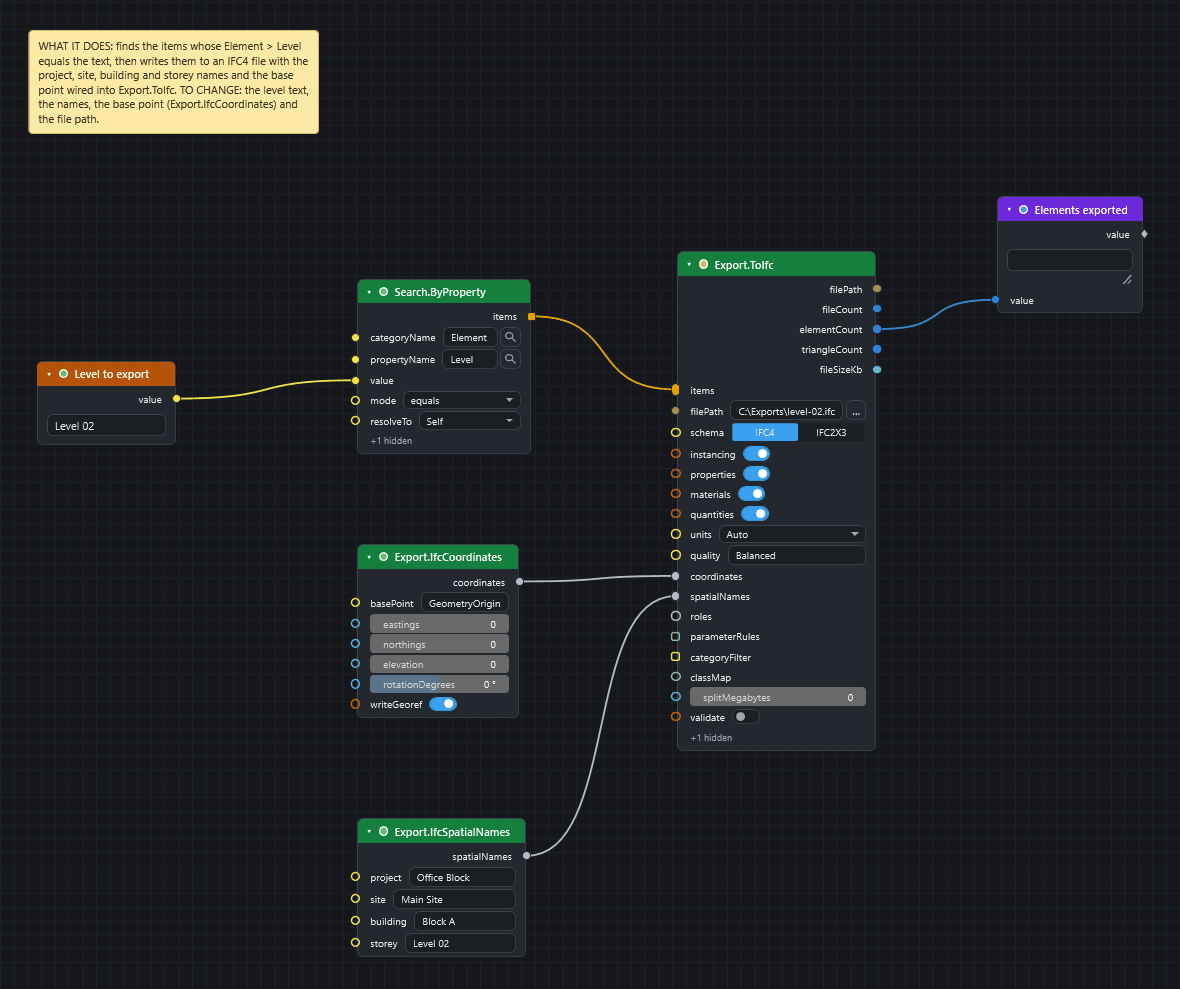
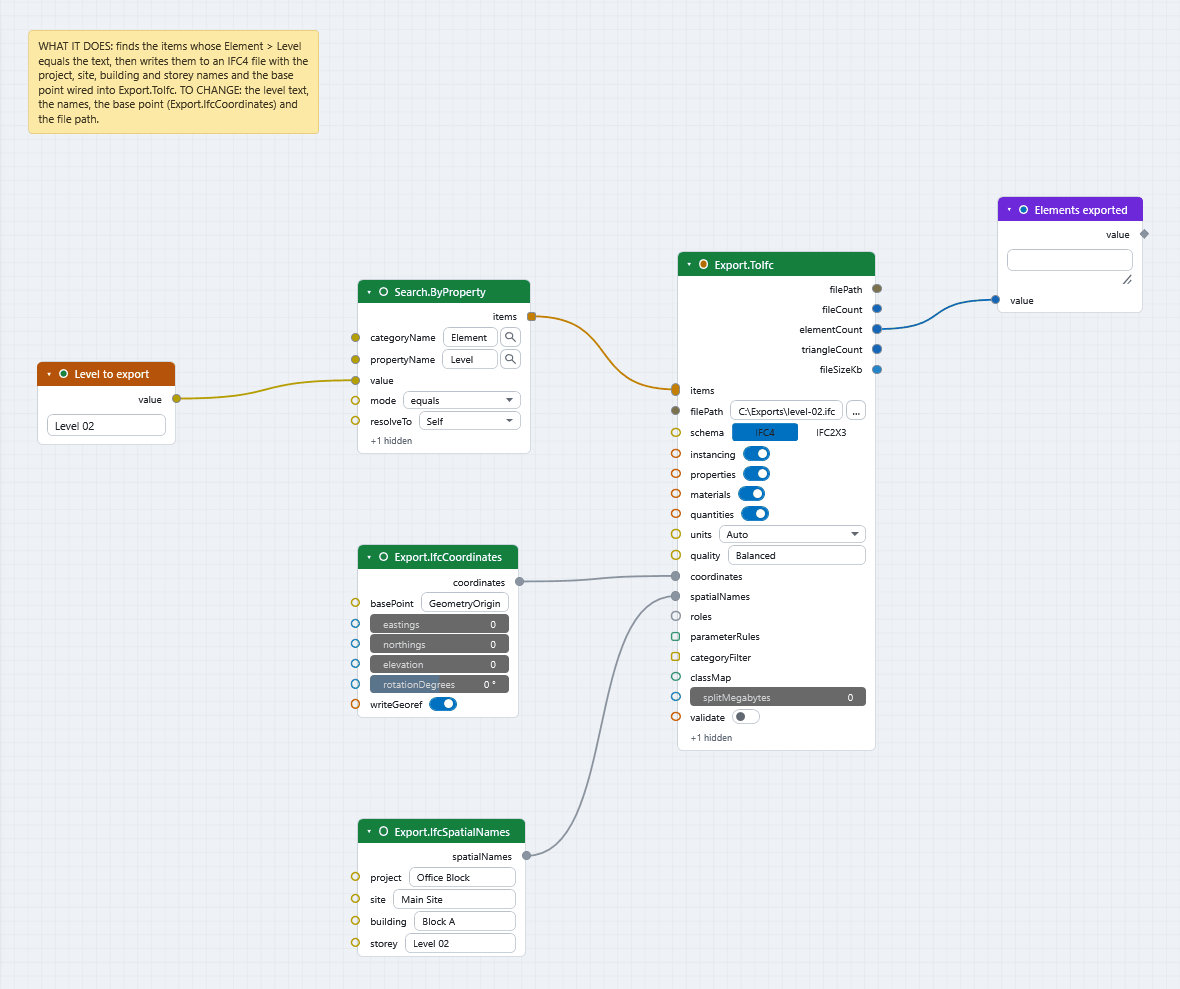
Step by step, with a graph to download: Export model items to IFC.
Only items and filePath are required. The other inputs are optional:
| Input | Default | Meaning |
|---|---|---|
items |
required | The model items to export (resolved to leaf geometry). |
filePath |
required | Destination .ifc path. The folder is created when missing. |
schema |
IFC4 |
IFC4 or IFC2x3. |
instancing |
on | Reuse repeated geometry as mapped items (smaller files). |
properties |
on | Write Navisworks properties as IFC property sets. |
materials |
on | Write element colours as surface styles and materials. |
quantities |
on | Compute base quantities (volume, area, length) from the mesh. |
units |
Auto |
Source units: Auto (from the model), or Millimeters, Centimeters, Meters, Feet, Inches. |
quality |
Balanced |
Balanced, Small file or High detail: sets the weld tolerance and coordinate precision. |
splitMegabytes |
0 | Split the output into parts near this size (0 is a single file). |
validate |
off | Run the built-in structural validator on each written file. |
categoryFilter |
all | Export only these property categories. |
document |
active | The document. |
Outputs: filePath (always one text: the first file written), fileCount, elementCount, triangleCount, fileSizeKb and files (the list of every file; it holds more than one only when splitMegabytes splits the export), so you can show or log what was written. Only items, filePath, schema and units are in the main list of the node; the other options sit in its Advanced panel.
Five small nodes build the optional option objects. Wire each into the matching input of Export.ToIfc:
| Option node | Wire into | What it sets |
|---|---|---|
Export.IfcSpatialNames |
spatialNames |
Names of the project, site, building and the default storey. |
Export.IfcCoordinates |
coordinates |
Base point (GeometryOrigin, ModelOrigin or Custom with eastings, northings and elevation in metres), rotation, and whether to write IFC4 georeferencing. |
Export.IfcRoles |
roles |
Which source properties become the IFC type, building storey, material and classification reference. |
Export.IfcSetClassMap |
classMap |
An IFC class for every item of named selection or search sets (set name to class, with an optional predefined type). Export.IfcClasses lists the class names it accepts ("Wall", "Beam", "Door"…). |
Export.IfcParameterRule |
parameterRules (collect several into a list) |
Rename or relocate a source property into a target property set and name. |
IFC export reads the geometry of every item and can take a while on a large model, so switch Auto off and run it with F5. To write several IFC files from one graph, use one Export.ToIfc per file, or put it inside a loop (Loop.Item to Loop.Collect).
BCF issues
BCF is the vendor-neutral format for issues: a .bcfzip of topics, each with a title, status, comments, a camera and the elements involved. It is the bridge to BIMcollab, Konekt, Revizto and Autodesk Construction Cloud.
Export: BCF.ExportIssues
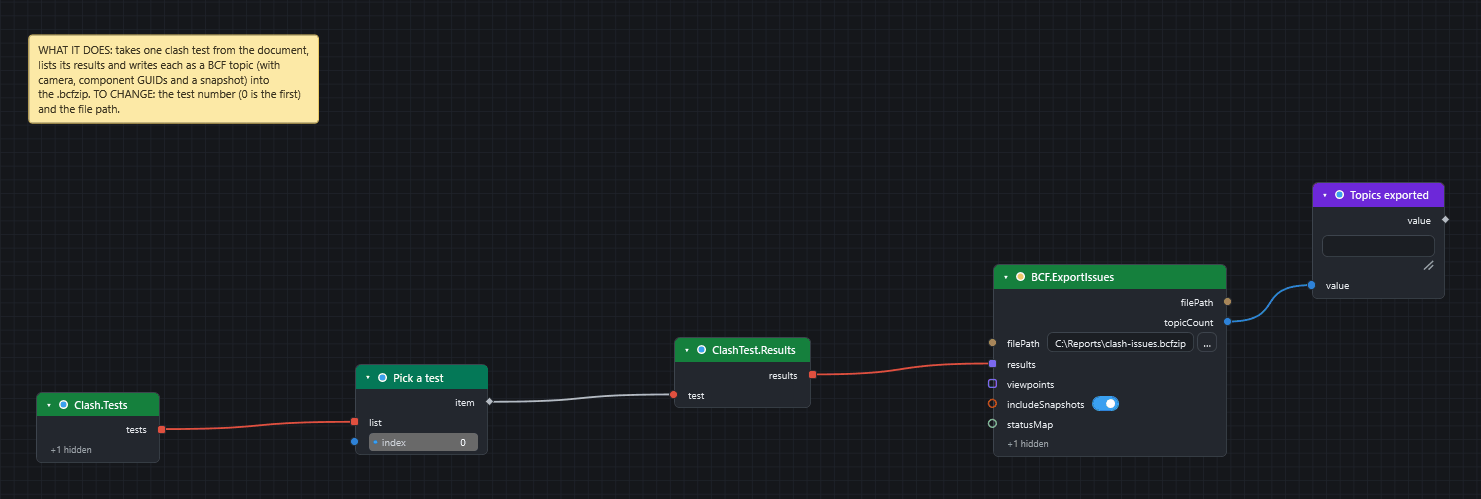
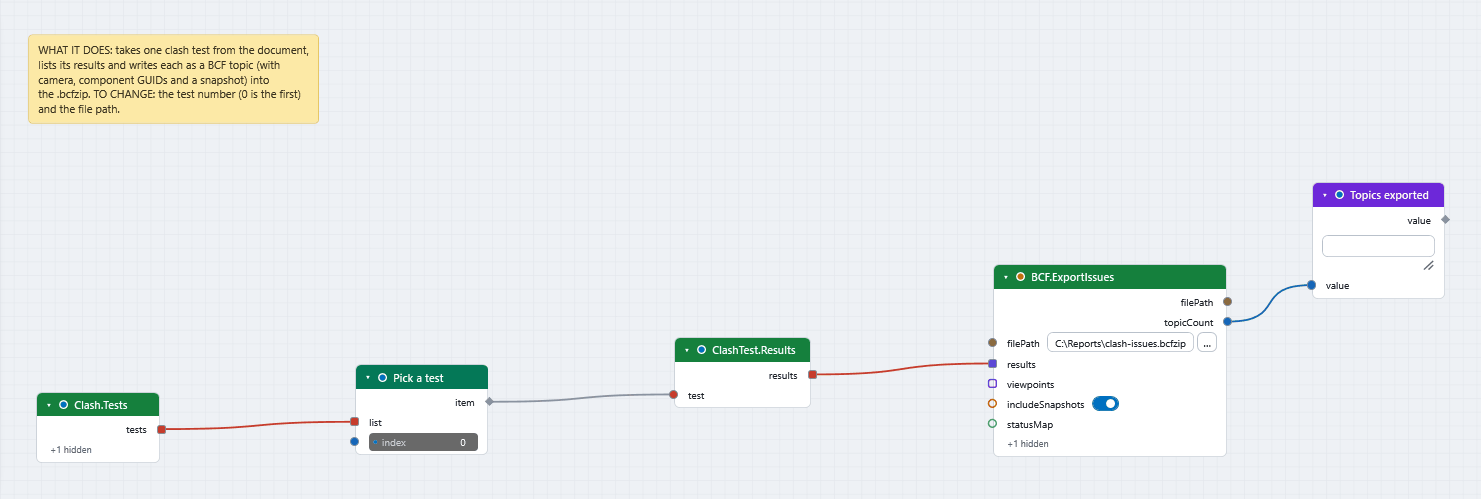
| Input | Meaning |
|---|---|
filePath (required) |
Destination .bcfzip (or .bcf). The folder is created when missing. |
results |
Clash results, or result groups, to export as topics (from ClashTest.Results). |
viewpoints |
Saved viewpoints to export as topics, instead of or besides results. |
includeSnapshots |
Render a snapshot.png per topic (on by default; slower on long result lists). |
statusMap |
A dictionary from Navisworks status to BCF status, for example {"New": "Open", "Approved": "Closed"}. Unmapped statuses use the default: New and Active become Open, Reviewed becomes In Progress, Approved and Resolved become Closed. |
Outputs: filePath and topicCount. Things to know:
- Each topic carries a markup, a camera viewpoint, the GUIDs of the elements, and the snapshot.
- Elements are identified by their IFC GlobalId when the item has one, and by its InstanceGuid otherwise. For models that did not come from IFC this is lossy: another tool may not find the same element. Add IFC GlobalIds to the source model when the receiver must match elements.
- Cameras are written in metres, as the BCF convention says, whatever units the model uses.
Import: BCF.ImportIssues
Reads a BCF 2.0 or 2.1 package. Outputs:
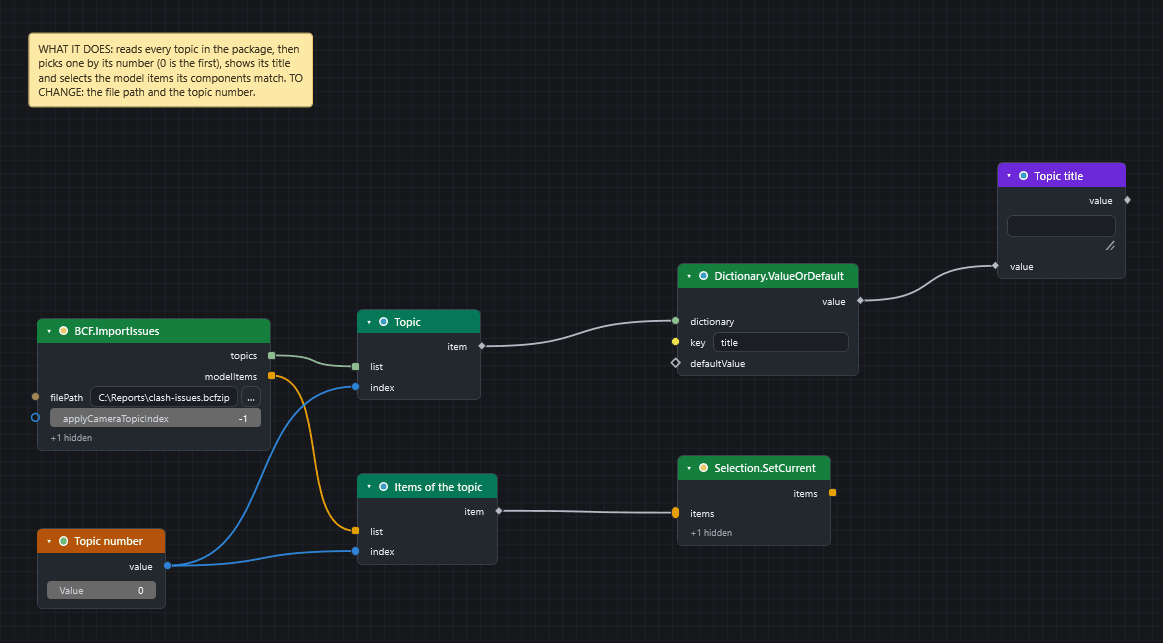
topics: a list of dictionaries, one per topic, withguid,title,status,type,description,creationAuthor,creationDate,comments,commentAuthors,commentDates,componentGuids,camera(withisPerspective,position,direction, Up,fieldOfView,viewToWorldScale) andhasSnapshot;modelItems: a list with one list of model items for each topic, in the same order astopics: the items the topic's components resolve to, matched by IFC GlobalId first, then InstanceGuid.
applyCameraTopicIndex applies one topic's camera to the current view (the default, -1, leaves the view alone). To jump to issue 3, set it to 2.
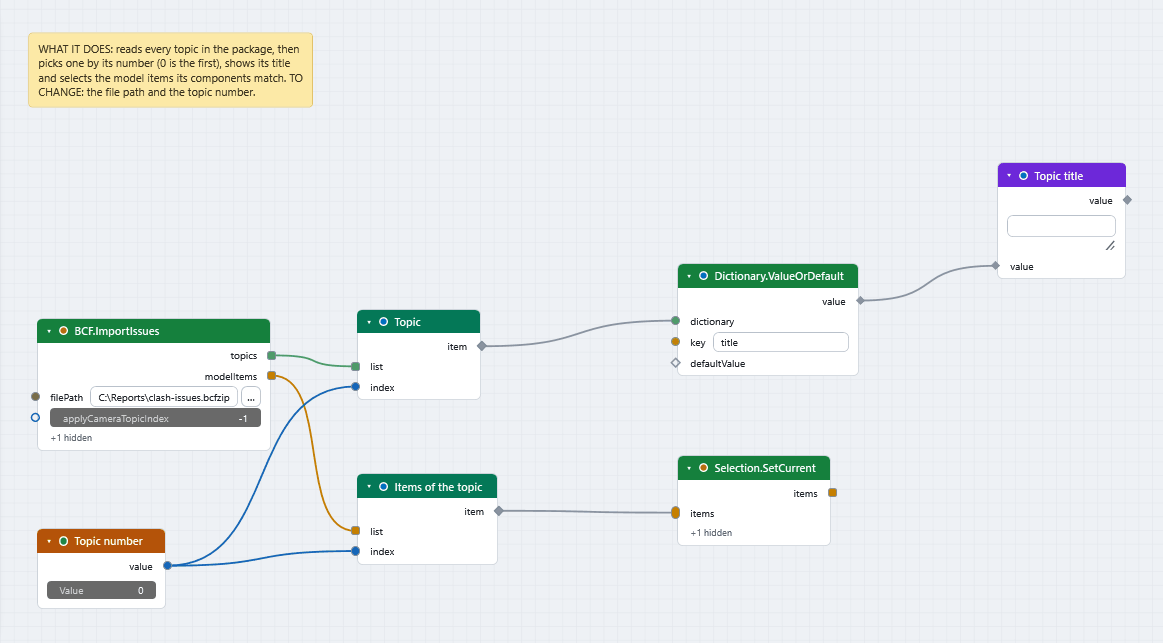
The return leg of an issue round trip is built from the outputs: pick one topic's list from modelItems with List.GetItemAtIndex and wire it into Selection.SetCurrent to select that topic's elements (a whole modelItems list would select topic after topic and leave only the last one selected), or use the topic statuses with ClashResult.SetStatus to update clash results; ClashResult.ByGuid turns the topic guid list back into the live results (or result groups) to wire into it.
BCF.ImportIssues ─ modelItems ─▶ List.GetItemAtIndex (topic number) ─▶ Selection.SetCurrent
                 └ topics ─────▶ List.GetItemAtIndex (topic number) ─▶ Dictionary.ValueOrDefault (title) ─▶ Watch
Step by step
Send clashes to BCF and read an issue list back builds both graphs.
Excel
CamelGraph reads and writes .xlsx files itself, so Excel does not have to be installed. .xls (the old format) is not supported.
| Node | Notes |
|---|---|
Table.ToExcelFile |
Writes one table with its column names. sheet names the worksheet; append adds a sheet to an existing workbook, and without it the whole file is replaced. A list of tables is an error (they would overwrite each other): stack them with Table.Concat, or use one node per table with its own sheet and append ticked. |
Table.FromExcelFile |
Reads a worksheet into a table. firstRowIsHeader controls the column names. Dates arrive as Excel serial numbers; DateTime.FromExcelSerial turns one into a date. |
Excel.WriteToFile |
Writes rows (and optional headers). Dates are written as real date cells, so Excel shows them as dates. Under Advanced, append adds a sheet to an existing workbook; styles, formulas, charts and pictures that were not written by CamelGraph are not preserved (the node warns). The workbook is built next to the file and then put in place, so a failure never leaves a broken workbook. |
Excel.ReadFromFile |
Gives rows, headers and sheetNames. Dates arrive as Excel serial numbers (convert them with DateTime.FromExcelSerial). Every row is padded to the widest row and the empty rows at the end of the sheet are dropped (Advanced > trimEmptyRows). |
Tables are the easiest way in: Properties.ToTable reads the named properties of items into a table (use Category.Property names such as Element.Category, or @Name, @Path, @Guid), and the Table.* nodes then filter, sort, group, join, pivot and format it before Table.ToExcelFile writes it.
A quantity take-off in five nodes:
Search.ByProperty ─▶ Properties.ToTable ─▶ Table.GroupBy ─▶ Table.Sort ─▶ Table.ToExcelFile
                     (@Name, Item.Category,   (by category;     (largest      (C:\...\qto.xlsx)
                      Length, Area)            count, sum)       first)
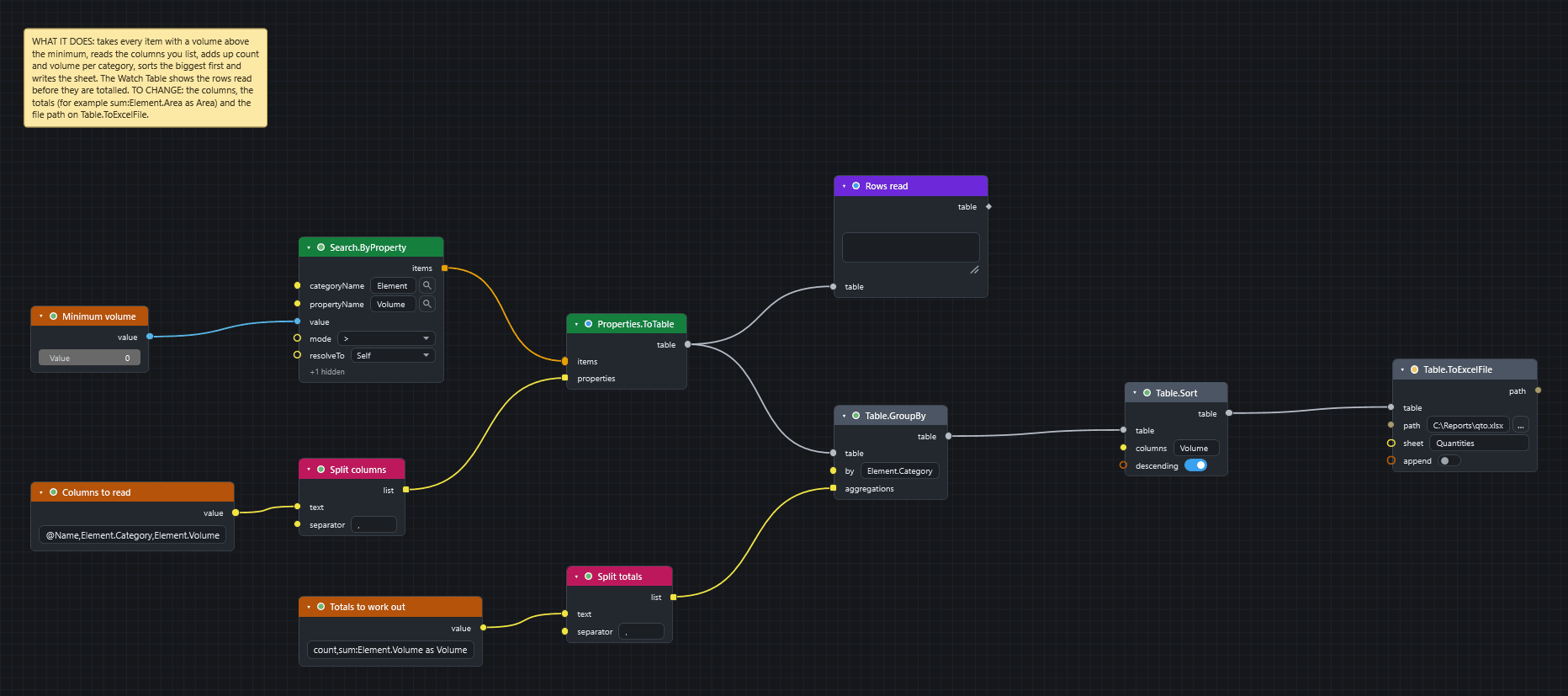
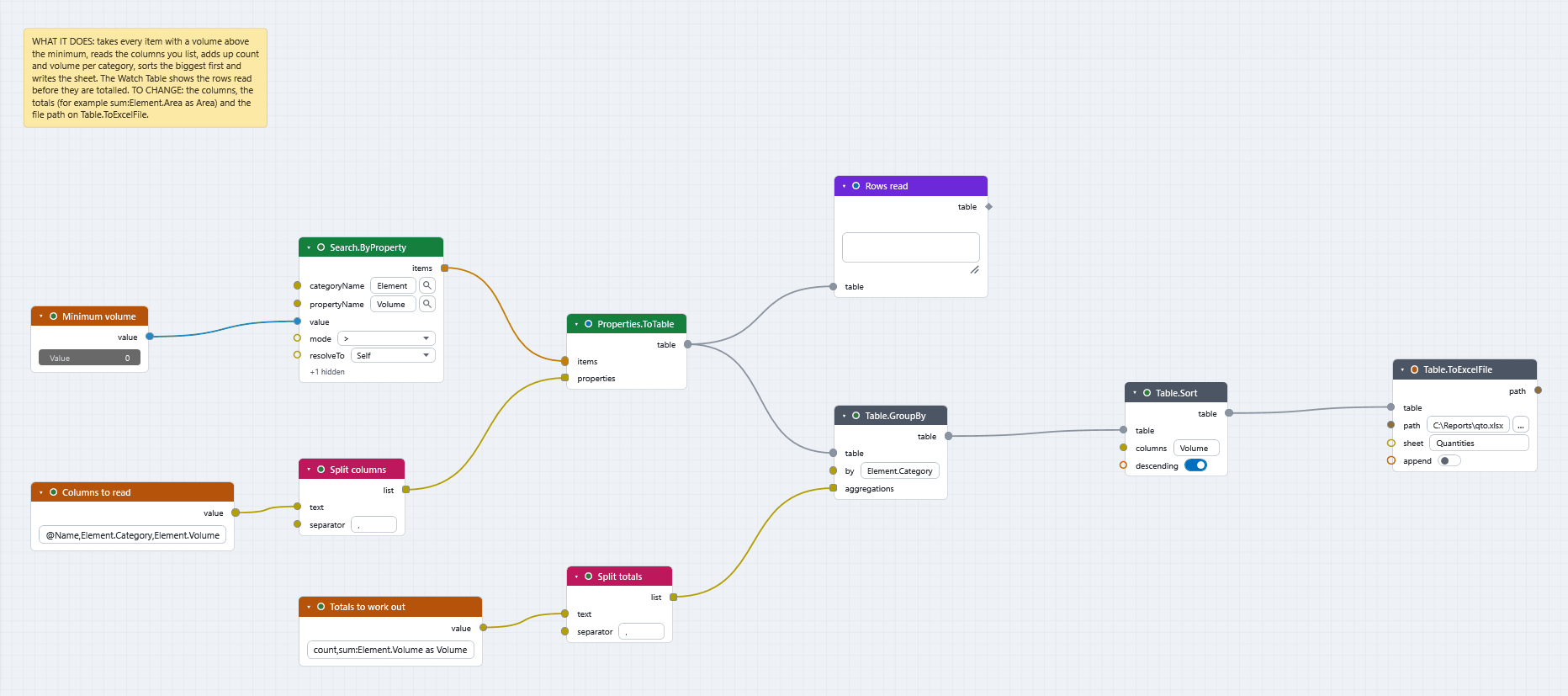
Take quantities out to Excel builds this graph step by step.
To bring a spreadsheet into the model, read it with Table.FromExcelFile, join it to Properties.ToTable on a GUID or mark column with Table.Join (a GUID matches whatever its capitals and small letters, and a blank key never matches), and write each row onto the items with Properties.SetCustomFromTable (a different row for every item, matched by position or by a GUID column; Properties.SetCustom stamps one set of values on all the items it is given). That writes a user-defined tab that is searchable and schedulable and travels with the NWF or NWD; the source files are never modified. Write spreadsheet data onto model items shows the wiring.
CSV
| Node | Notes |
|---|---|
Table.ToCsvFile, Table.FromCsvFile |
Tables in and out. Plain numbers become numbers; everything else stays text, including codes with a leading zero such as 007. delimiter is a dropdown: comma (the default), semicolon (European Excel), bar or tab. Table.ToCsvFile writes one table; a list of tables is an error. |
CSV.WriteToFile |
Writes a list of rows. Overwrites; creates missing folders. Dates are written as 2026-10-04 14:30:00, the same in every country. |
CSV.AppendToFile |
Adds rows to a file, writing the optional headers only when the file is new or empty: one row of totals per run. |
CSV.ReadFromFile |
Reads rows. Plain numbers become numbers; codes with a leading zero (007), whole numbers of more than 15 digits and the words NaN and Infinity stay text; Advanced > numbers = text keeps every cell as text. |
Export.ToCsv |
One row per model item: a name column plus the property columns you list. A quick quantity take-off file; to sort, filter, group or add columns first use Properties.ToTable and the Table nodes (Table.ToCsvFile, Table.ToExcelFile). |
Export.ClashReport |
One-node clash report with a .csv path: test, group, result, status, distance, assignee, both item paths and GUIDs, and the clash point. Excel-ready. |
Delimiter and encoding. delimiter is a drop-down: comma, semicolon, bar or tab. The nodes that read text (Text.ReadFromFile, CSV.ReadFromFile, JSON.ReadFromFile) detect the encoding: UTF-8 or UTF-16 as the file marks it, and a file that is not valid UTF-8 is read as Windows-1252, which is what a European Excel CSV (Comma delimited) export uses. The nodes that write text (Text.WriteToFile, Text.AppendToFile, CSV.WriteToFile, CSV.AppendToFile, JSON.WriteToFile, Log.Write) write UTF-8 without a byte-order mark; under Advanced > encoding choose UTF-8 with BOM so that Excel shows accents and symbols correctly, or Windows-1252 or UTF-16.
Writing text. Text.WriteToFile writes a list of texts one item per line. A list of paths writes every file with the same text; set the text input to @L1 to write one text per path. Nothing wired into text (or data) is an error that leaves the existing file alone: empty text "" empties a file on purpose.
Reports
Report.Htmlbuilds a self-contained, printable HTML report (light and dark) from tables and text; a line starting with#becomes a heading. A text line that is the path of an image file (.png,.jpg,.gif,.bmp,.webpor.svg, up to 10 MB) becomes the picture itself, embedded in the page, so a snapshot fromExport.ViewpointImagecan go straight into the report. A path that does not exist stays text and the node shows a warning. Write the page withText.WriteToFile, or paste it into an e-mail.Report.Markdowndoes the same in Markdown for Teams, trackers and wikis; an image path becomes an image link to the file (the picture is not copied into the text).Table.ToTextrenders a table as Markdown, CSV, tab-separated text or an HTML table.Export.ClashReportwith an.htmlpath is a single-file HTML clash report, one section per test and one row per result, optionally with embedded snapshots (Advanced:includeImages,imageWidth,imageHeight). The file type follows the extension:.csvwrites the table,.htmlthe page. Leavetestsunwired for every test in the document; an empty list reports no test. (Export.ClashReportCsvandExport.ClashReportHtmlare the earlier two nodes; they still work.)Export.ViewpointImagerenders a view to a.png,.jpgor.bmp: the current view, or each saved viewpoint wired into itsviewpointinput (put{name}in the file path for one file per viewpoint). Wire what sets the view intoafter.Document.Savewith a.nwdpath saves the document as a published.nwd.
Keeping a history
Two patterns that need no database:
- Clash deltas.
Clash.SnapshotToFilesaves a snapshot of all clash results as JSON each week;Clash.CompareSnapshotstakes two snapshot files and gives the clashes that are new, resolved and persisting. It works on files only, so it needs no open model. - Model changes.
Model.Snapshotcaptures chosen properties of items as a dictionary keyed by GUID; save it withJSON.WriteToFile, and diff it against a later one withSnapshot.Diff(added, removed and changed keys).
Next steps
- Make a clash report writes the summary of every clash test as HTML.
- Find elements from a list of GUIDs reads GUIDs from Excel.
- Privacy and safety: nodes that write files are marked, and the Script Player asks before running one.