Read errors and warnings
Goal: find out what went wrong in a run, which node caused it, and what to change.
Before you start
- Run the graph once with F5. States are set by a run.
- A failing node never stops the run or Navisworks. The rest of the graph carries on.
Steps
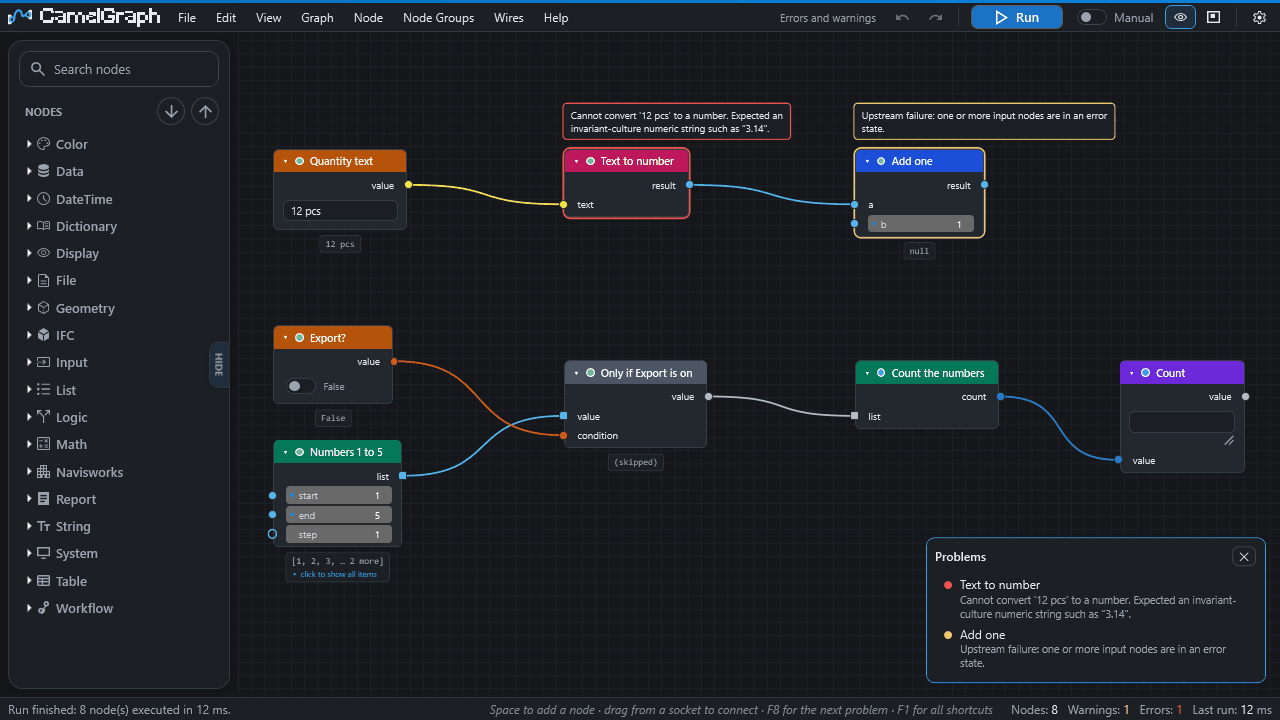
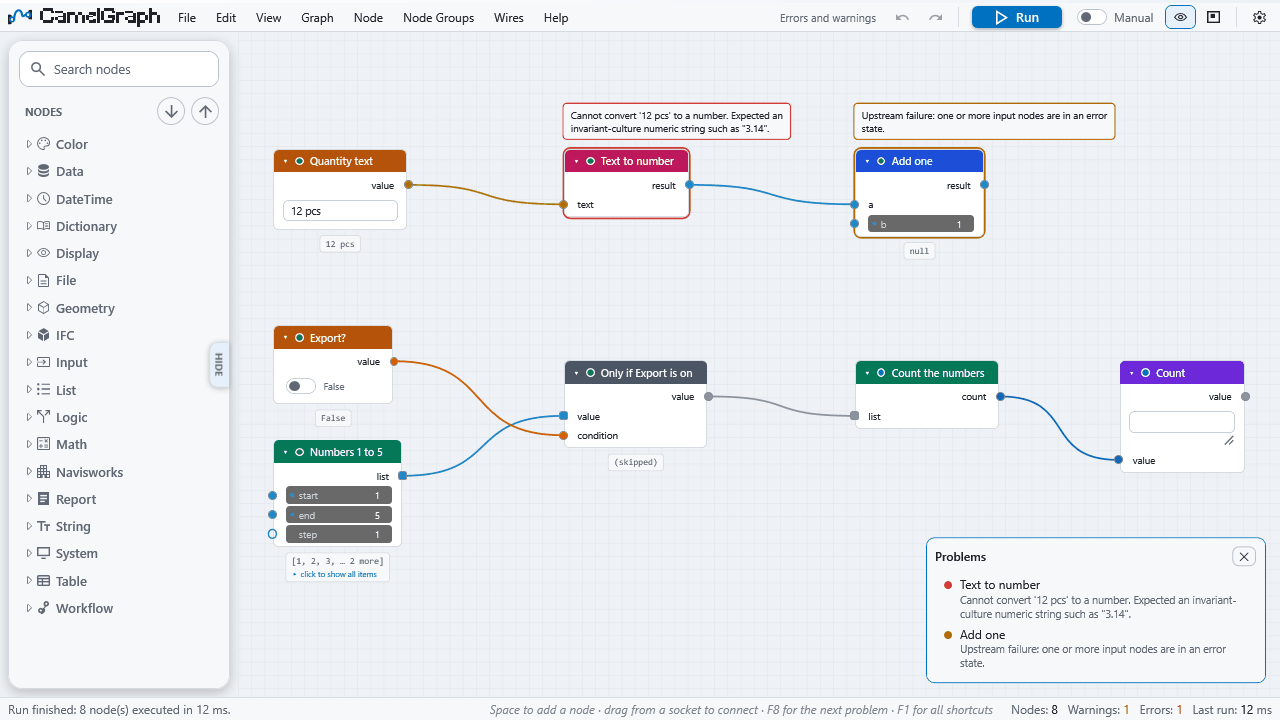
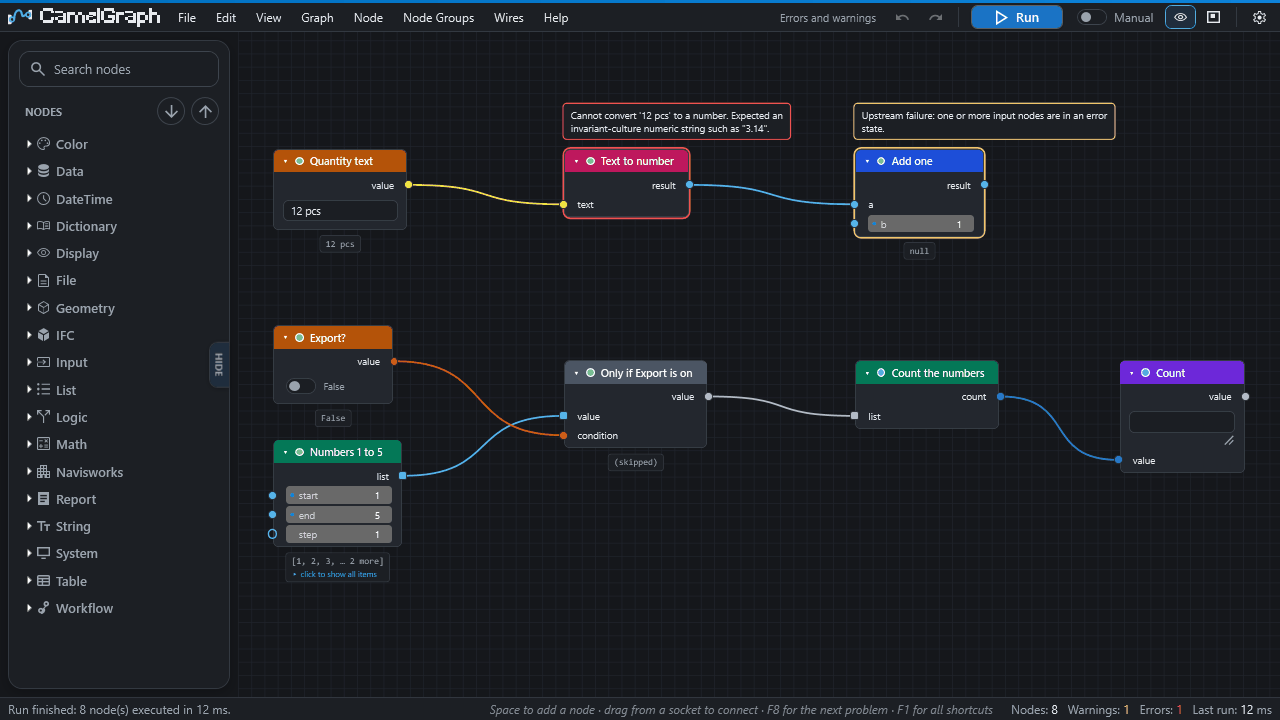
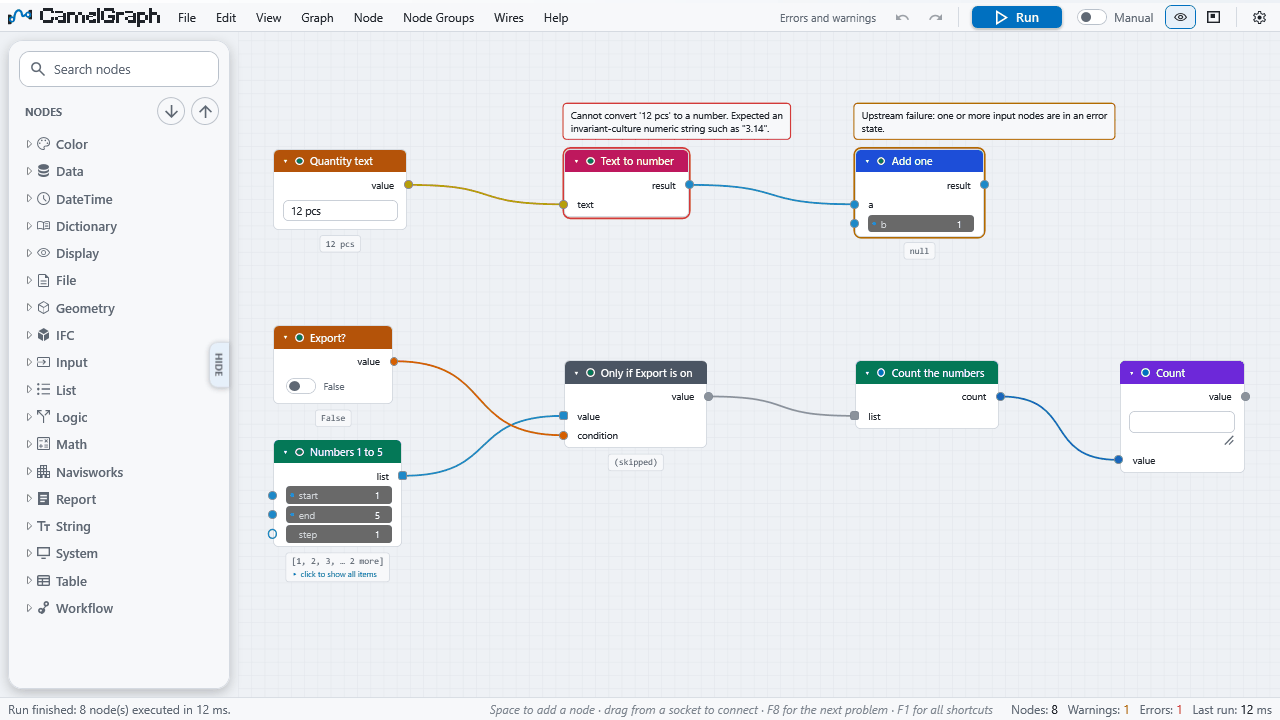
- Look at the borders. After a run, each node has a state: grey or no border is idle, green is executed, amber is a warning and red is an error. Hover a node, or read the balloon above it, for the message.
- Check the counts. The status bar shows the number of Nodes, Warnings and Errors, and the Last run time.
- Open the Problems list. Click Errors or Warnings in the status bar, or press Ctrl+Shift+E. Errors come first. Click a row to select the node and bring it into view.
- Step through the problems. Press F8 for the next problem and Shift+F8 for the previous one. The status bar says which one you are on.
- Ask the node. Select it and press I (Why Didn't This Run?). The status bar says in words whether the node is frozen, sits after a frozen node, is muted, failed (and with what), is waiting for an input, or is just waiting for the next Run. It names the node responsible when that is another one.
- Fix the first red node. Nodes after a failed node show amber "Upstream failure" or wait. Fix the first red node and run again.
The messages you will meet
| You see | It means | What to do |
|---|---|---|
| Red border, the node's own text | The node failed. Its outputs are empty. | Read the text. It names the input or file. |
| "Input 'x' is not connected." | A required input has no wire and no value. The node is idle. | Wire it or type a value. |
| "Skipped: an input comes from a branch that was switched off (Flow.When was false)." | A Flow.When before it was false. Not an error. |
Change the condition if the branch should run. |
| "Upstream failure: one or more input nodes are in an error state." | A node before this one failed. | Fix that node first. |
| "N of M laced calls received a null element and returned null." | A list had empty items, so the node gave empty results for them. | Put List.Clean before the node. |
| "Cannot convert value of type … to … for input 'x'." | The value on the wire is the wrong kind. | Compare the kinds at both ends of the wire. |
| "Unresolved zero-touch definition …" or "Unknown node type …" | The node is not installed. | Install the pack or update CamelGraph. |
A list wired into a one-value input runs the node once per item. If some items fail, those items give an empty result, the others still compute, and the node shows one amber warning that counts the failures.
What you get
A short path from "something is red" to the cause. You know which node to fix first, and you can tell a real error from a branch that was simply switched off.
If it does not work
- Nothing happens at all when you press Run: see Nothing happens when I press Run.
- The editor itself reports "Something went wrong": see The editor says "Something went wrong".
- For a bug report, collect diagnostics.
Next
- Keep a graph going when a node fails with
Flow.Try. - Running a graph describes every state.
- Speed up a slow graph.