Updating
How CamelGraph tells you about a new version
When the editor opens, at most once a day, CamelGraph asks GitHub for the number of the newest release. If it is newer than the one you have:
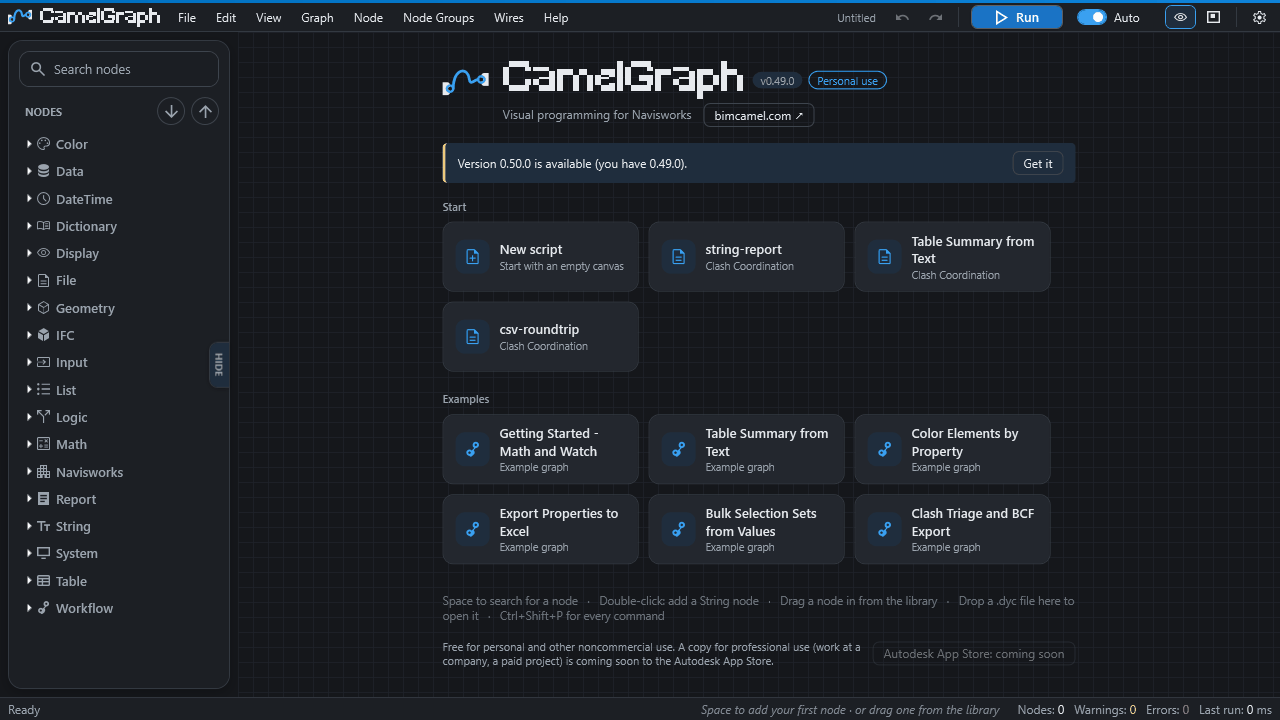
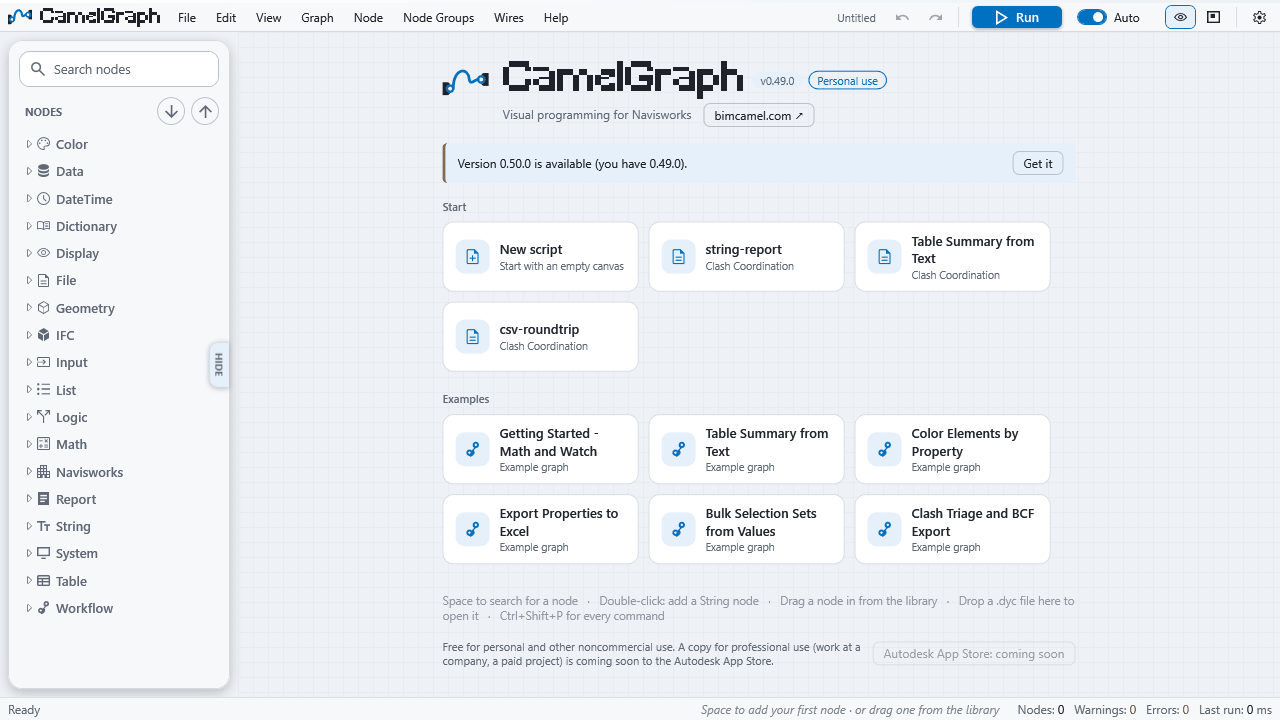
- the start screen (the screen on an empty canvas) shows a notice with the new version and a Get it button, which opens the GitHub page;
- once per version, CamelGraph also asks whether to open the download page.
Nothing is downloaded or installed by itself. You can look for an update at any time with Help ▸ Get the Newest Version…, which opens the releases page in your browser.
The request carries your IP address and the name CamelGraph-UpdateCheck, as any web request does, and nothing about you or your models. To switch it off, open Settings ▸ Privacy and turn off Check for a newer version once a day. With the check off, CamelGraph makes no network request of its own. A copy installed from the Autodesk App Store never makes this check, because the store delivers its updates. That professional copy is coming soon; the copies from GitHub and bimcamel.com are the personal-use ones (Licence).
Updating never happens by itself
Nothing is downloaded or installed unless you ask. The notice only tells you that a newer version exists.
Which version do I have?
- On the BIMCamel ribbon tab, click About: the version is at the bottom of the window.
- The start screen of an empty canvas shows it next to the name.
- Windows Settings ▸ Apps ▸ Installed apps ▸ CamelGraph for Navisworks shows it when you installed with the installer.
- It is the
Versionattribute in%APPDATA%\Autodesk\ApplicationPlugins\CamelGraph.bundle\PackageContents.xml(it reads like0.46.0.0).
How to update
- Close Navisworks. The files of the old version are in use while it runs.
- Install the new version the same way you installed the old one (Installation). It replaces the old files in place:
- with the installer, run the new
CamelGraphSetup.exe: it says "Update install (v… found)" when it finds a version already there; - with the batch file or a manual copy, run
install-camelgraph.batagain or copy the new bundle over the old folder; - if you build from source, pull the new source and build again.
- with the installer, run the new
- Start Navisworks and open CamelGraph. Check the version as above.
Your own work is not touched: your .dyc graphs, the scripts folder (Documents\CamelGraph\Scripts), your settings in %APPDATA%\CamelGraph and your node packs in %APPDATA%\CamelGraph\Packages all stay. (A pack you put in the Packages folder inside the CamelGraph bundle is deleted by an update, because the installer replaces the whole bundle; move it to %APPDATA%\CamelGraph\Packages.)
Updating from Dyncamelo (version 0.48 or earlier)
CamelGraph is the new name of Dyncamelo, and the files carry the new name, so the new version is a new bundle rather than the old files overwritten. The installers take care of that:
CamelGraphSetup.exeremoves the oldDyncamelo.bundlefolder and its Dyncamelo for Navisworks entry in Windows Settings ▸ Apps before it installs the new version. Its button says "Install (replaces Dyncamelo v…)" when it finds one.install-camelgraph.batdoes the same.- If you copy the bundle by hand, delete
%APPDATA%\Autodesk\ApplicationPlugins\Dyncamelo.bundlefirst. With both there you would get two plug-ins and two buttons. - Your settings, recent files, favourite nodes and autosaved copies move from
%APPDATA%\Dyncameloto%APPDATA%\CamelGraphthe first time the new version starts. - Scripts in
Documents\Dyncamelo\Scriptsstay where they are. The Script Player adds that folder to its list once; take it off the list in the Player, or move the files toDocuments\CamelGraph\Scripts. - Your graphs open as before: the nodes they use are found under their old names.
- A node pack you built against
Dyncamelo.Core.dllhas to be built again againstCamelGraph.Core.dll(Extending).
What changes between versions
Every release is described on What's new. Two things are worth knowing:
- Old graphs keep working. When a node is renamed or merged into another, the old name keeps loading in old graphs. If a node really has lost an input, the editor tells you which wire or value it dropped when you open the file (Troubleshooting).
- New graphs may not open in old versions. A file made with a newer version can use nodes or a file format that an older CamelGraph does not have. It then says "The file requires .dyc reader version N but this application supports version M", or shows the missing nodes as placeholders. Update, and the file opens.
Going back
Install the older version over the new one in the same way. Graphs that use something only the newer version has will show placeholders until you update again.
Next steps
- Installation lists the ways to install.
- Settings switches the update check off.
- Troubleshooting if an old graph opens with a warning.