Find the name of a tab or property
Goal: get the exact tab (category) and property names for a search, without guessing.
Before you start
- Open a model in Navisworks and the CamelGraph editor.
- Names must be the ones Navisworks displays, in the language it displays them in. Internal names do not match.
Steps
With the magnifier
- Click one element in Navisworks that has the data you want.
- In CamelGraph, add
Search.ByProperty(Navisworks ▸ Search). - Press the small magnifier next to
categoryName. CamelGraph lists the tabs of the elements selected in Navisworks right now. Type a few letters to narrow the list, then click a tab. The box fills in. - Press the magnifier next to
propertyName. It lists the properties of the tab you chose. Click one. - Wire a
String(orNumber) node holding the value you want intovalue. That input accepts any kind of value, so it has no box of its own.
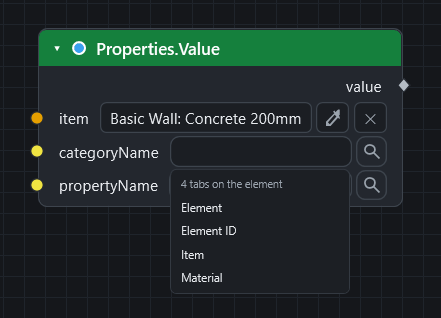
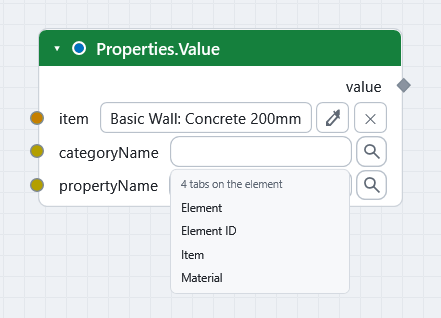
Some nodes read one element, such as Properties.Value (Navisworks ▸ Properties). Their magnifier lists the names of the element on that node's own item input. Press the element picker on the node to take the current selection, or wire an element in and press Run first.
What the magnifier reads
Nothing is read until you press it. It reads only the element in question, at most the first 100 if the input carries a longer list. The model is never searched to fill the list. Typing a name by hand always works.
With Properties.Discover
To see everything a group of items carries:
- Select a few items in Navisworks.
- Add
Selection.Current(Navisworks ▸ Selection),Properties.Discover(Navisworks ▸ Properties) and aWatch Table(Display). - Wire
itemsfromSelection.Currentintoitems, andtableinto the Watch Table. - Press F5.
You get one row for each category and property, with the columns Category, Property, Items (how many items carry it), Distinct (how many different values) and Samples (the first few values). maxSamples sets how many samples to show; the default is 3.
Give it a small selection
Properties.Discover reads every property of every item once. The cost grows with items times properties. Use a selection, not the whole model.
What you get
The exact categoryName and propertyName text for any search node, and a table of what a model actually holds.
If it does not work
The magnifier explains itself when it has nothing to show, for example "Nothing is selected in Navisworks. Select an element, then search." Each message and its fix is in A search returns nothing, or the magnifier shows no names.
Next
- Colour elements by a property.
- Inputs, outputs and kinds explains the magnifier in full.
- Take quantities out to Excel.