Find elements from a list of GUIDs
Goal: take a column of element GUIDs from an Excel sheet, select those elements in Navisworks, and see which GUIDs were not found.
Before you start
- Open a model in Navisworks and the CamelGraph editor.
- Have an
.xlsxfile with the GUIDs in one column, with a header in the first row, for exampleGUID. Write the cells as text.Search.ByGuidaccepts a GUID such as3f81e10a-25b0-49ff-9520-63f2a763150aor a 22-character IFC GlobalId. - This graph replaces the current Navisworks selection.
Steps
- Add
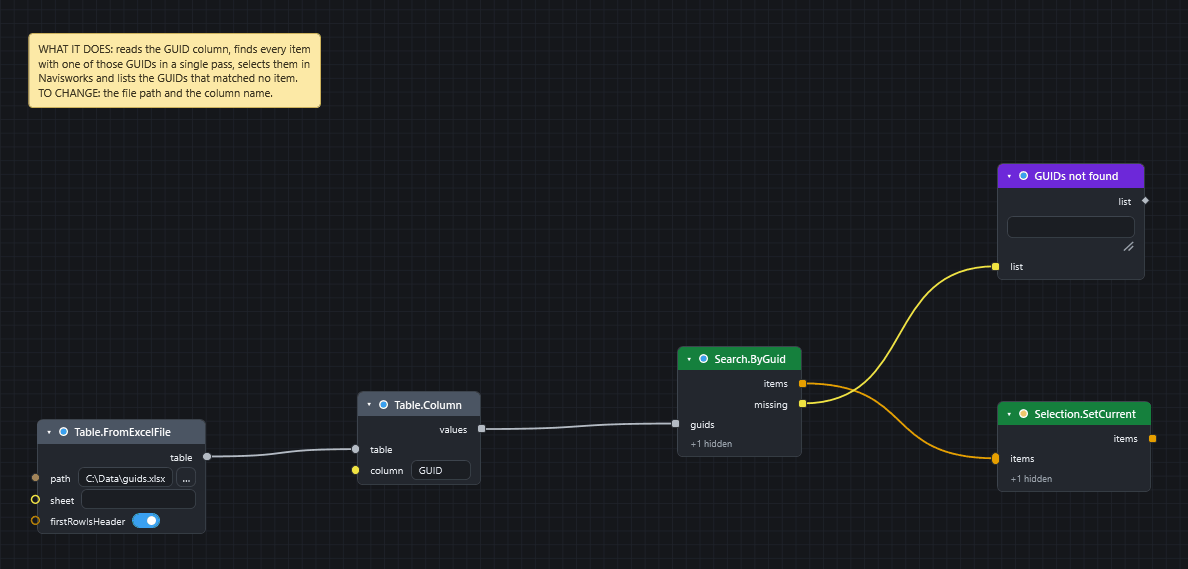
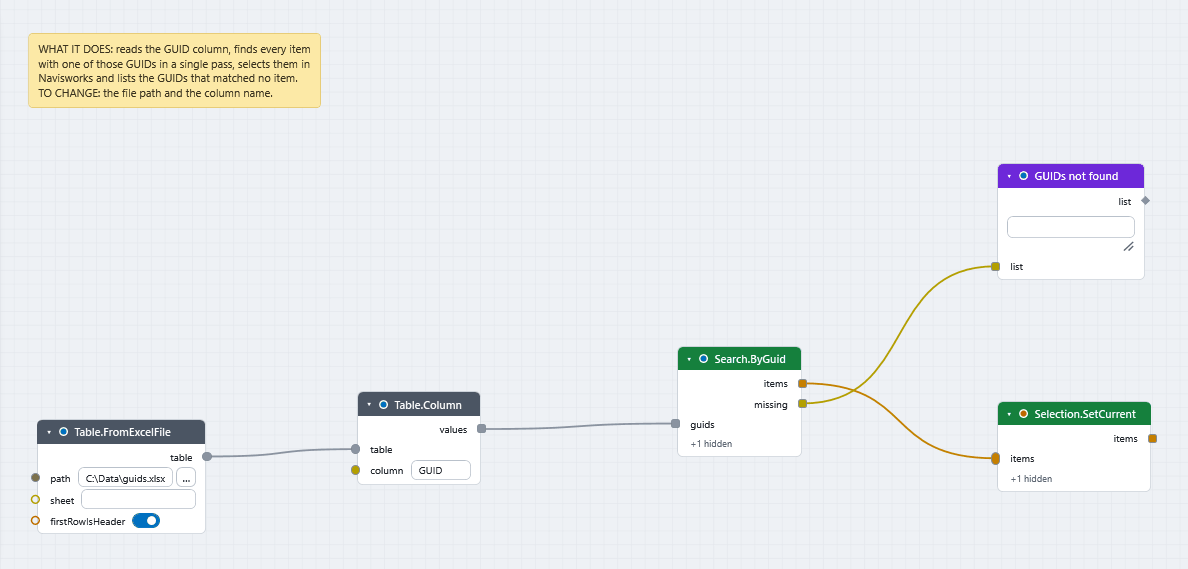
Table.FromExcelFile(Table). Type the full path of your workbook intopath, for exampleC:\Data\guids.xlsx. Leavesheetempty to read the first sheet and leavefirstRowIsHeaderticked. - Add
Table.Column(Table). Wire thetablein and type the header of your GUID column, such asGUID, intocolumn. It gives the cells top to bottom. - Add
Search.ByGuid(Navisworks ▸ Search). Wirevaluesinto itsguids. - Add
Selection.SetCurrent(Navisworks ▸ Selection). Wire theitemsoutput ofSearch.ByGuidinto itsitems. - Add a
Watch List(Display) and wire themissingoutput ofSearch.ByGuidinto it. Double-click its title to rename itGUIDs not found. - Press F5.
What you get
- The items whose GUID is in the sheet are selected in Navisworks. The order of
itemsfollows the order of the GUIDs. - The Watch List holds every GUID that matched no item. An empty list means all were found.
Search.ByGuid makes one pass over the whole model for the whole list, so give it all the GUIDs at once. Do not run it once per GUID.
Which GUID does it match?
The node matches an item's instance GUID. If your sheet holds IFC GlobalIds from an IFC export, the 22-character form is accepted. To convert by hand, use IFC.GuidDecode and IFC.GuidEncode (or IFC.Normalize for a column that mixes both forms, and IFC.IsGlobalId to tell them apart), and ModelItem.IfcGuid to read the GlobalId of an item (IFC, BCF, Excel and CSV).
If it does not work
- Every GUID is in
missing: the sheet and the model use different kinds of identity, or the cells are not plain text. Compare one GUID in the sheet with theguidoutput ofModelItem.Infoand withModelItem.IfcGuidof an item you picked in Navisworks. Table.Columnis red: the column name does not match a header in the sheet. Check the spelling with aWatch Tableon the table.- The run is slow: the node walks every item once. See Speed up a slow graph.
Next
- Write spreadsheet data onto model items.
- Colour elements by a property to paint what you found, or save them as a set.
- Search nodes.