The Script Player
The Script Player runs a saved script from a simple form, without opening the node editor: pick a script, fill in the values it asks for, press Run, and read the results.
It is made for the people who should use a tested script but should not have to edit one: a coordinator running a weekly check, or a colleague you have handed an audit script. The Player is a pane of its own, it does not load the editor, so it opens quickly and stays small.
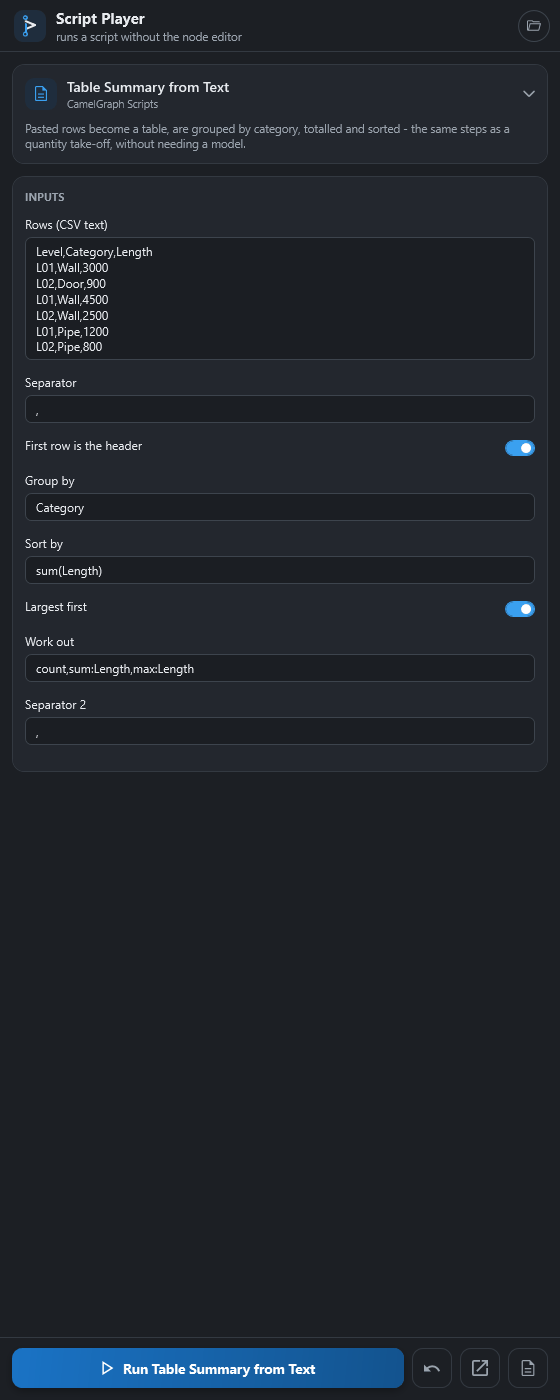
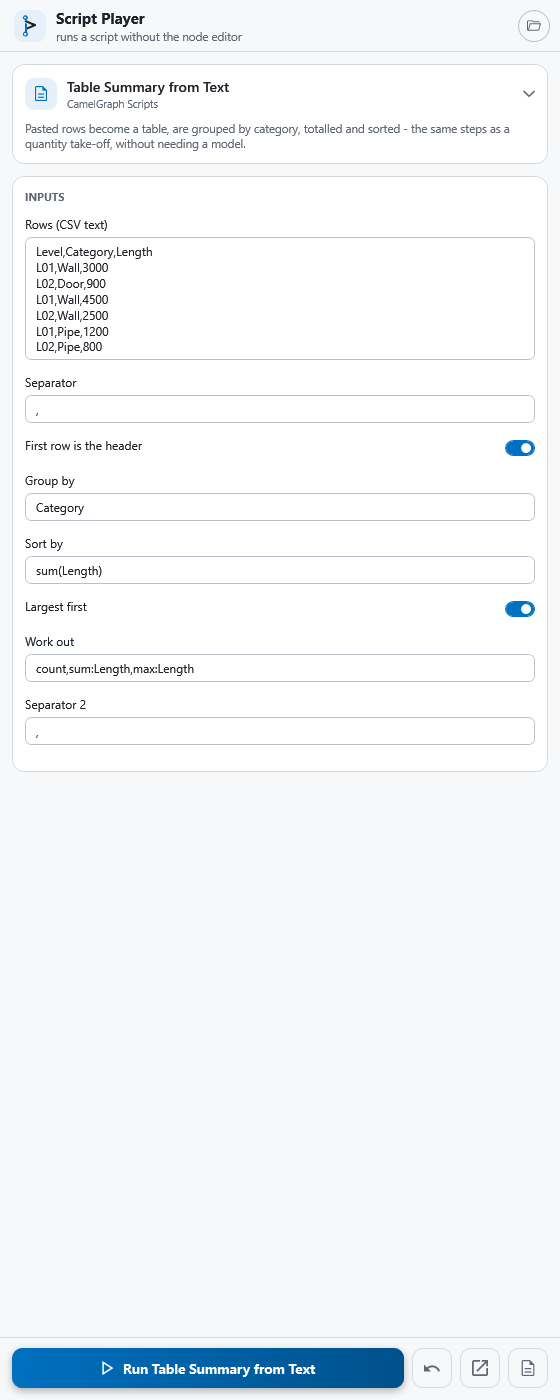
Build a form step by step
Give colleagues a form with the Script Player makes a small graph and runs it from the Player.
Opening the Player
- Click the Player button on the BIMCamel ribbon tab (in the Visual Programming panel, beside the CamelGraph and About buttons). The pane itself is titled Script Player.
- From the editor, use View ▸ Open Script Player, or find it in the command palette (Ctrl+Shift+P).
Open a model first. Scripts that read or change the model work on whichever Navisworks document is open.
Choosing a script
Under the header, the pane shows a script card with the name of the open script, the folder it is in and the script's description.
- Click the card (or its chevron) to unfold the list of scripts. Until you have chosen one, the list stays unfolded.
- Click a script. It is chosen and the list folds away.
In the list you can type to filter by part of a script's name or its folder. Press Down to move from the search box into the list, Enter to choose the highlighted script, and Esc to fold the list. Choosing with Enter puts the focus on Run, so pressing Enter again runs the script. The ↻ button looks for scripts again after you add or change files.
Typing in the search box never closes the script you are working in and never loses the values you have filled in.
Where scripts live
The Player lists every .dyc file under Documents\CamelGraph\Scripts, including sub-folders (up to four levels deep). The list is grouped by folder, such as "Scripts ▸ Clash". To use scripts from somewhere else, such as a shared network folder, click the folder button at the right of the header to show the Script folders card and choose Add a folder…. Each folder has an Open button to show it in Explorer, and a ✕ that takes it off the list without touching the files. The built-in folder cannot be removed.
The list stops at 2000 scripts, and files or folders whose names start with ~ or . are ignored. If there are no scripts yet, the pane says to save a graph from the editor into the Scripts folder. See Saving and opening scripts.
The form
The Player builds the form from the script itself. It shows:
- every input node:
Number,Integer,Number Slider,Integer Slider,Boolean,String,Date,Choice,File Path,Directory PathandColor Picker; - any unwired input of another node that the script's author chose to offer (see below).
Fields appear top to bottom in the order their nodes sit on the canvas, each labelled with the node's name. The fields are the same editors as on the canvas, only roomier: scrub a number, pick a colour, browse for a file. A text field wraps and grows with its text, so a long or multi-line value is never cut off. In a String input, Enter starts a new line. A small dot beside a label marks a field you have changed from the value saved in the script, and ↺ puts that field back. If a script asks for nothing, the form says "This script asks for nothing — it just runs."
If the script has a description, it is shown on the script card, above the form.
The buttons at the bottom
The footer stays in view however long the form is. A short note appears above the buttons when there is something to say, such as the progress of a run. Run is the wide button; the other three are square buttons beside it (point at one to see its name).
| Button | What it does |
|---|---|
| Run | Runs the script with the values in the form. |
| Reset | Puts every field back to the value saved in the script. |
| Edit | Opens the script in the node editor (it shows the editor pane and opens the file; if the editor has unsaved work, it asks first). |
| File | Shows the script file in Windows Explorer. |
Running and stopping
A Player run runs every node of the script afresh, because a script talks to a live model that may have changed since it last ran. The pane shows progress, such as "Running 12 / 40 — " followed by the name of the node at work. Press Esc to stop: the run halts before the next node, and anything the finished nodes already changed in Navisworks is kept. The result line says so ("Stopped after … of … nodes").
Results
After a run the Player shows a Results card:
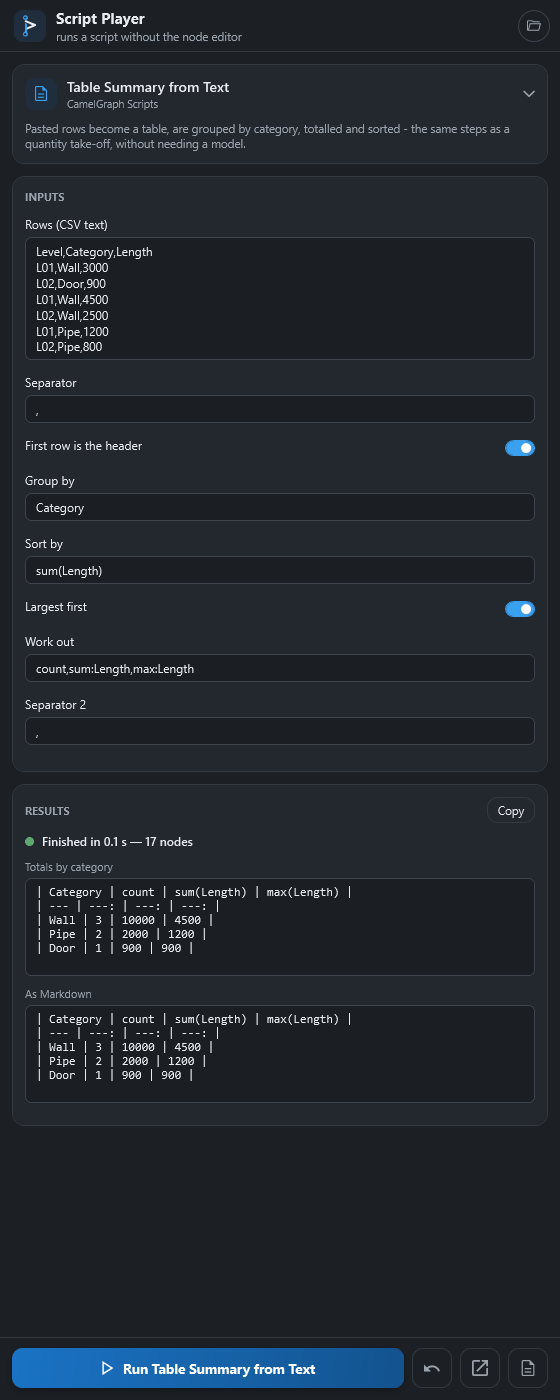
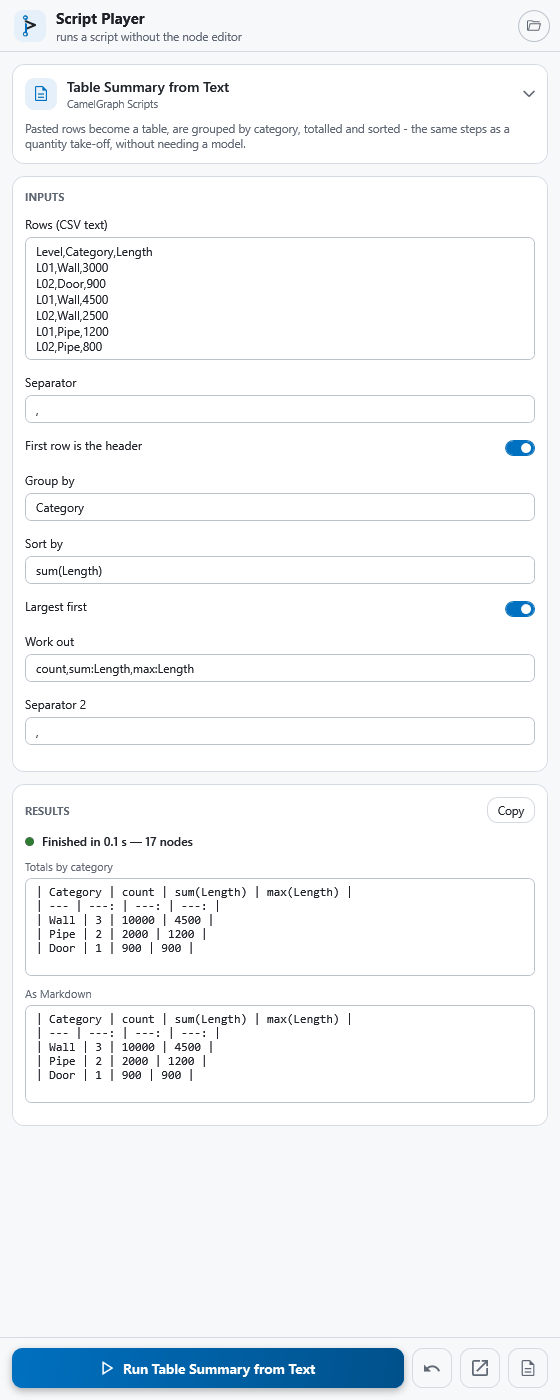
- a summary line with a green or red dot, such as "Finished in 1.2 s — 14 nodes", "Finished with errors in …" or "Stopped after …";
- the value of every Watch node (
Watch,Watch List,Watch Image,Watch Table) and of any other node the author marked to show, each in a scrolling box titled with the node's name. A list is shown as a count and one item per line; very long results are cut after 300 lines with a note saying how many more there are. A node that did not run in this run (its input failed, was switched off or is not connected) shows "(no value: …)" with the reason, in red, instead of an old value; - below them, every node that failed or warned, with the reason, errors in red and warnings in amber;
- a Copy button that puts the whole report (script name, summary, results and problems) on the clipboard as text, ready to paste into an email.
Safety: scripts that change things
A script can change your model, write files, run programs or use the network. The Player tells you before it does:
- A script that does any of this shows a note above the form that says what it does and which nodes are responsible, for example "Changes the model: Isolate Walls; writes files: Log.Write". The kinds are runs programs, uses the network, deletes, moves or overwrites files, writes files and changes the model.
- The first time you run such a script in the Player, and again whenever the script file changes, a dialog lists what the nodes do and asks "Run it?". If you agree, the answer is remembered for that file exactly as it is now. Edit the script and the question comes back.
- Scripts that only read are never asked about.
- A script that uses nodes which are not installed shows a warning ("1 node is not installed, so this script cannot run") and will not run.
Say no if you are not sure
If the question lists nodes you do not understand, answer No and open the script in the editor with Edit to look at it first.
The Settings option Ask before running graphs from files belongs to the editor. See Privacy and safety for what scripts can do and how to treat scripts you did not write.
Remembered values
When you press Run, the Player remembers the values in the form for that script, and puts them back the next time you choose it. Reset a single field with ↺, or all of them with Reset, to return to the values saved in the script. Values are kept in your CamelGraph settings on your computer, not in the script file.
Preparing a script for the Player (for script authors)
All of these choices are made in the editor and saved in the .dyc file.
- Name your input nodes clearly. Double-click a node's title to rename it; the name becomes the label of the field.
- Show or hide nodes with Ctrl+Alt+P (Node ▸ Show / Hide in Player) on the selected nodes. Input nodes and Watch nodes are shown unless you hide them. Any other node is hidden unless you show it, and its result is then listed.
- Offer an input that is not an input node: select the node and use Node ▸ Show / Hide Unwired Inputs in Player, or right-click one socket and choose Show in Player. Only inputs with no wire and with an editor can be offered; lists and objects cannot be typed in.
- A small ▶ badge on a node's title bar marks a node, or a node with inputs, that the Player uses.
- Describe the script with Graph ▸ Script Description…; the text appears above the form in the Player.
- Put the input at the top level of the script. Inputs inside a node group are not offered in the form, and a Watch inside a group is not listed as a result either. Show in Player does nothing useful while a group is open, so the commands are switched off there. Keep the nodes the Player should use at the top level and wire them into and out of the group.
Running a script from other tools
Developers and automation can run a script by path through the add-in plug-in CamelGraph.Run.DYNC, for example from another Navisworks add-in, from the Navisworks Automation API (ExecuteAddInPlugin) or from the Batch Utility: Execute("C:\\Scripts\\audit.dyc"). It returns 0 when no node failed and 1 otherwise (also when the file does not exist), and it asks the same confirmation as the Player.
Colours
The Player uses the colour palette you chose in the editor's Settings (see Settings).
Next steps
- Give colleagues a form with the Script Player.
- Saving and opening scripts, Running scripts and The editor: canvas and nodes.
- Privacy and safety for scripts that other people made.